1Hello: What is Bliks, its function, and what it never does?
Bliks Trade Manager is a Windows program that sits beside MetaTrader 5 and makes placing, protecting and reviewing trades faster and safer.
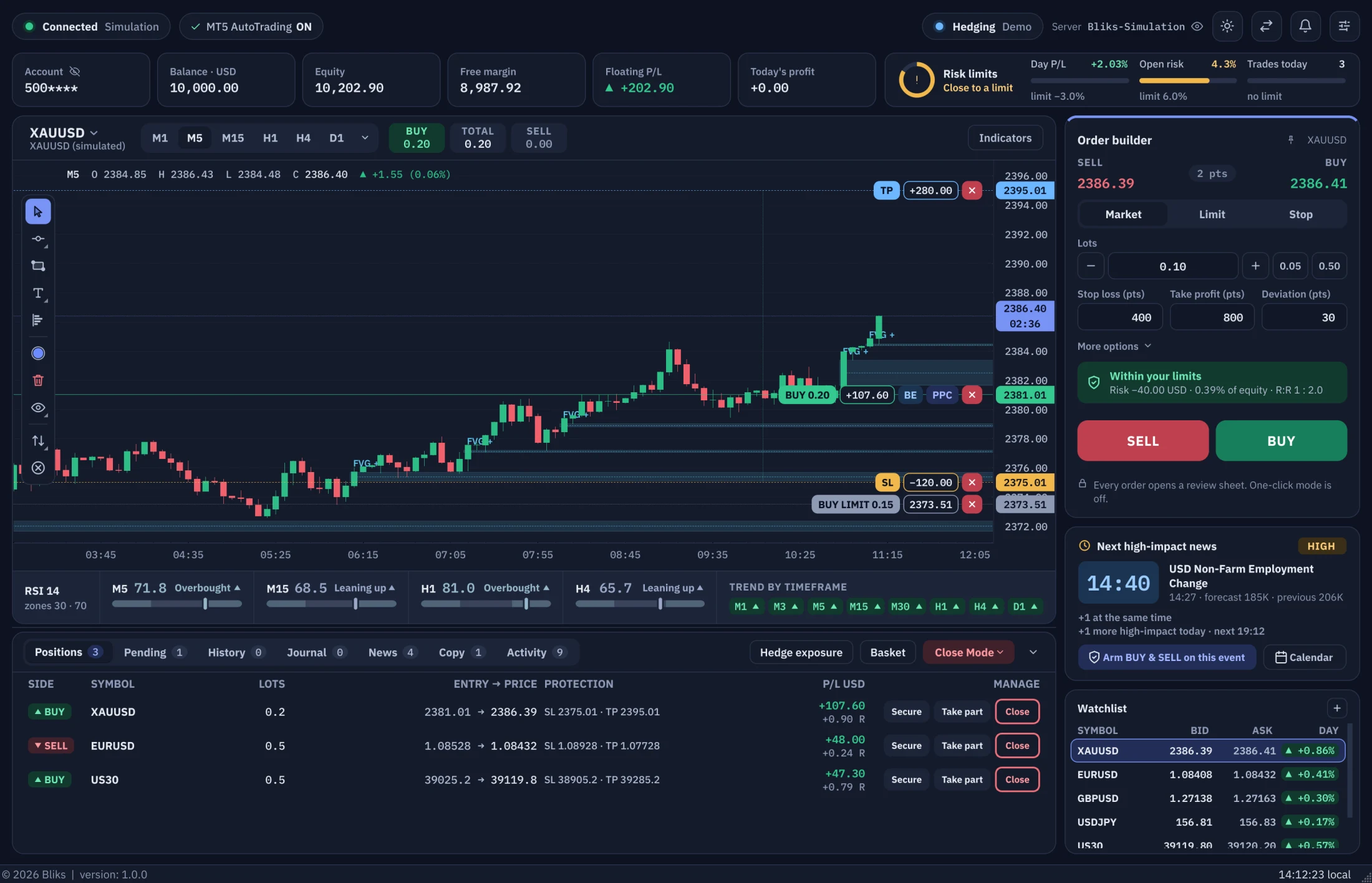
Bliks Trade Manager (Bliks for short) is a desktop program for Windows. You keep your MetaTrader 5 terminal and your broker exactly as they are. Bliks connects to the terminal on the same PC and gives you a better workspace on top of it: a large live chart, an order form that is always on screen, risk limits that are checked on every order, news tools, alerts and a trading journal.
What Bliks does
- Places and manages orders. Market, Limit and Stop orders, batches of orders, BUY & SELL straddles around the price, stop loss, take profit, break-even, partial closes and trailing stops.
- Draws your trades on the chart as lines you can drag, each with its profit or loss in money.
- Guards your account. Limits per trade, for open risk and for the day, week and month; a spread guard; prop-firm drawdown tracking; and warnings before a risky change.
- Follows the news. An economic calendar with a countdown, and orders you can arm to be placed seconds before a release.
- Tells you what happened. Pop-up messages, sounds, an English voice assistant, a list of warnings and optional Telegram messages.
- Keeps a journal of every trade in R multiples, and can copy trades from other Bliks users or share yours.
What Bliks does not do
- It does not give signals and it does not trade by itself. Every order comes from something you did: a click, a setup you drew, a rule you switched on, or a strategy you chose to copy.
- It never sees your broker password. It talks to the MetaTrader 5 terminal that is already logged in on your PC.
- It never holds your money. Deposits and withdrawals stay between you and your broker.
- It does not predict the market and does not promise profit. Indicators and statistics are information; the decisions and the risk are yours.
- It does not replace MetaTrader 5. The terminal must be installed, running and logged in. See also What Bliks never does.
How to use this guide
- Names in bold are buttons, tabs, fields and menu items exactly as Bliks shows them in English. If you run Bliks in Arabic, read the Arabic version of this page: it uses the Arabic labels.
Text in this styleis a key, a value or a file path.- Green Tip boxes save you time. Amber Warning boxes protect your money, so please read them.
- Every section ends with a link to the next one, and the contents list lets you jump anywhere.
Quick start in six steps
- Create a free Bliks account, confirm your e-mail, then download and install Bliks (section 2).
- Start MetaTrader 5 and log in to a demo account, or choose Simulation when Bliks asks for the terminal (section 3).
- Pick a symbol from the Watchlist and look at the chart (section 4).
- In the Order builder set a small lot (0.01 is the smallest on most symbols), check Stop loss and Take profit, and press BUY or SELL. Read the review sheet and confirm (section 5).
- Watch the trade in the Positions tab and on the chart, then close it with Close (section 11).
- Open Settings > Risk and set the limits you are comfortable with (section 12).
2Requirements and installation
Windows 10 or 11, a MetaTrader 5 terminal and a Bliks account are all you need.
What you need
- Windows 10 or Windows 11, 64-bit.
- MetaTrader 5 installed from your broker (any broker that offers MT5). It must be running and logged in while you use Bliks.
- A Bliks account. It is free to create and the free trial includes every feature; the Pricing page shows how long the trial lasts and what each package adds.
- An internet connection for signing in, the licence check, the economic calendar and updates. After a successful licence check Bliks keeps working for 72 hours without internet; prices still come from your broker through MetaTrader.
- Any screen from 1366 × 768 up. If the screen (or Windows display scaling) is too small, Bliks shrinks its interface to fit (see section 19).
Download and install
- On the Register page create your account, then type the 6-digit code that is e-mailed to you. Downloads and the Bliks sign-in stay locked until the e-mail is confirmed.
- Open the Download page and click Installer. A portable ZIP is offered too: unzip it anywhere and run
BliksTradeManager.exe. For most people the installer is the better choice. - Run the installer. Windows may ask whether to install for you only or for all users. You can tick Create a desktop shortcut. Leave Launch Bliks Trade Manager ticked and click Finish.
- By default Bliks goes into the Program Files folder (your own programs folder if you install for yourself only) and adds a Start menu entry.
Windows asks you to confirm the publisher
The first time you run the installer, Windows may ask you to confirm the publisher: a blue window titled Windows protected your PC with the words Unknown publisher. It is a routine step that Windows shows for programs it has not seen before. Choose More info, then Run anyway, and the installer starts.
- Make sure you downloaded the file from the Download page of bliks.app.
- In the blue window click More info.
- Click Run anyway. The installer starts.
3First run: sign in and choose the terminal
Bliks needs your Bliks account (the licence) and the MetaTrader 5 terminal (the market). Start with the Simulation if you want to learn without any risk.
- Start MetaTrader 5, log in to your broker account (demo or real) and leave the terminal open.
- Start Bliks Trade Manager from the Start menu or the desktop shortcut.
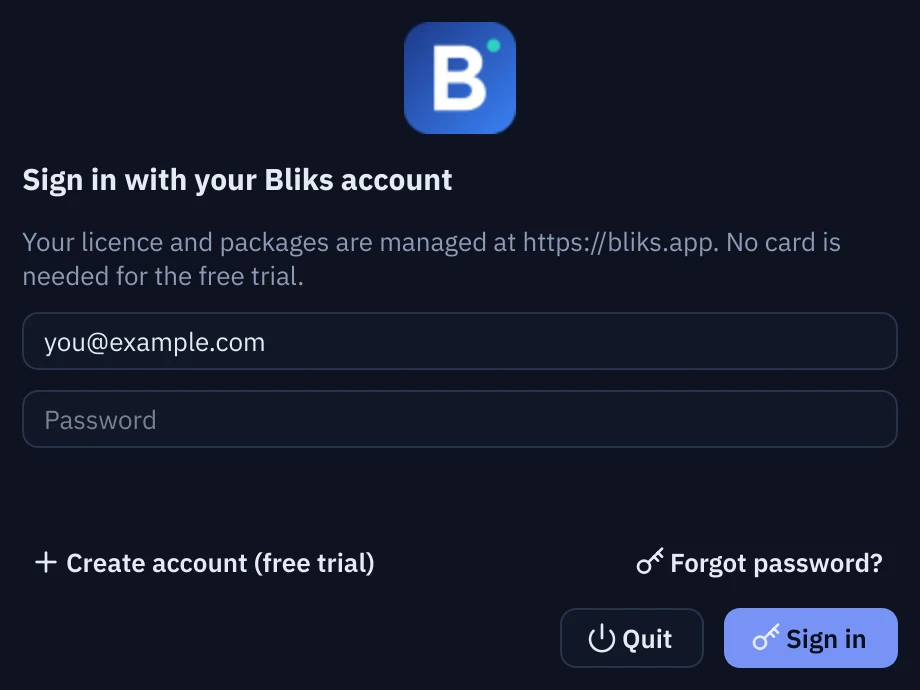
- In the sign-in window type the e-mail and password of your Bliks account and click Sign in. No card is needed for the trial. Create account (free trial) opens the registration page, Forgot password? opens the password reset page, and Continue offline appears only when a valid, verified licence is already stored on this PC.
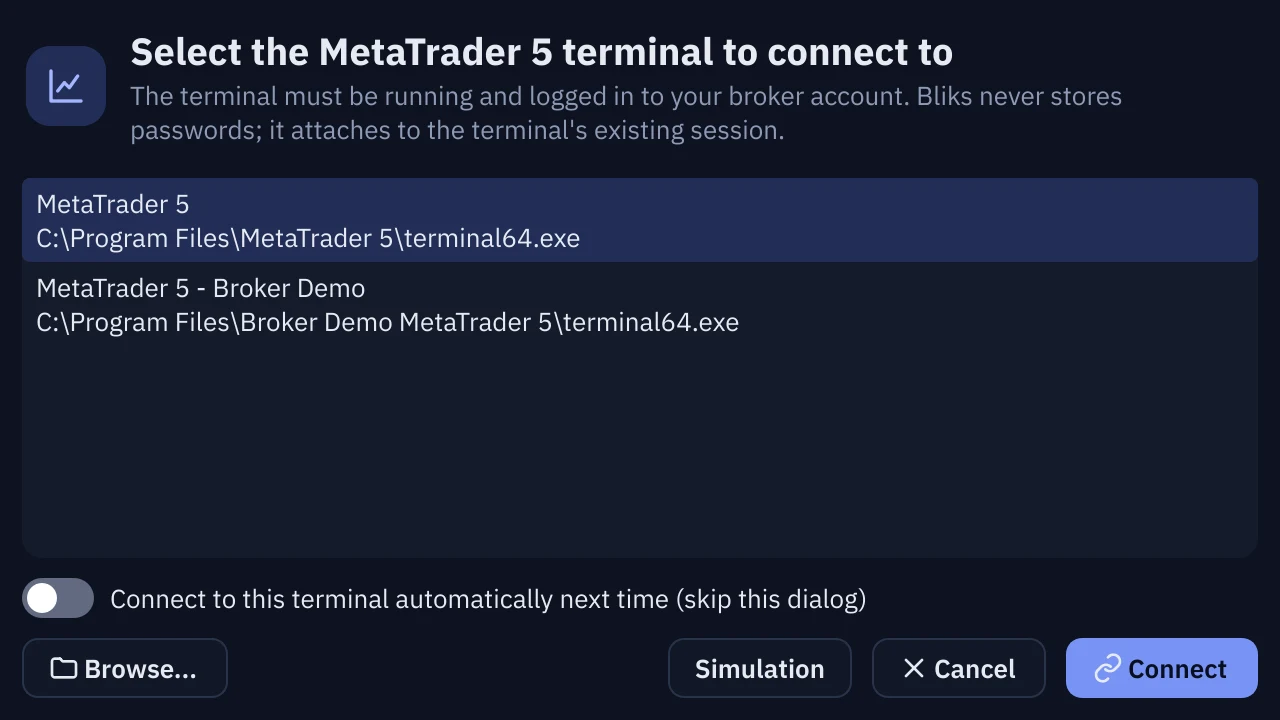
- In Bliks - choose MetaTrader 5 terminal select your terminal and click Connect (or double-click it). If it is not listed, click Browse... and choose its
terminal64.exe. - Tick Connect to this terminal automatically next time (skip this dialog) if you always use the same terminal.
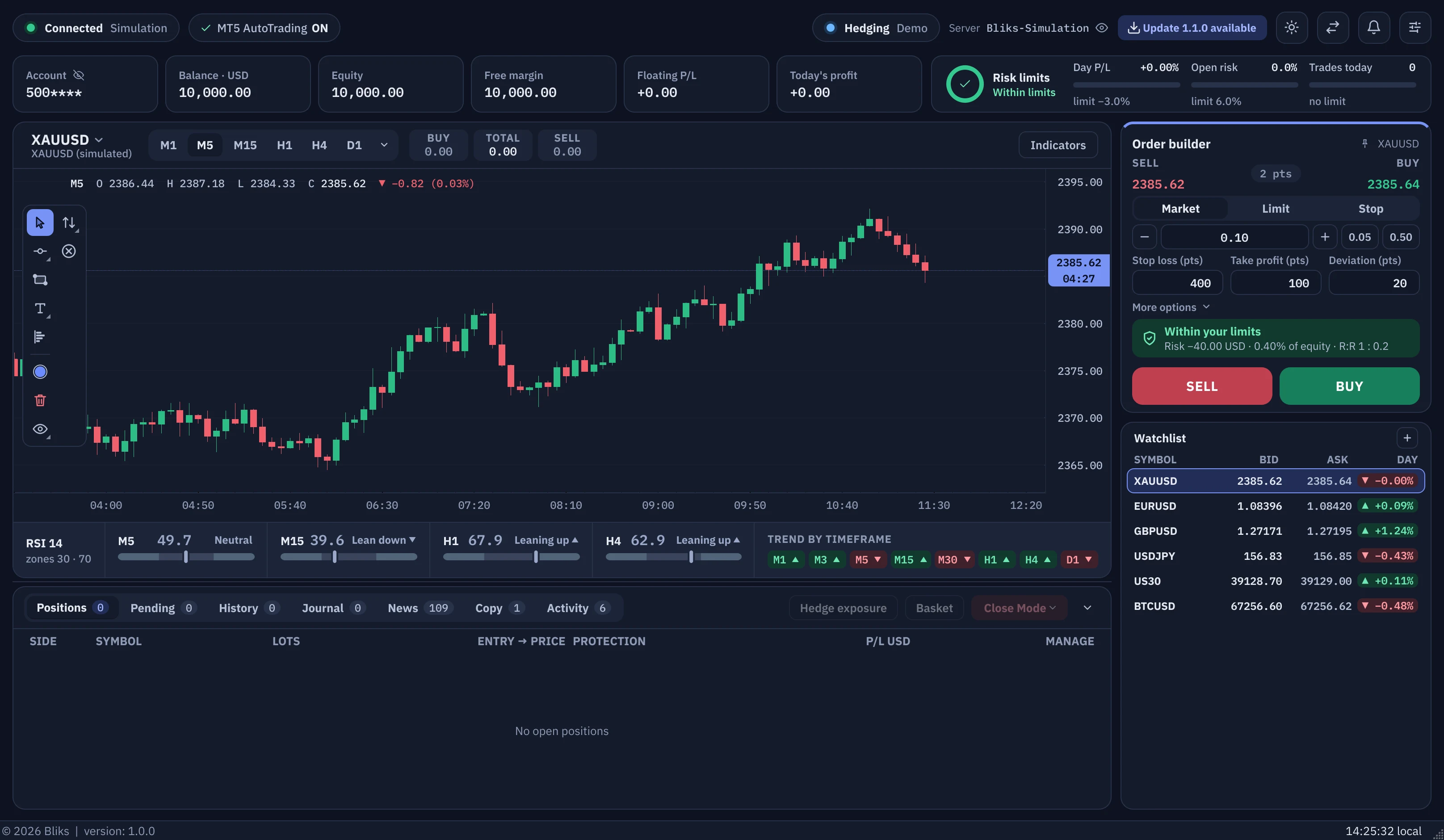
- The main window opens. The chip next to the logo reads Connected · MetaTrader 5 followed by the connection delay in milliseconds, and the MT5 AutoTrading chip reads ON. If it says OFF, see section 21.
Try Bliks without risk: the Simulation
In the terminal window click Simulation (its tooltip says: run with the built-in offline broker, no real trading). Bliks then works against a practice broker built into the program: prices are simulated, the account is virtual, and nothing is sent to MetaTrader. The connection chip reads Connected · Simulation. Every feature in this guide works there: orders, trade lines, setups, risk limits and alerts.
Next time you start Bliks
- Bliks remembers your sign-in, so it only asks for the password again after you sign out. It checks the licence again about every 30 minutes while it runs.
- It asks for the terminal each time unless you ticked the automatic option. The round button Switch terminal in the top bar brings the picker back at any moment.
- It remembers the window layout, the symbol, the timeframe, your drawings and your settings. They are stored in
%APPDATA%\Bliks.
4The main window tour
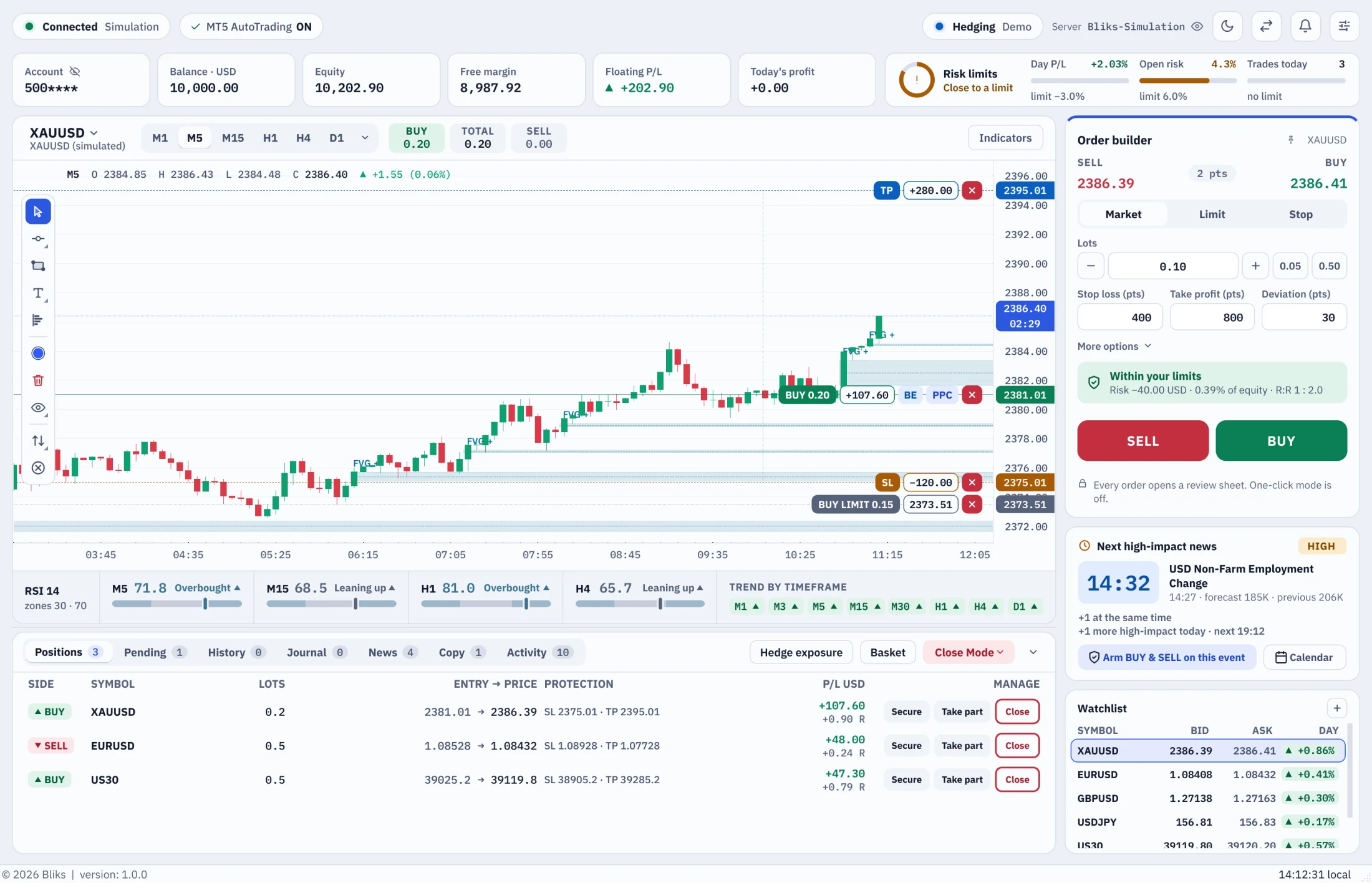
Everything you trade with is always on screen: the top bar, your account figures, the chart, the Order builder, the news card, the watchlist and the bottom panel.
The top bar
- The Bliks logo and name.
- The connection chip: a coloured dot and the word Connected (green), Connecting (amber), Disconnected or Terminal offline (red), then the terminal (MetaTrader 5 or Simulation) and the round-trip time in milliseconds.
- AutoTrading ON / OFF: whether MetaTrader 5 lets programs trade. Bliks can send orders only while it is ON.
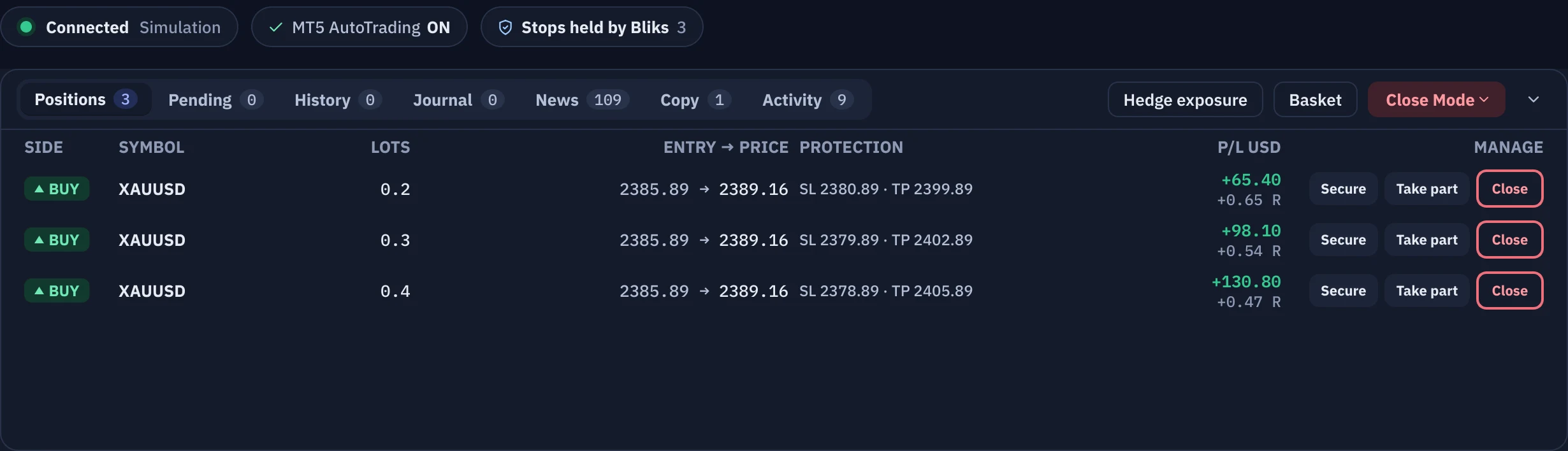
- Stops held by Bliks with a number: it appears only if you chose to keep stop loss and take profit out of the broker (section 12).
- The account-mode chip (for example Hedging · Demo) and the server name. The small eye button hides the last six characters of the server name, which is handy when you share your screen.
- The licence chip (package and days left, for example PRO · 12d) and, when a new version exists, Update available.
- Four round buttons: the sun or moon switches the theme (Toggle light / dark theme), Switch terminal, the bell (Warnings and errors) and Settings.

Your account figures
Under the top bar a strip of cards shows your account. The words matter, so here they are in plain language:
| Card | What it means |
|---|---|
| Account | Your account number. It is masked; the eye button shows it. |
| Balance | The money in the account without the result of trades that are still open, in the account currency. |
| Equity | Your real account value right now: the balance plus the floating profit or loss of open trades. Risk limits are measured against it. |
| Free margin | The part of the equity that is not locked as margin for open trades. It is what you can still use to open new ones. |
| Floating P/L | The profit or loss of the trades that are open now. It changes with every price tick. |
| Today | The result of the trades closed today. |
The Risk limits card
At the right end of the strip, the ring and three small meters show how close you are to your own limits: today's result, open risk and the number of trades today. Green is fine, amber means you are close to a limit and red means a limit is reached. Section 12 explains each limit.
The chart
The large area on the left is the chart. Its toolbar has the symbol picker, the timeframe buttons, three small cards with your open lots (BUY, TOTAL, SELL) and the Indicators button. A floating palette of drawing tools sits on the chart, and the RSI and trend strip is below it. Sections 7 to 10 cover it in depth.
The Order builder
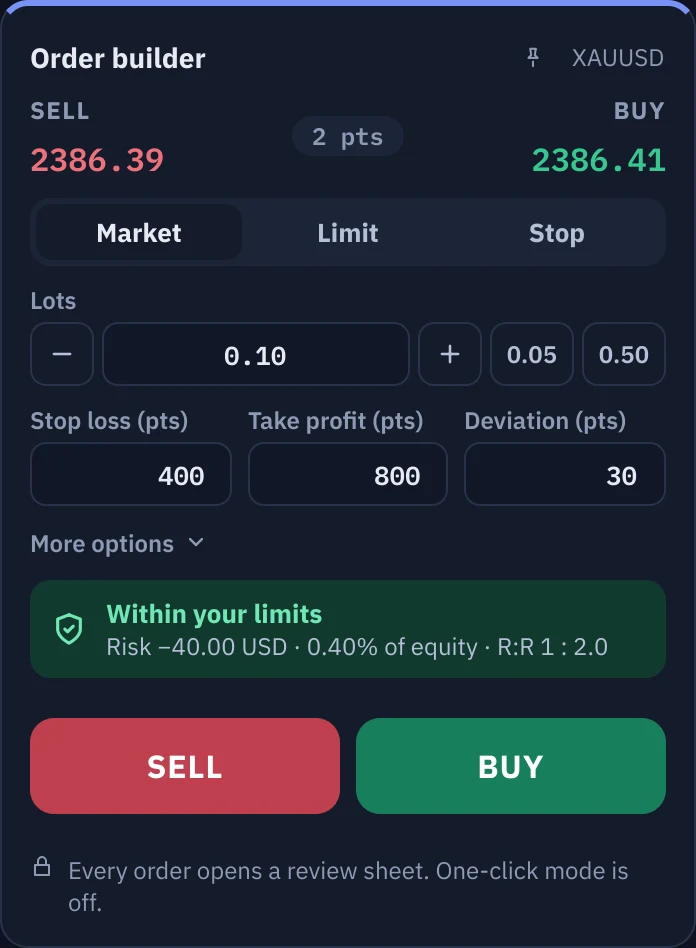
On the right, always visible: the live SELL and BUY prices with the spread between them, the order type (Market, Limit, Stop), the lots, the stop loss, take profit and deviation fields, a one-line risk hint, the SELL and BUY buttons and the wide BUY & SELL button. It is the subject of section 5.
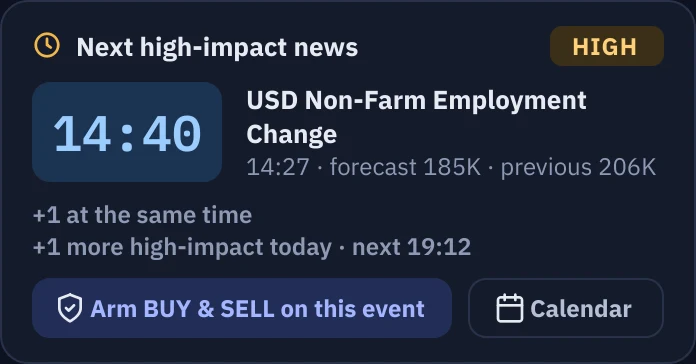
Next high-impact news
Under the Order builder, a card counts down to the next important release on the economic calendar and offers Arm BUY & SELL on this event. The card disappears when no such event is ahead. See section 6.
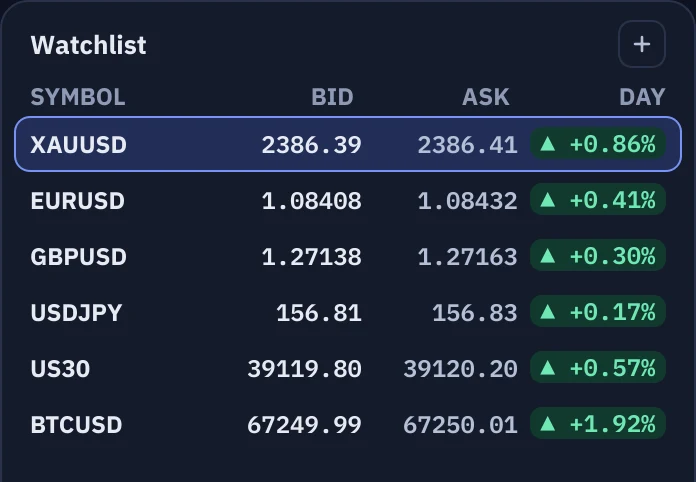
The Watchlist
At the bottom of the right column. Each row shows the symbol, its Bid and Ask and a coloured Day pill with the change since yesterday's close. Click a row and both the chart and the Order builder switch to that symbol. The + button opens a box to add a symbol (type to search, press Enter); select a row and press Delete, or right-click it, to remove it.
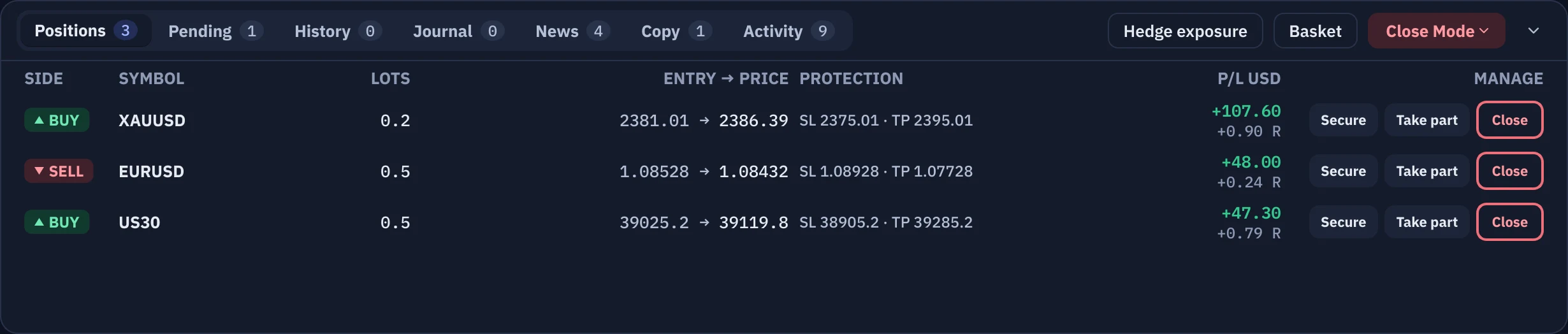
The bottom panel
Under the chart, one card holds seven tabs: Positions, Pending, History, Journal, News, Copy and Activity, each with a small counter. On the right of the tab strip are the always-available actions Hedge exposure, Basket and Close Mode, and a chevron that folds the panel. Drag the divider above it to make it taller. See section 11.
The footer
On the left: the copyright and the version of Bliks. In the middle Bliks speaks only when something is wrong, for example Enable AutoTrading (Algo Trading) in MetaTrader 5. On the right: your local clock.
Next section5 · Placing your first order5Placing your first order
The Order builder is always on screen. Choose the lots, the stop loss and the take profit, read the review sheet, and confirm.
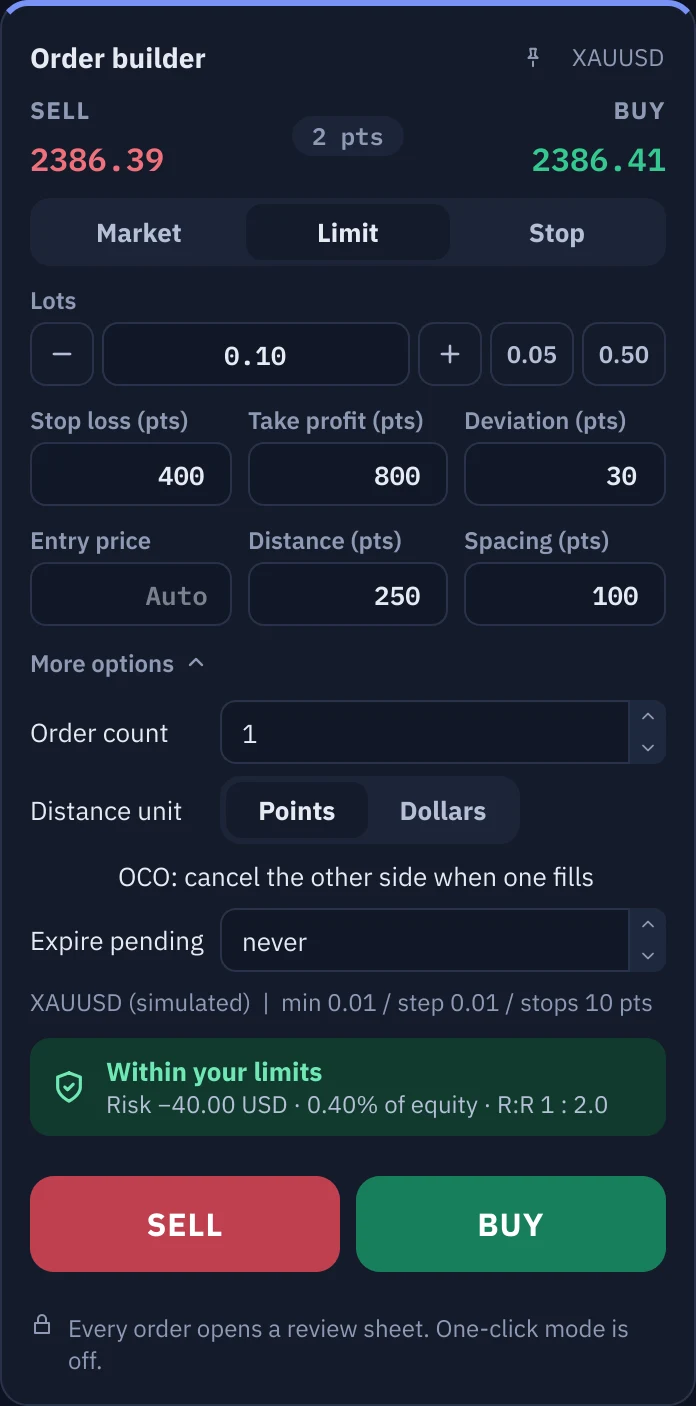
The Order builder is the form on the right. It always trades the symbol that is on the chart, so you cannot send an order for the wrong symbol by accident: to change the symbol, click it in the Watchlist or pick it in the chart toolbar. At the top you see the live SELL and BUY prices with the spread between them.
The fields
| Field | What it does | Factory value |
|---|---|---|
| Market / Limit / Stop | Market buys or sells now at the current price. Limit is a pending order that waits for a better price (buy below, sell above). Stop is a pending order that waits for the price to break through a level (buy above, sell below). | Market |
| Lots | The size of the trade. The − and + buttons (or the Up and Down keys) move it by the symbol's lot step; the two chips next to them set 0.05 and 0.50 in one click. | 0.10 |
| Stop loss (pts) | How many points from the entry price your loss is cut. Empty or 0 means no stop loss. | 400 |
| Take profit (pts) | How many points from the entry price the trade closes in profit. Empty or 0 means no take profit. | 100 |
| Deviation (pts) | The worst slippage you accept for a Market order. If the price moves further between your click and the fill, the broker refuses the order instead of filling it worse. Pending orders ignore it. | 20 |
| Entry price, Distance (pts), Spacing (pts) | Shown for Limit and Stop. Leave Entry price on Auto to place the order at the live price plus or minus the distance, or type a price. Spacing separates the orders of a batch. | Auto, 250, 100 |
| More options | Order count (1 to 100 orders in one batch), Distance unit (points or dollars), OCO: cancel the other side when one fills and Expire pending (minutes after which untriggered pending orders are deleted). | 1, points, on, never |
Your first market order
- Choose the symbol (for example in the Watchlist) and wait until the prices at the top of the Order builder move.
- Set Lots. Start with the smallest lot of the symbol.
- Fill Stop loss (pts) and Take profit (pts). Decide them before you click: 400 and 100 are only factory values (change them in Settings > Trading).
- Read the line under the fields. Within your limits shows the money at risk, its share of your equity and the reward-to-risk ratio. Check this order or Over a limit means one of your risk rules is touched (section 12).
- Click BUY to buy or SELL to sell.
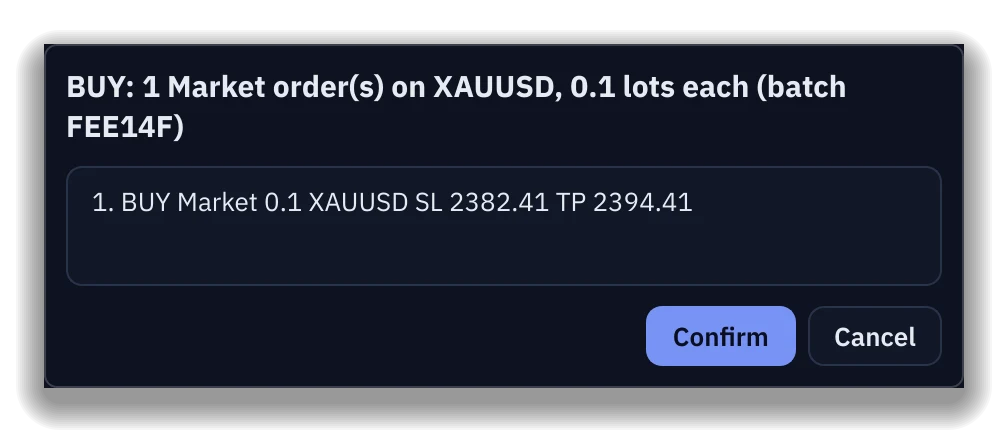
- The review sheet Confirm batch opens. It lists exactly what will be sent: the order type, the lots, the symbol, and the stop loss and take profit prices. Check them and click Confirm (or Cancel).
- Bliks sends the order. A pop-up reports the result, the trade appears in the Positions tab and on the chart with its lines.
Pending orders: Limit and Stop
- Switch the type to Limit or Stop. The fields Entry price, Distance (pts) and Spacing (pts) appear.
- Either leave Entry price empty (Auto): the order is placed at the live price plus or minus Distance (pts); or type the price where you want to enter.
- Set lots, stop loss and take profit as before and press BUY or SELL. A BUY Limit sits below the price and a BUY Stop above it; for SELL it is the opposite.
- The order waits in the Pending tab and on the chart as a dotted line. You can cancel it with Cancel there, or with the x on its label on the chart.
Checks before the order leaves
- Pre-trade check. If a price, stop loss or take profit breaks the broker's rules (for example it is closer to the price than the broker's minimum stop distance), Bliks says so first in a Pre-trade check failed message instead of sending a doomed order. The line under the lots (inside More options) shows the symbol's minimum lot, lot step and stops level.
- Risk rules. A rule you set in Settings > Risk can stop the order (Blocked by your risk rules), ask you to confirm a risk warning (Place anyway), or, after a daily limit, lock new orders until you type the override word (section 12).
- Licence. Trading needs an active package. Without one the SELL and BUY buttons show a key and a tooltip with the reason.
One-click mode
Settings > Trading > Enable ONE-CLICK execution (skip pre-trade confirmation dialogs) removes the review sheets: BUY, SELL, BUY & SELL, closing and cancelling run at once. While it is on, an amber strip in the Order builder says One-click mode is ON; when it is off the same place reads Every order opens a review sheet. One-click mode is off.
Next section6 · News trading with BUY & SELL6News trading with BUY & SELL
A straddle places a BUY stop above and a SELL stop below the price, so you are in the trade whichever way the news moves it.
The idea
Before a big release such as the US non-farm payrolls the price often waits, then jumps. BUY & SELL puts a pending BUY STOP above the price and a SELL STOP below it, each with your stop loss and take profit. When one of them is triggered, OCO (one cancels the other) deletes the opposite order, and the expiry deletes orders nobody triggered. The wide button is called BUY & SELL in this guide; the Arabic interface of Bliks shows its title translated.
Place one by hand
- In the Order builder choose Stop. Do not leave Market selected: with Market, BUY & SELL would send both orders immediately at the current price.
- Set Lots, Stop loss (pts) and Take profit (pts).
- Set Distance (pts): how far above and below the price the two orders are placed (250 points by default). In More options you can change the distance unit between points and dollars.
- In More options keep OCO: cancel the other side when one fills ticked, and set Expire pending to the number of minutes after which untriggered orders are deleted (never by default).
- Look at the subtitle of the big button; it summarises what will be sent, for example News straddle · stops ±250 pts · OCO · no expiry.
- Click BUY & SELL. The review sheet lists the BUY STOP and the SELL STOP. Check them and confirm.
Let Bliks place it at the right moment
- Wait until the Next high-impact news card shows the event you want, or open the News tab and select the event in the table.
- Prepare the Order builder as above (lots, stop loss, take profit, distance). Bliks copies these values when you arm the event, and always uses the Stop type with OCO.
- Click Arm BUY & SELL on this event on the card, or Arm straddle on selected event in the News tab.
- Answer two questions: how many seconds before the release the orders are placed (15 by default, 1 to 600), and how many seconds after placement untriggered orders are deleted (120 by default, 10 to 3600).
- Bliks confirms with Straddle armed. The News tab lists it after Armed; to cancel, select the event and click Disarm.
- At the chosen moment Bliks places the batch, runs it through your risk rules and reports Straddle placed. When one order triggers, OCO removes the other; if neither triggers before the expiry, both are deleted.
7The chart: timeframes, zoom and indicators
A fast candlestick chart with a crosshair, an OHLC read-out, optional indicators and smart-money studies, and a strip of RSI and trend states underneath.

The toolbar
- Symbol picker (left): click it, type a few letters in Search symbol... and choose; the arrow keys move in the list. The Order builder follows the chart.
- Timeframe: the buttons M1 M5 M15 H1 H4 D1, and a chevron (More timeframes) with every other interval MetaTrader serves, from M2 to the monthly 1M, plus Custom... for any number of minutes, hours or days.
- BUY / TOTAL / SELL cards: the lots of your open trades on this symbol. On a narrow chart the TOTAL card steps aside first, then the other two.
- Indicators: the menu described below.
Moving around the chart
- Mouse wheel: zoom in and out around the pointer, from 8 up to 5,000 candles on the screen.
- Drag with the left button: move the chart in time and in price.
- Drag the price scale (the right edge) up or down to stretch the prices; drag the time axis to stretch the time; the wheel over the price scale zooms the prices only.
- Double-click the price scale to go back to automatic price scaling.
- Reset view (in the Indicators menu or the right-click menu) shows the latest 100 candles with free room on the right.
- Right-click the chart: Add price alert at ..., Horizontal line at ..., Reset view and Auto-scale price axis.
Reading the chart
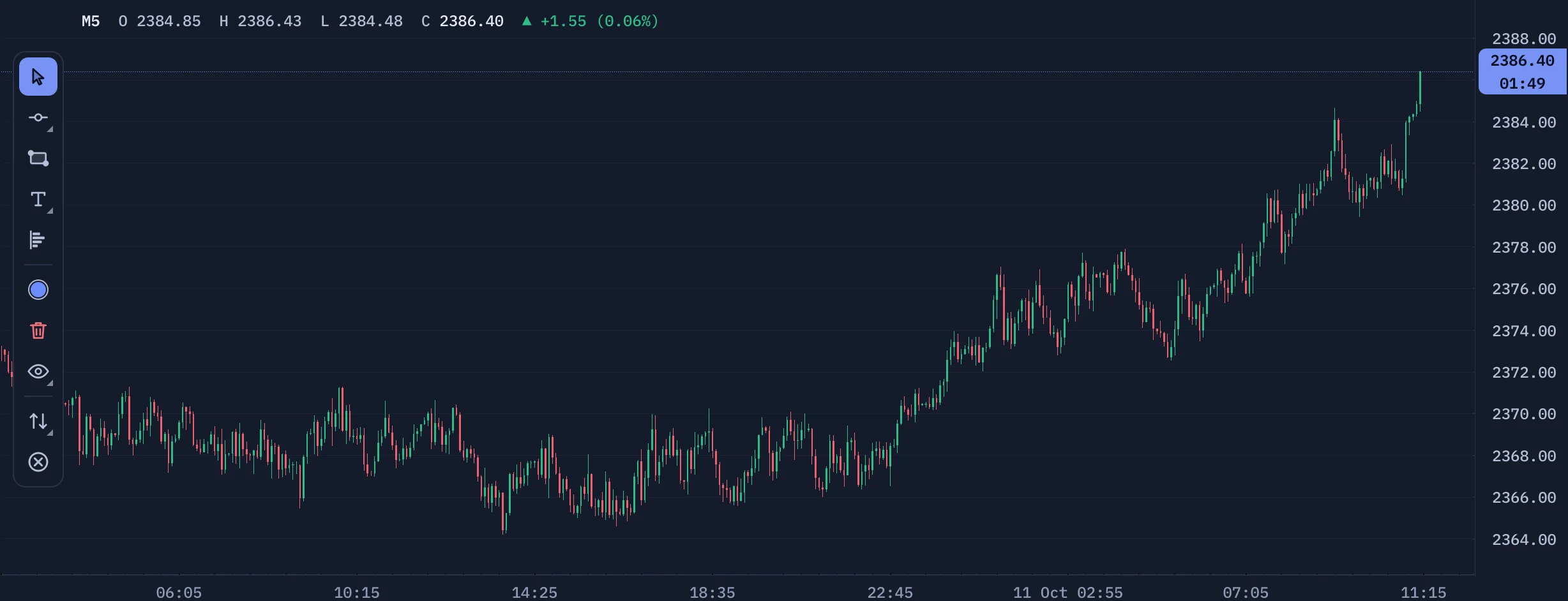
- The line at the top-left describes the candle under the pointer: timeframe, time, O H L C (open, high, low, close), the change and the first moving average if you use one. When the pointer is away it describes the live candle.
- The crosshair puts a price tag on the scale and a time tag under the chart.
- On the price scale a blue tag shows the last price, and below it the time left in the current candle.
- Optional extras in Settings > Chart layout: Bid and Ask lines, a grid, volume bars, trade lines and pending-order lines.
- Far zoomed out, every candle is drawn as a thin line with a gap between neighbours, so hundreds of candles stay readable.
The Indicators menu
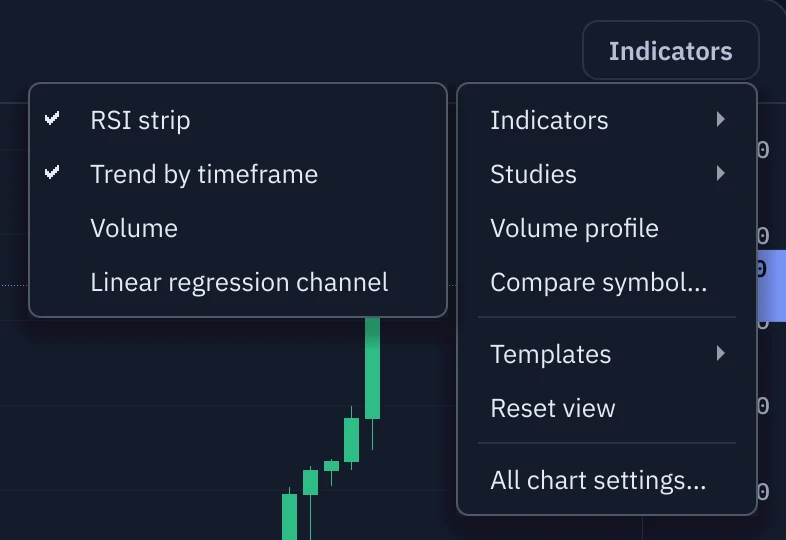
- Indicators: RSI strip (shows or hides the RSI gauges), Trend by timeframe (shows or hides the trend row; it has its own switch), Volume (the volume bars), Linear regression channel, and one line for every moving average you defined in Settings > Indicators (for example MA 20 (Exponential)). Moving averages and the channel need a package with Pro indicators.
- Studies: the visual studies, all hidden until you tick them: session boxes and the Asian range breakout, previous 4H, day, week and month high and low, the daily open, the market opening point, the first 5 and 15 minutes range, displacement, rejection, Fair Value Gaps (FVG), Inverse FVG, Market Structure Shift, Point of Interest, Order Blocks, Supply zones, Demand zones, Inducement, internal and external range liquidity, Killzones, and the automatic Fibonacci golden zone. Broken or used-up zones disappear on their own. Colours, opacities (a zone has a Fill and a Border opacity) and parameters are in Settings > Visual studies, where related studies share a card.
- Volume profile: starts the drawing tool of section 8.
- Compare symbol...: overlays the closes of another symbol on this chart as a scaled line (for example the dollar index on gold). Clear compare removes it.
- Templates: Save current chart as template... stores the chart colours, indicators and studies under a name; Load: name and Delete: name then appear.
- Reset view and All chart settings... (opens Settings).
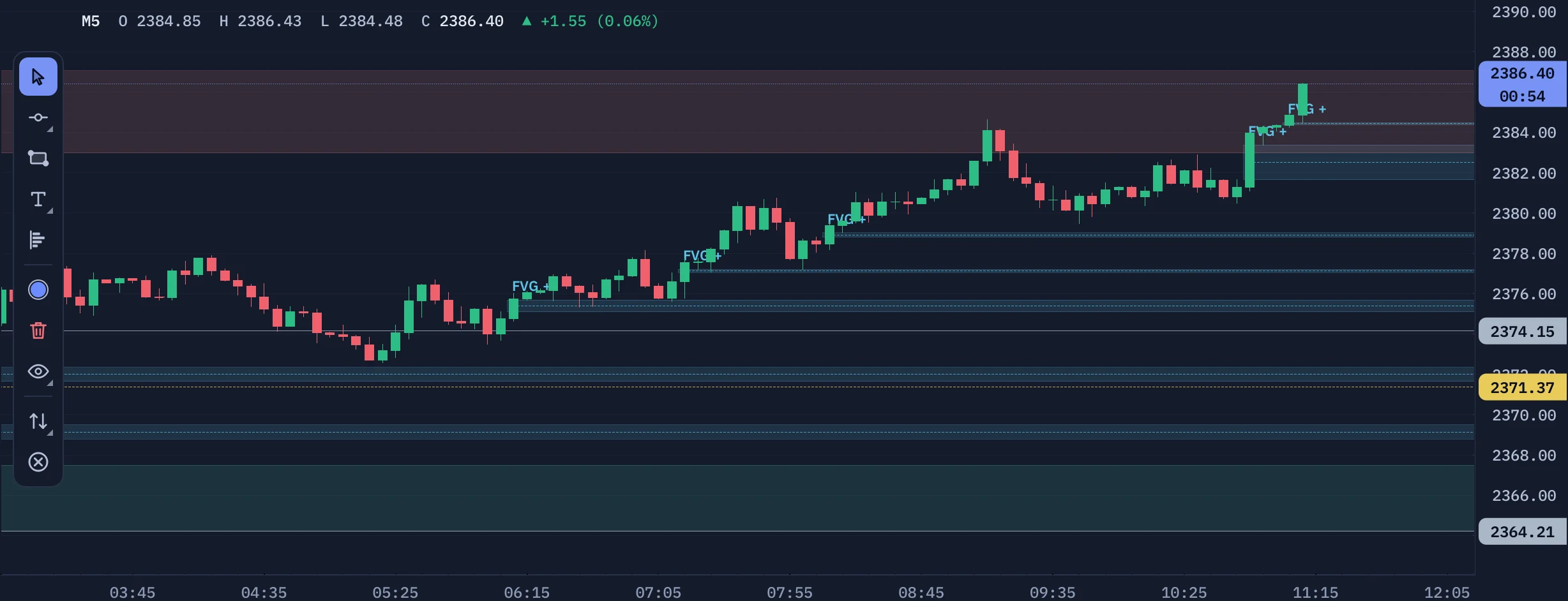
The RSI and trend strip
Under the chart, RSI(14) is shown for four timeframes (M5, M15, H1 and H4 by default; the chart's own timeframe is added when it is higher than M15). Each one has a word as well as a colour: Overbought at 70 or above, Oversold at 30 or below, Leaning up from 55, Leaning down to 45, otherwise Neutral. The value, its state word, the marker and the tint of each region of the bar take one of three colours that you choose in Settings > Indicators: one for a value at or below the lower level, one between the levels and one at or above the upper level (a pale blue-grey at both ends by default, a deeper one in the light theme). The Trend by timeframe row shows an arrow for each timeframe from M1 to D1: up or down according to the current candle, with the move in points on hover. The gauges and the trend row have separate switches (Settings > Indicators, or Indicators > RSI strip and Trend by timeframe in the chart's menu): show both, either one alone, or neither.

Colours, templates and extras
The chart follows the light or dark theme. In Settings > Chart layout you can pick a Template (Bliks Dark, Bliks Light, Classic, Monochrome or Custom), the Bull candle color and Bear candle color, and override the background and grid colours. Settings > Chart layout > Chart context can add one or three mini charts under the main chart and set the compare symbol. All pages of Settings are explained in section 17.
Next section8 · Drawing tools and the volume profile8Drawing tools and the volume profile
Draw levels, trend lines and zones on the chart, set one-time alerts on them, and measure where the volume traded with a fixed-range volume profile.
The floating palette on the left of the chart holds the tools. Drawings belong to the symbol and are saved when you close Bliks (in %APPDATA%\Bliks\drawings.json). They need a package with Chart drawing tools; locked tools show a key.
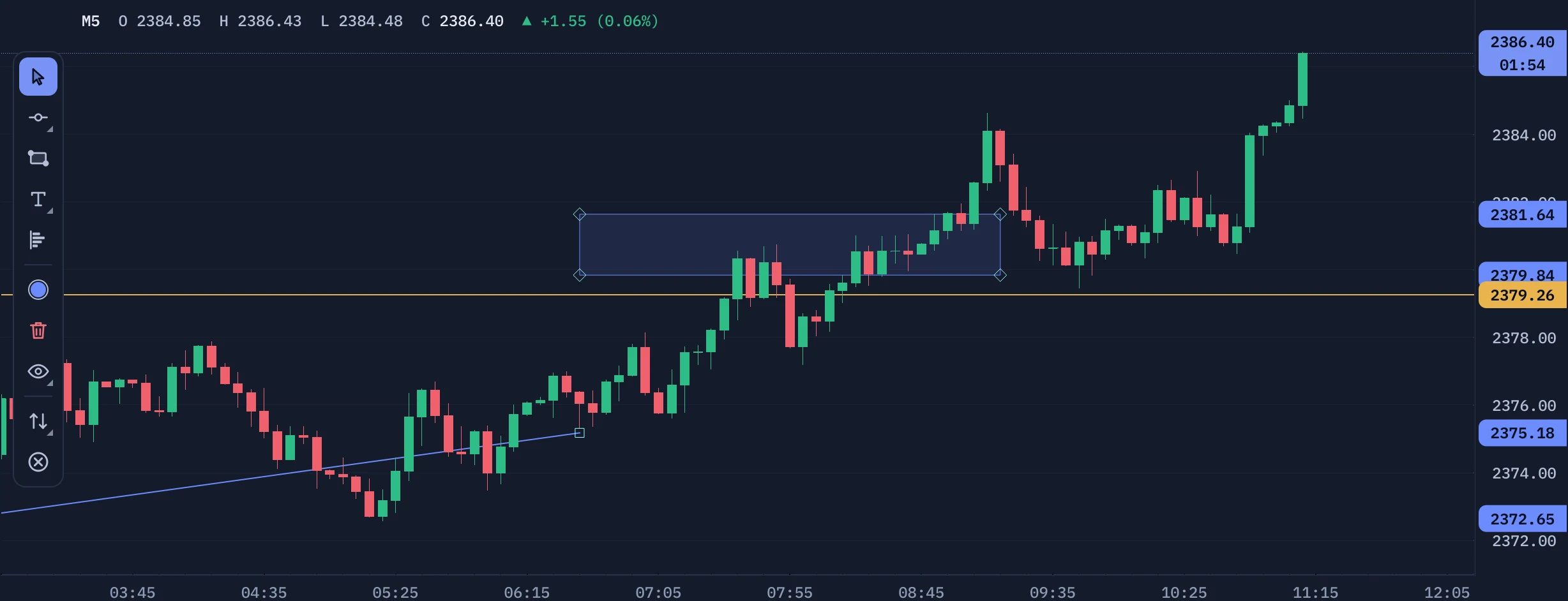
The palette, top to bottom
- Select / pan (Esc): the default tool. Click it, or press
Esc, to stop drawing. - Draw horizontal line: click the tool, then click the price level.
- Draw trend line: click the tool, then drag from the first point to the second (or click the two points).
- Draw rectangle: the same, for a zone.
- Fixed range volume profile: drag across the candles you want to analyse.
- The coloured dot (Default drawing color) sets the colour of new drawings, and the trash can (Remove all drawings for this symbol) clears the symbol.
- Below the divider: Long setup and Short setup (section 10) and Close mode (section 11).
Select, move, lock, edit and remove
- Click a drawing to select it. A small bar appears at the top right of the chart with the drawing's name and price and the buttons Edit, Lock (then Unlock) and Remove.
- Drag a line to move it; drag the handles of a rectangle or the ends of a trend line to resize it. A locked drawing cannot be moved.
- Right-click a drawing for Edit position / colors..., Lock and Remove. With a drawing selected,
Deleteremoves it. - Edit opens a dialog with the Label, Color, Line width, Fill opacity % (rectangles), the exact prices and times, and the alert tick box.
Path, text and emoji
- Draw path: click the points one after another; double-click, press
Enteror right-click to finish (Escalso finishes). A path can be closed into a shape with a fill, or end in an arrow head. Drag a pivot to move it, double-click on a segment to add a pivot, right-click a pivot (or pressDeleteon a selected one) to remove it. - Text: click the chart and type right on it (several lines, Arabic and English).
Ctrl+Enteror a click elsewhere keeps the text,Esccancels. Double-click a text to edit it again. In Edit you choose the font (any font installed on your computer), the size, Bold, the alignment (Auto follows the language of the text), the colour and the opacity of the text, an optional Background (colour and opacity), an optional Border (width) and an optional Drop shadow (colour, opacity, blur and the offset in X and Y). - Emoji: opens the picker. The first tab holds your favourites (every emoji you used two or more times), then the groups, all country flags and a search box. Drag the corner to resize an emoji and the round handle on top to rotate it (
Shiftsnaps to 15 degrees); in Edit you can type the size, the rotation and the opacity.
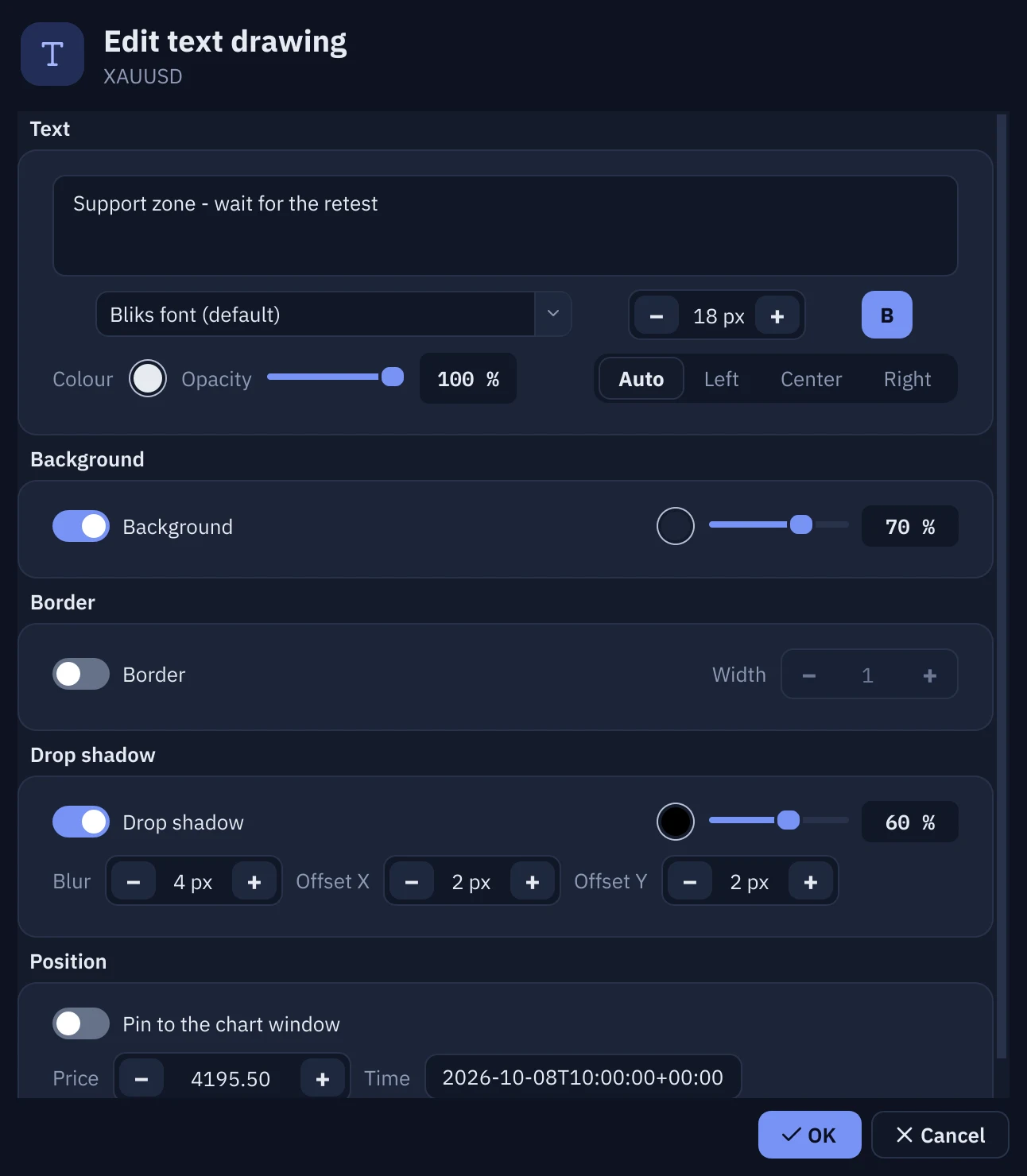
Pin a text or an emoji to the chart window
Normally a text or an emoji belongs to a candle and a price, so it moves when you zoom or scroll. Pin it to keep it where it is on the screen: select it and click Pin in the small bar (or tick Pin to the chart window in Edit). A pinned item stays in the same place of the chart window however you zoom, scroll or the candles move, which is useful for a title, a note or a logo in a corner. You can still drag it to a new place; click Pin again to let it follow the candles once more, from where it is.
Editing with a live preview
Edit opens one compact dialog for the drawing, with its options in cards (for a text: Text, Background, Border, Drop shadow, Position; for a line or a zone: its line or zone, its points and the alert). The controls are the same as in Settings: switches, colour dots, sliders with their value, steppers and segmented choices, and a switch turns its options off.
- Every change shows on the chart at once, behind the dialog, while you make it.
- OK keeps the changes and saves them. Cancel (or
Esc, or closing the window) puts the drawing back exactly as it was before the dialog opened. - Until you pick a default colour, every tool starts with a colour of its own that suits the current theme (the horizontal line and the path are amber and orange, text is white or black, and so on); a rectangle starts with a quiet 12% fill. Once you pick a colour with the dot in the palette, all new drawings use it.
Alerts on drawings
In Edit tick the alert box: Alert when price crosses this line (horizontal line), touches this trendline or enters this zone (rectangle). The alert fires once, with a pop-up, a sound and a Telegram message according to your notification settings, and then switches itself off. It needs a package with Price alerts. A plain price alert can also be made by right-clicking the chart (section 14).
The fixed range volume profile
Choose the volume profile tool and drag across the candles. Bliks draws a horizontal histogram of the volume traded at each price inside that range (the tick volume your broker reports). Two things matter most: the POC (point of control, a red line), the price with the most volume; and the value area, the band around it that holds 70% of the volume by default, bounded by the value area high and low (blue lines).
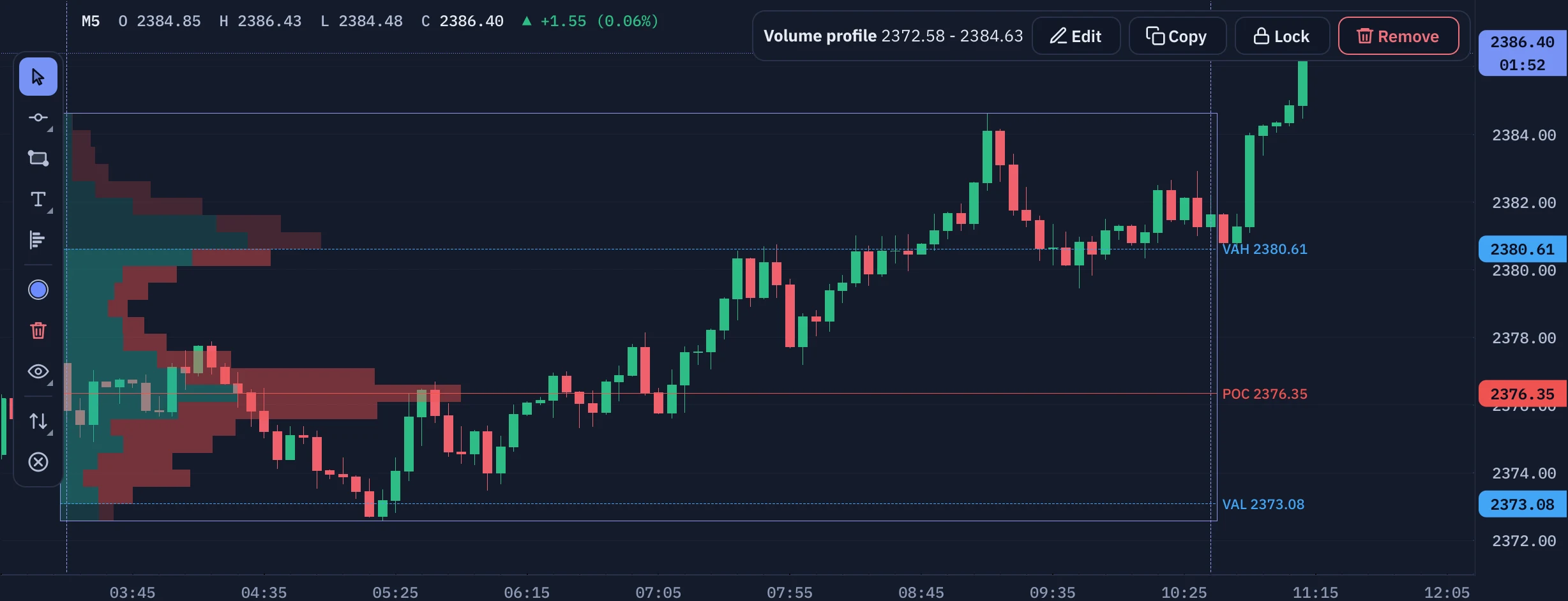
- Select it by clicking its bars, its candle area or its shaded background; the Edit, Lock and Remove bar appears. Click an empty part of the chart to deselect, and click the profile again to bring the bar back.
- Move or resize it by dragging its body or its edges. Lock freezes it.
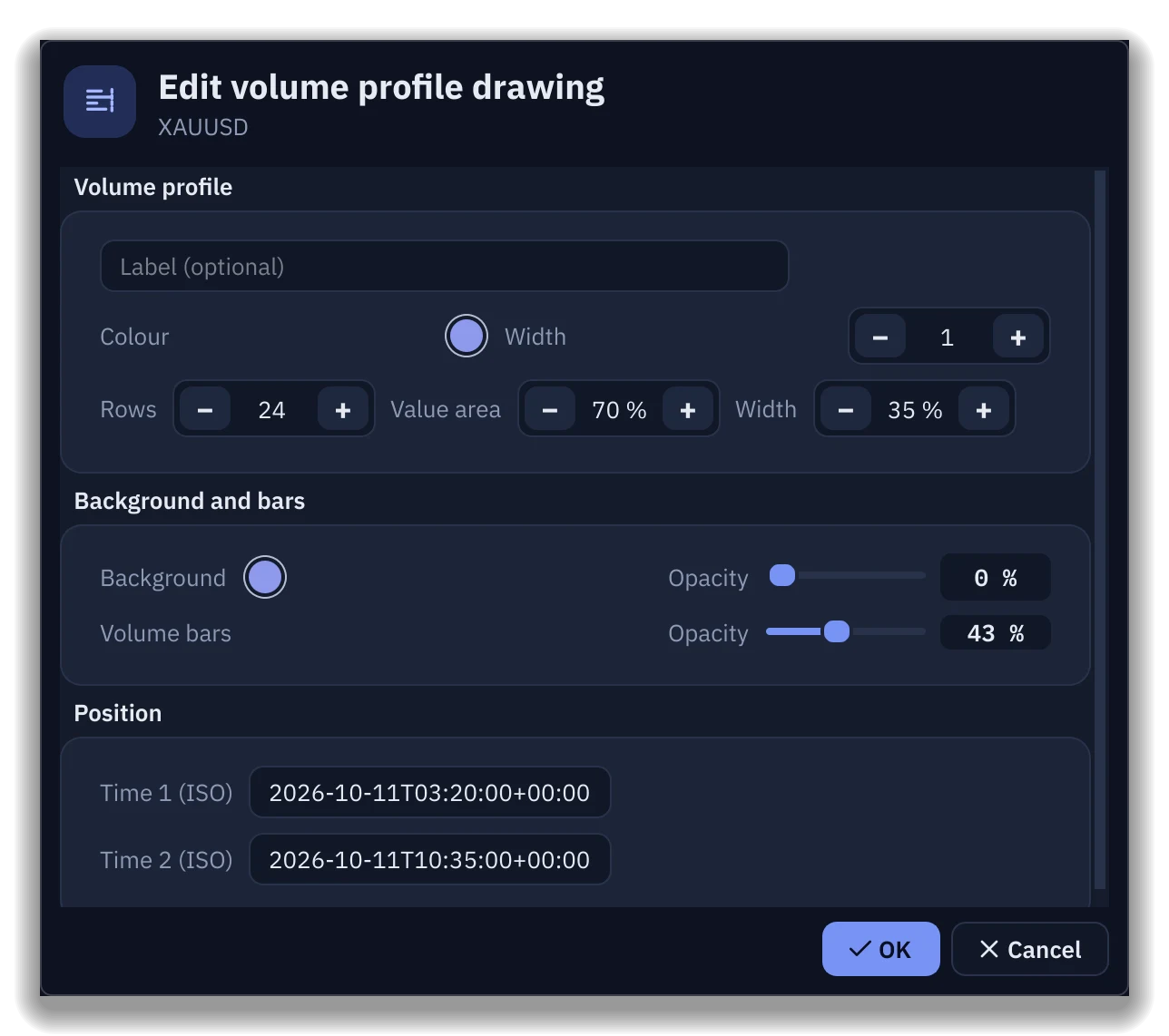
- In Edit you set: Rows (24), Value area in % (70), Histogram width in % (35), Background color, Background opacity % (7) and Volume bars opacity % (43). The numbers in brackets are the defaults.
9Trade lines on the chart
Every open trade and pending order is drawn on the chart with its stop loss and take profit. Drag the lines, or use the small buttons on the label.
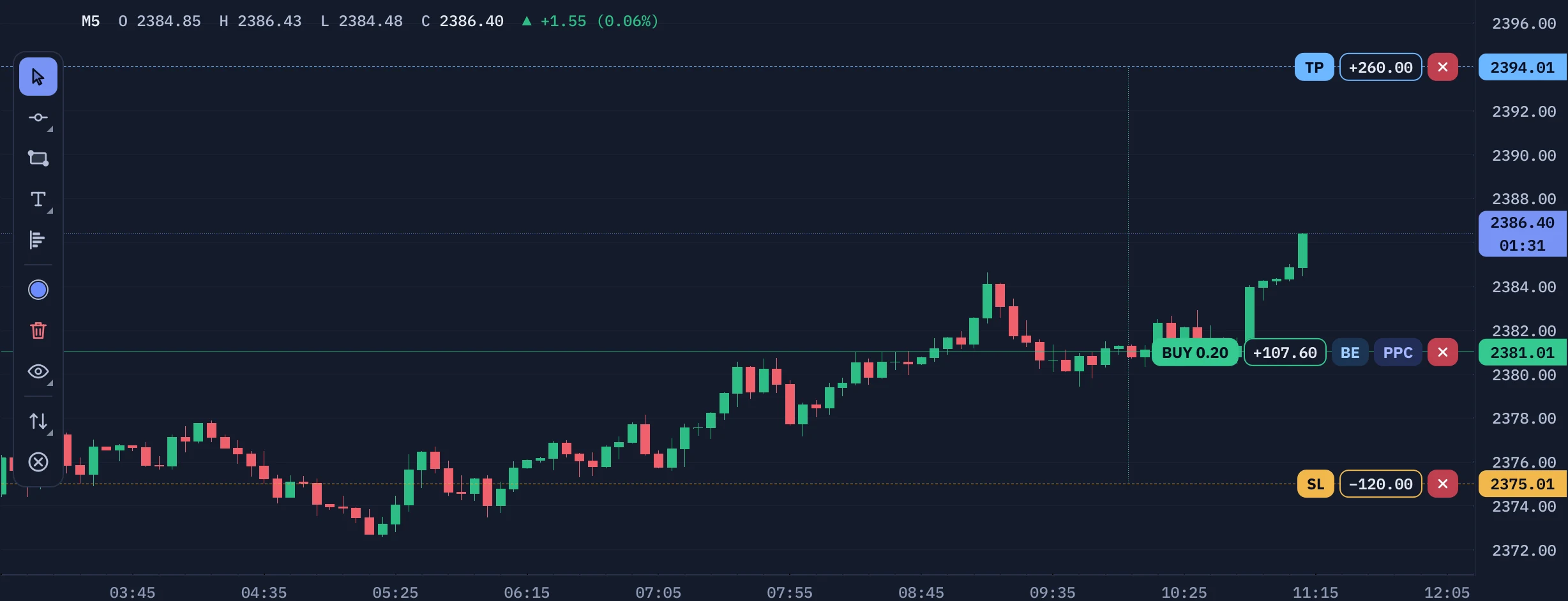
Each trade has a row of small labels at the right edge of the chart, next to the price scale, and thin dotted connectors join it to its stop loss and take profit rows. The entry line is solid and uses the colour of the side (green for BUY, red for SELL), the stop loss line is dashed amber, the take profit line is dashed blue and pending orders are dotted.
Reading the labels
| Label | What it is |
|---|---|
| BUY 0.20 or SELL 0.20 | The side and the lots of the trade. |
| The value box (for example +164.60) | The floating profit or loss of the trade, in the account currency. On the SL and TP rows it is the result you would get at that level. |
| BE | Move the stop loss to break-even. Shown only while the trade is in profit and the stop is not yet at the entry. |
| PPC | Partial profit close. Shown only while the trade is in profit and has more volume than the minimum lot. |
| TP and SL buttons | Add a take profit or a stop loss. Each one is shown only while that level is missing. |
| The red x | Closes the trade. On the SL and TP rows the x removes that level; on a pending order it cancels the order. |
Move a stop loss or a take profit
Drag the dashed line to a new price. While you drag, its value box shows the profit or loss you would get at that price. When you release, Bliks asks you to confirm (Modify protection), unless one-click mode is on. If the new stop loss would break one of your risk limits, a Risk warning with Apply anyway always appears, even in one-click mode. Until the broker confirms, the label shows pending; if the broker refuses, the line jumps back.
Add a missing stop loss or take profit
- Click the SL or TP button of the trade.
- A dotted preview line appears at the default distance (Settings > Trading > Default stop loss / Default take profit), with its own value box, an x and a Confirm button.
- Drag the preview where you want it, then click Confirm. Nothing is sent to the broker before that, even in one-click mode. The x discards the preview.
Break-even: BE
BE moves the stop loss to the entry price, plus the offset you set in Settings > Trading > Break-even offset (0 points by default; use a few points to cover spread and commission). Bliks asks to confirm unless one-click is on.
Partial profit close: PPC
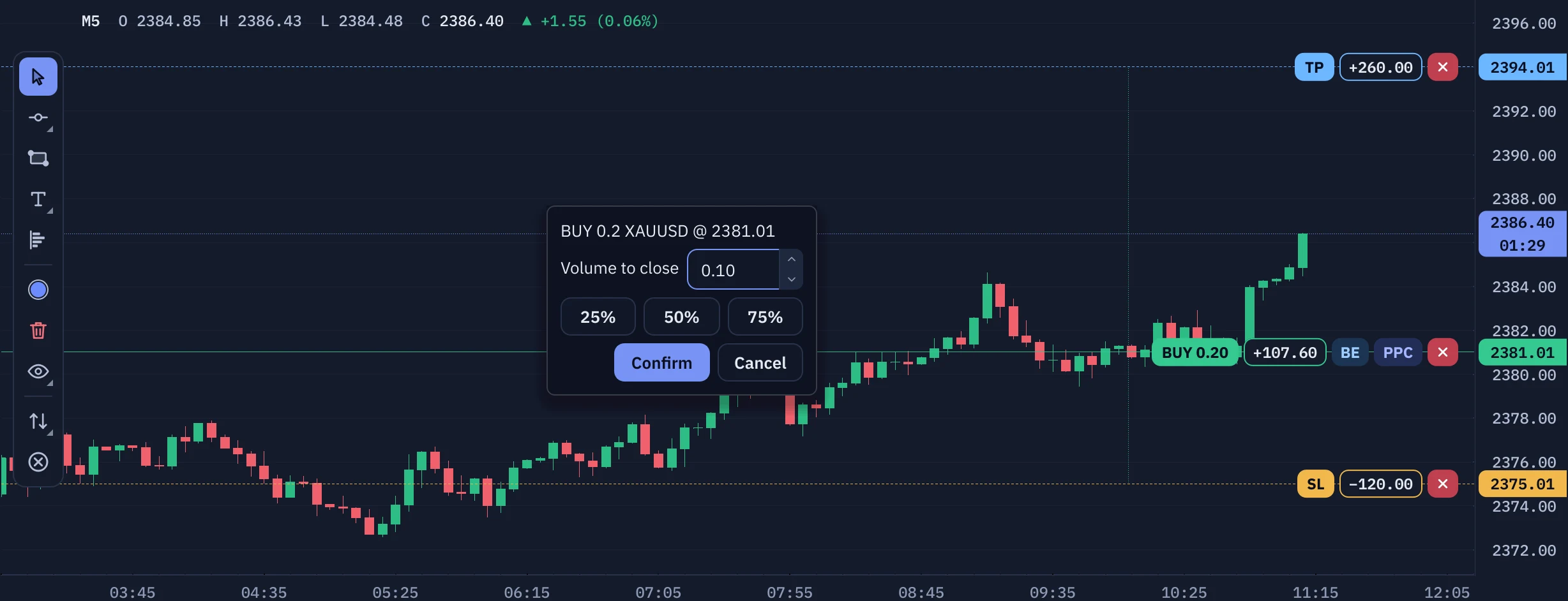
- Click PPC on a trade that is in profit.
- The dialog shows the trade and Volume to close, set to about half. Type another value or click 25%, 50% or 75%. At least the minimum lot always stays open.
- Click Confirm to close that volume at market, or Cancel to leave the trade alone.
Close with the x
The red x closes the whole trade at market after a confirmation (Close position), or at once in one-click mode. The hedge and margin warnings above also apply to closing a trade that is part of a hedge.
Pending order labels
A pending order shows a dotted line with a label such as BUY LIMIT 0.15 and its price, and the TP and SL buttons while those levels are missing. Click the label to edit the order as a setup on the chart (section 10); the x cancels the order after a confirmation.
Next section10 · Visual setups: Long and Short10Visual setups: Long and Short
Draw the whole trade on the chart (entry, stop, target and partial targets), see the risk and the reward in money, and send it with one click.
Draw a setup
- Click Long setup (green) or Short setup (red) in the palette on the chart. Bliks needs the symbol details and a live price; if it says Waiting for symbol details and a live price..., try again in a moment.
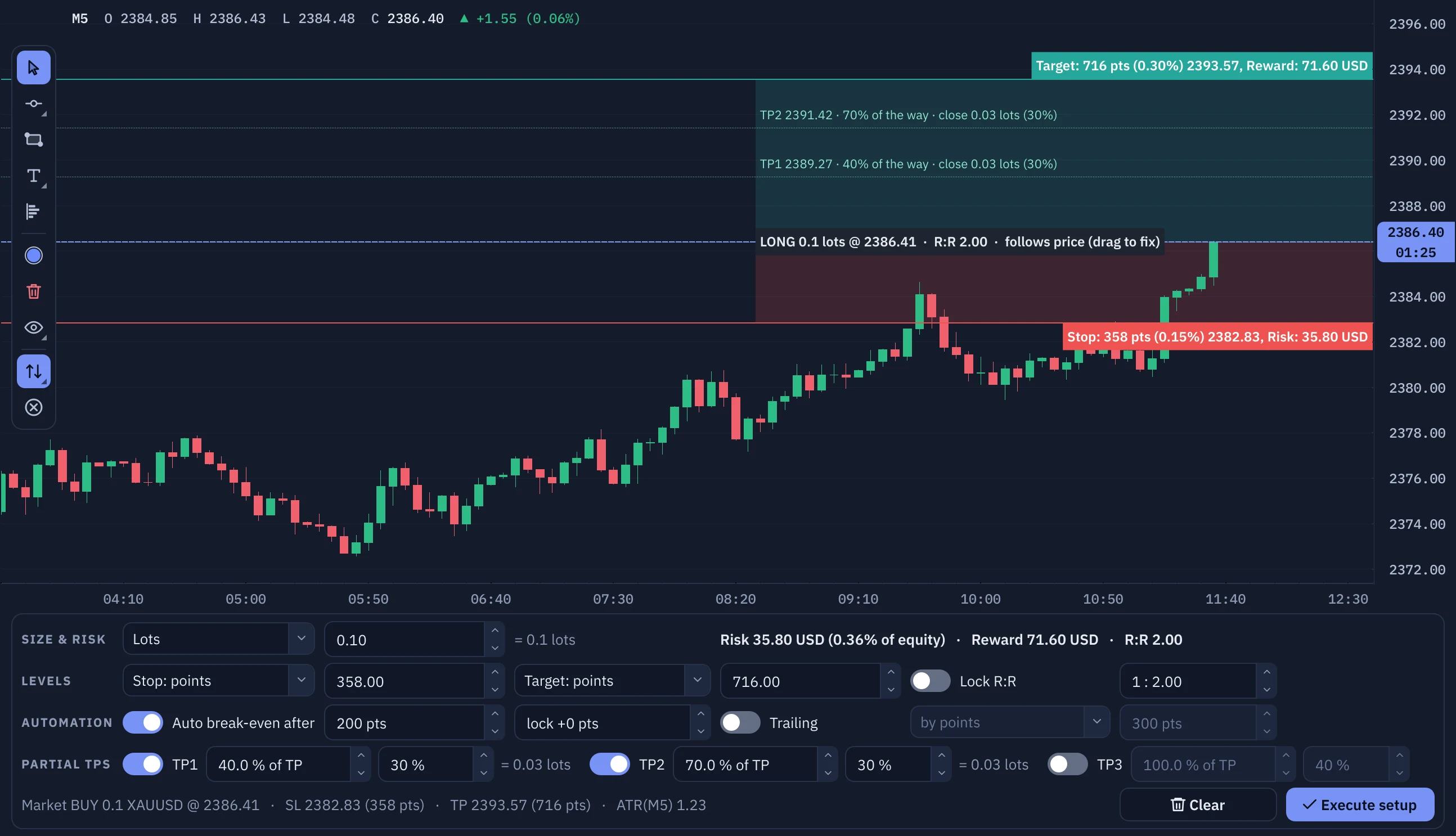
- The lines appear: the dashed blue entry, the red stop loss and the green take profit, with shaded risk and reward zones and their labels in money. Until you move the entry, the whole setup follows the live price.
- Drag a line to move it. Moving the entry away from the price turns the setup into a pending order, a Limit or a Stop that Bliks picks from where the entry is.
- Fine-tune it in the panel under the chart (explained below).
- Click Execute setup. Bliks checks the setup, shows the review sheet Execute position setup (with the risk as a percentage of your equity and the automation you chose), and sends it when you confirm.
- Bliks reports Trade setup placed. A pending setup waits in the Pending tab; when it triggers you hear Trade setup activated, and if it is deleted or expires, Trade setup canceled.
The setup panel
| Row | What you set |
|---|---|
| SIZE & RISK | How the size is decided: Lots, Risk % of balance or Risk amount, and the value. Bliks works out the lots. The risk label shows the money you lose if the stop loss is hit and its share of your equity; it turns amber and then red when it is high. |
| LEVELS | Stop loss and target in points, percent, price or ATR multiples. Lock R:R keeps the reward-to-risk ratio (1 : 2.0 by default) when you move the stop. |
| AUTOMATION | Auto break-even after a number of points (200 by default) with lock + points beyond the entry. Trailing: by points (300 by default), behind the last swing low or high, or behind the previous candle. |
| PARTIAL TPS | Up to three targets, TP1 to TP3. Each has a position as a percentage of the way from the entry to the take profit (40, 70 and 100 by default) and a share of the volume (30, 30 and 40). TP3 always takes what is left so the total ends at 100%. Drag the dotted lines on the chart to move them. The lot size must be splittable into at least the minimum lot. |
The buttons at the end of the panel are Clear (drop the setup) and Execute setup. The panel remembers your last values for the next setup.
Checks before it is sent
- Blocked (an error you must fix): a stop loss that would lose your whole equity or more than your balance; partial targets too small to split; a position that would be left smaller than the minimum lot.
- Needs your confirmation (a warning): a stop that risks more than 5% of your equity, an estimated margin above your free margin, or a minimum lot that makes the real risk bigger than the one you asked for.
- Your risk rules from Settings > Risk apply as well (section 12).
Edit a pending setup
Click the label of a pending order on the chart. Its lines come back, the panel offers Apply changes to #ticket, and you can move the entry, stop and targets before the order triggers. Changing the stop loss goes through the same risk warning as any other stop change.
Next section11 · Managing open trades and pending orders11Managing open trades and pending orders
The bottom panel is your control room: the Positions tab with a row of buttons per trade, the Pending tab, and the Hedge exposure, Basket and Close Mode actions.
The Positions tab
Each open trade is a row: the side pill (▲ BUY or ▼ SELL), the Symbol, the Lots, Entry → price (the entry and the current price), Protection (for example SL 4170.50 · TP 4195.00, or ⚠ No stop loss), P/L in the account currency with the result in R below it (profit divided by the initial risk), and the Manage buttons.
| Button | What it does |
|---|---|
| Secure | Moves the stop loss to break-even (like BE on the chart). Enabled only when the trade is in profit and the stop is not yet at the entry. |
| Take part | Opens the partial close dialog (the same as PPC on the chart). Enabled when the trade is big enough to leave at least the minimum lot after closing the minimum lot. |
| Close | Closes this trade at market after a confirmation. |
- Click a row to select it; use
CtrlorShiftto select several. The right-click menu offers Close selected, Partial close, Move SL to break-even and Add journal note. - Double-click a row to bring that symbol to the chart.
- Hover a row to see its ticket, open time and batch in a tooltip.
Hedge exposure
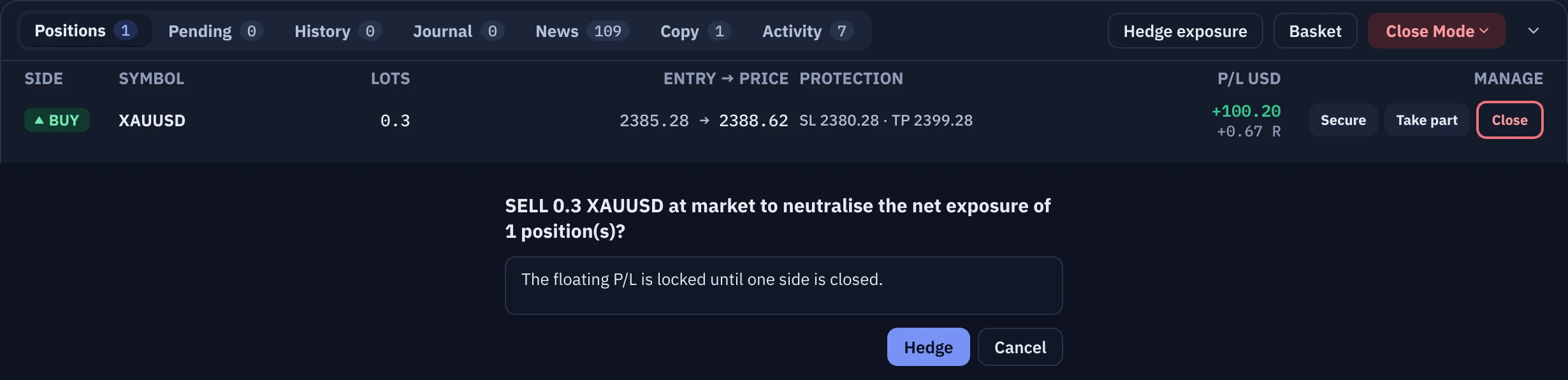
Hedge exposure opens an opposite market order for the net volume of a symbol (the symbol of the selected row, otherwise the chart's symbol). After a confirmation, the current profit or loss is frozen until you close one side. It costs spread, swap and margin, and it is disabled while the symbol has no net exposure. Closing only one side later re-opens the risk, and Bliks warns you before you do it. It is meant for hedging accounts.
Basket
Basket closes all the positions of one symbol automatically. In its dialog choose the Symbol, a profit target + and a loss - in money, and click Arm basket. When the total floating result of that symbol reaches the target or the loss, Bliks closes every position of it. Disarm basket cancels the rule. Bliks must be running for the basket to act.
Close Mode
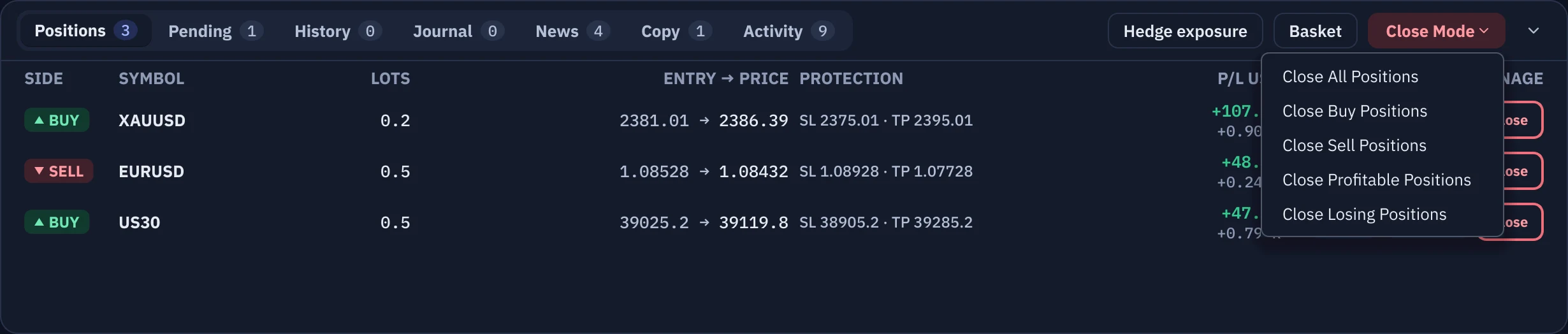
The Close Mode menu closes trades in bulk. An entry shows only when it applies to something you have open:
- Close All Positions: every trade. It asks you to type
CLOSE(you can turn this off in Settings > Trading, Require typing CLOSE before 'Close All Positions'). - Close Buy Positions and Close Sell Positions: every trade of one side.
- Close Profitable Positions and Close Losing Positions.
- Closing one leg of a hedge, or closing when the margin is thin, shows the warning with Close anyway.
The Pending tab
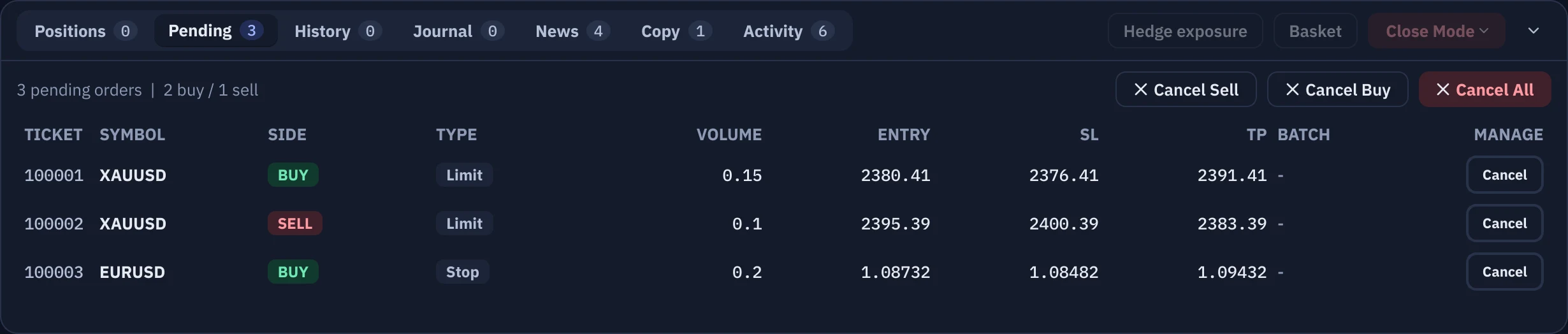
It lists pending orders with Ticket, Symbol, Side, Type, Volume, Entry, SL, TP and Batch, and a Cancel button on every row. Above the table, Cancel Sell, Cancel Buy and Cancel All cancel a whole side or everything. Each cancellation asks for confirmation unless one-click mode is on. A line above the table summarises the orders, for example 3 pending orders | 2 buy / 1 sell.
The row that says a trade has no stop loss
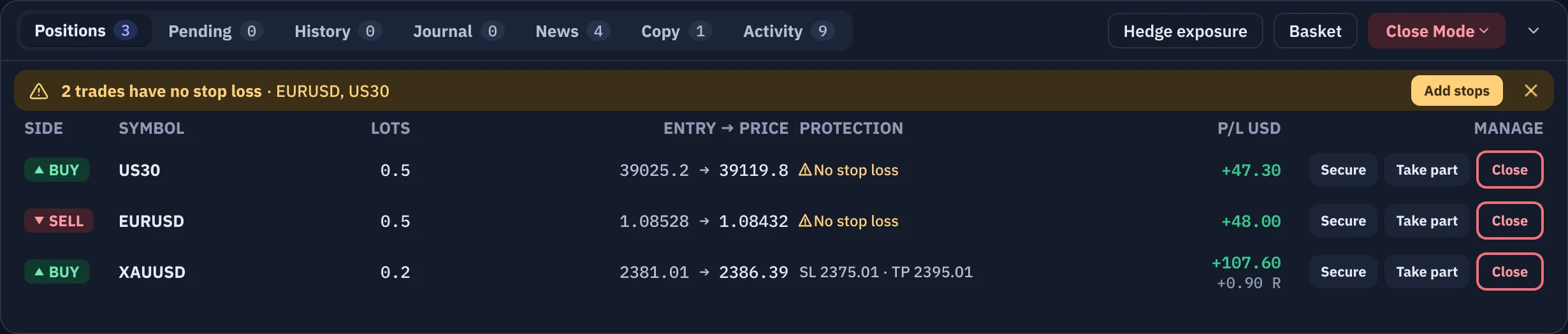
When a trade has no stop loss, an amber row appears above the tables: 2 trades have no stop loss · XAUUSD, US30, with an Add stops button and an ×. Add stops brings that symbol to the chart and reminds you to use the SL button of the trade line, drag the preview and press Confirm. The × hides the row; it comes back only when the set of unprotected trades changes, and the message stays in the Activity tab. Both legs of a locked hedge and the orders of the automatic hedge are not counted.
Fold and resize
The chevron at the right end of the tab strip folds the panel to its header and brings it back; clicking a tab also opens it. Drag the divider above the panel to make it taller. The small numbers on the tabs count the rows inside.
Next section12 · Risk protection12Risk protection
Set your limits once. Bliks checks every order against them, shows how close you are, and warns you before a risky change.
The risk tools are guardrails around the orders that go through Bliks: the Order builder, setups, BUY & SELL, armed events and copied trades. Orders you place directly inside MetaTrader are not blocked by Bliks, although they count in the figures. Limits are a share of your equity, the real value of the account including open trades. The daily rules compare the equity with the balance at the start of the broker's day.
The Risk limits card
The ring shows the health of your margin and takes the colour of the worst state: green, amber or red. The status line says Within limits (with the margin level), Close to a limit, A limit is reached or Trading locked for today. Three meters show what you have used of each limit: Day P/L (the day's loss against the daily loss limit), Open risk (the money at stake in all stops against the open-risk cap) and Trades today (against the daily trade limit). A meter turns amber at 70% of its limit and red at 100%; with no limit set it reads no limit.



Your limits: Settings > Risk
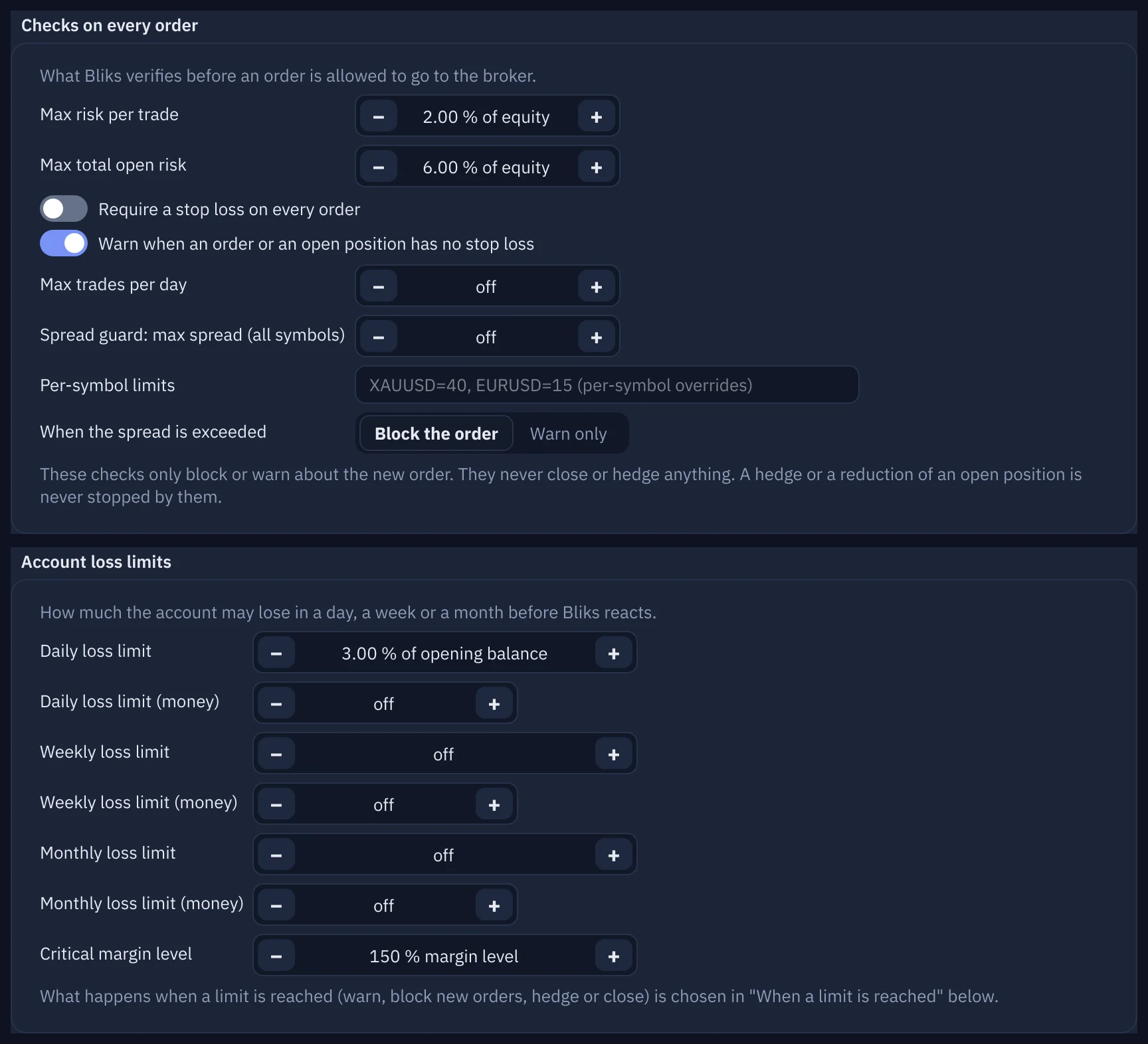
The Risk page is one column of cards, in the order you need them: the master switch, the checks on every order, the account loss limits, prop-firm mode, the override, the automatic hedge, Bliks-held stops with the gap guard, the equity and leverage alerts and, last, When a limit is reached. Everything that depends on a switch is greyed out while that switch is off.
| Card and option | What it does (factory value) |
|---|---|
| Risk guardrails: Enable risk guardrails | The master switch (on). Switching it off also switches off the checks on every order, the loss limits and their actions, the margin level action, prop-firm tracking and the spread guard. It does not switch off the automatic hedge, Bliks-held stops, the equity and leverage alerts or the time-based rules of the Automation page. |
| Checks on every order: Max risk per trade, Max total open risk | The most one order may risk (2% of equity) and the most all open stops plus the new order may risk together (6%), measured from the entry to the stop loss. |
| Require a stop loss on every order, Warn when an order or an open position has no stop loss | Without a stop the risk of an order cannot be measured, so the two limits above cannot apply to it. The first (off) blocks such orders; the second (on) only warns. |
| Max trades per day, Spread guard, Per-symbol limits, When the spread is exceeded | A daily trade count (off) and a spread limit in points for all symbols (off) or per symbol like XAUUSD=40, EURUSD=15; when exceeded, Block the order or Warn only. These checks only block or warn about the new order. They never close or hedge anything, and a hedge or a reduction of an open position is never stopped by them. |
| Account loss limits: Daily loss limit, Weekly loss limit, Monthly loss limit, Critical margin level | The daily limit is 3% of the day's opening balance; weekly and monthly are off. A limit can be a percentage or money. The base is the opening balance of the period (deposits and withdrawals are not counted) and a period starts at midnight of the broker's clock (see General > Broker clock). Critical margin level (150%) is equity as a share of the margin in use; your broker's margin call is usually 100% or lower. What happens at a limit is chosen in When a limit is reached. |
| Prop-firm mode (off) | Tracks daily and total drawdown the way funded-account firms measure it (Initial account size, Max daily drawdown 5%, Max total drawdown 10%, optional Trailing drawdown measured from the highest equity) and alerts at the percentages of the limit you list (Alert at % of limit: 50 and 80). |
| Override: A blocked order can be placed anyway by typing the override word | On, with the word OVERRIDE. When new orders are blocked you can still place one by typing the word (a deliberate cooling-off step). Off: a reached limit is a hard stop with no way round it. |
| Equity and leverage alerts | An amber alert when equity is 25% below the balance and a red one at 50%, and Tell me when the broker changes the account's leverage (on, with the old and new values). They show on the risk card and the bell, with or without the guardrails. |
When a limit is reached
The daily, weekly and monthly loss limits, the prop-firm limits and the critical margin level each have an action. Choose it once in the last card of the Risk page:
- Warn only: an alert on screen, by voice and in the bell.
- Warn and block new orders (the default for the daily loss limit and the prop-firm limits; the weekly and monthly limits and the critical margin level default to Warn only): the alert, and the Order builder refuses new orders until the period ends (unless the override word is allowed).
- Warn, block and open a hedge: also opens the opposite order for the exposed volume, so the loss stops growing.
- Warn, block and close losing positions and Warn, block and close everything: the strongest actions; they close real trades.
- A fallback for each limit says what to do when the action fails: Nothing else, alert me, Keep warning me, Open a hedge, Close losing positions or Close everything. The choices that make no sense for the action you picked are not offered.
- Tries per action (3): a failed action is repeated about every 2 seconds this many times, then the fallback gets the same number of tries. A failure is always announced as a danger alert that stays until you dismiss it.
- An action runs once per limit and period (day, week or month) and never while the market is closed: Bliks waits for it to open. Every step is shown as a notification and written to the log.
- Also act on a limit that was already reached when Bliks started (off): by default a breach that already existed when Bliks opened only warns and blocks, so a restart never closes your trades by surprise.
The risk hint in the Order builder
Under the fields, one line tells you what your rules say about the order as it is set up right now, before you press anything: Within your limits with the risk in money, its share of equity and the R:R, Check this order (a warning) or Over a limit (a rule would block it).
Warnings before a stop loss changes
Adding, moving or removing a stop loss (a chart line, Add stops, a pending order, the setup editor) is checked against the per-trade limit, the open-risk limit, the room left before the daily loss limit, the prop-firm drawdown and the automatic hedge trigger. If one of them is broken, a warning appears and you must accept it (Apply anyway), even in one-click mode. A stop on one leg of a hedge warns that the other leg stays open when it triggers.
The close guard
Closing one side of a hedge, closing in a way that leaves the margin thin, or a margin stress test at 1:100 leverage shows the warning with Close anyway. It is always asked, even in one-click mode, and applies to the x on the chart, Close, Take part, Close selected and Close Mode.
The automatic hedge
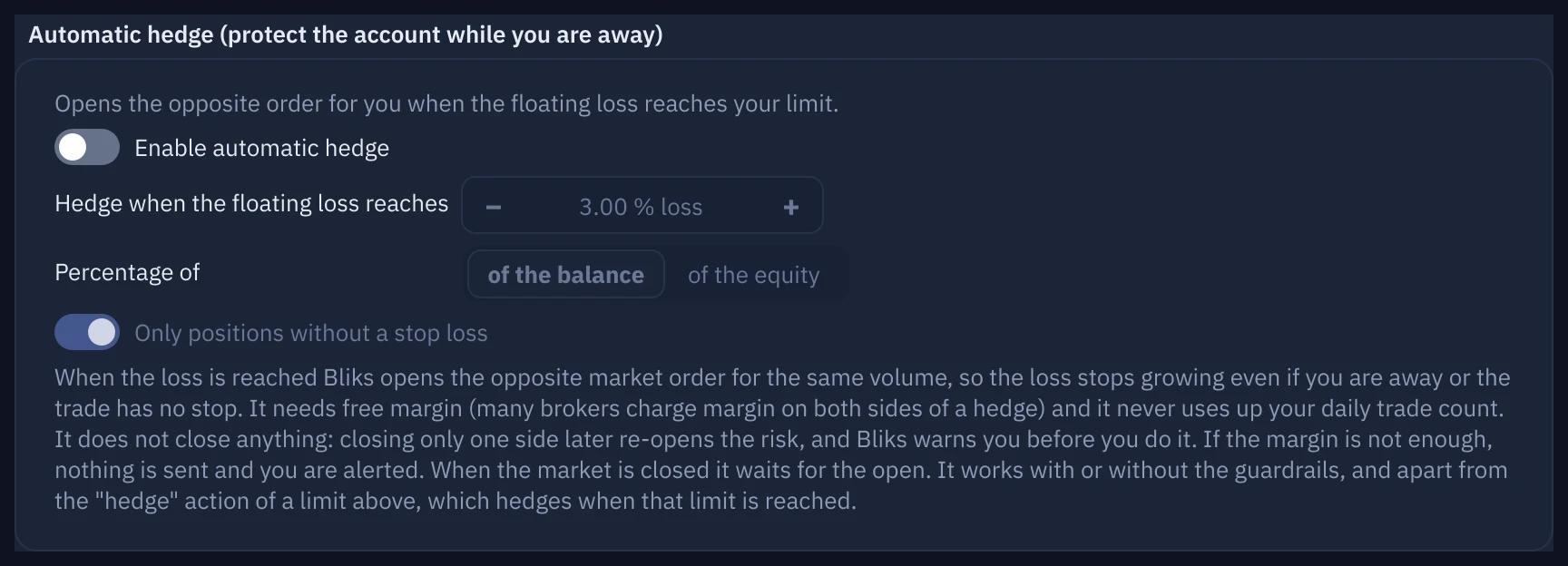
An optional safety net for the times you are away or a trade has no stop loss. It is off by default, and switching it on first shows what it does (Enable automatic hedge?). When the floating loss of the exposed positions reaches the percentage you set (3% by default, of the balance or of the equity), Bliks opens the opposite market order for the same volume on each losing symbol. The loss stops growing: it is locked, not closed.
- Only positions without a stop loss (the default): trades that already have a stop have a defined risk and are left alone.
- A symbol whose buys and sells already cancel out is never hedged twice.
- Margin first. Many brokers charge margin on both sides of a hedge. Bliks checks your free margin (at a reduced 1:100 leverage) and sends nothing if it is not enough; you get an on-screen and spoken alert that the loss is not locked.
- Success and failure are both announced. A failed hedge is retried up to three times a day, then Bliks says it gave up. Hedge orders never count towards your daily trade limit.
- On a hedged symbol, automatic break-even, trailing and partial closes pause. A hedge is not a stop loss: spread and swap keep costing money while it is open.

Keep your stop loss and take profit away from the broker
Settings > Risk > Stop loss / take profit privacy has one option: Allow Broker / Liquidity Provider to know your SL/TP positions.
- On (the default). As usual: stop loss and take profit go to MetaTrader and the broker's server executes them, even if Bliks is closed.
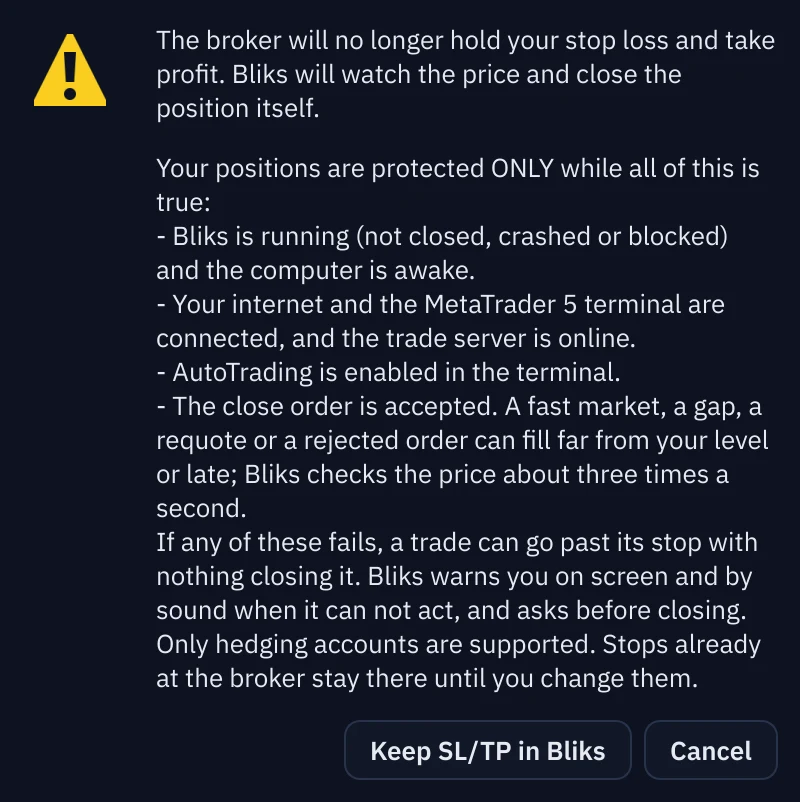
- Off. Orders and changes go to MetaTrader without stop loss or take profit. Bliks keeps the levels itself (saved on your disk, so a restart does not lose them), shows them everywhere as usual, and closes the position at market when the price crosses a level. It checks about three times a second and retries a failed close every second.
- Switching it off asks you to confirm in Keep SL/TP only in Bliks?, with the list of what can go wrong. While Bliks holds stops, the top bar shows Stops held by Bliks with a count; it turns red and reads Stops NOT watched, with an on-screen error and a sound, whenever Bliks cannot act.
- Closing Bliks then asks Send stops to the broker, then close, Close anyway (stops not watched) or Cancel. When you start Bliks again it tells you the stops were not watched while it was closed.
- It works on hedging accounts only; a netting account keeps using broker-side stops, with a notice. Stops already at the broker stay there until you change them, and switching the option on again hands every held stop back to the broker.
A stop loss passed by a gap
This protects you when Bliks holds your stops (the privacy option above is switched off). Suppose Bliks was closed, the computer slept, the internet dropped or the market was closed, and the price has meanwhile jumped far beyond a stop. Closing at once would lose much more than you planned. So when Bliks sees a price already past a stop by more than 30% of the stop distance (you can change the percentage), it does not close anything by itself. A window opens: Stop loss passed - your decision needed.
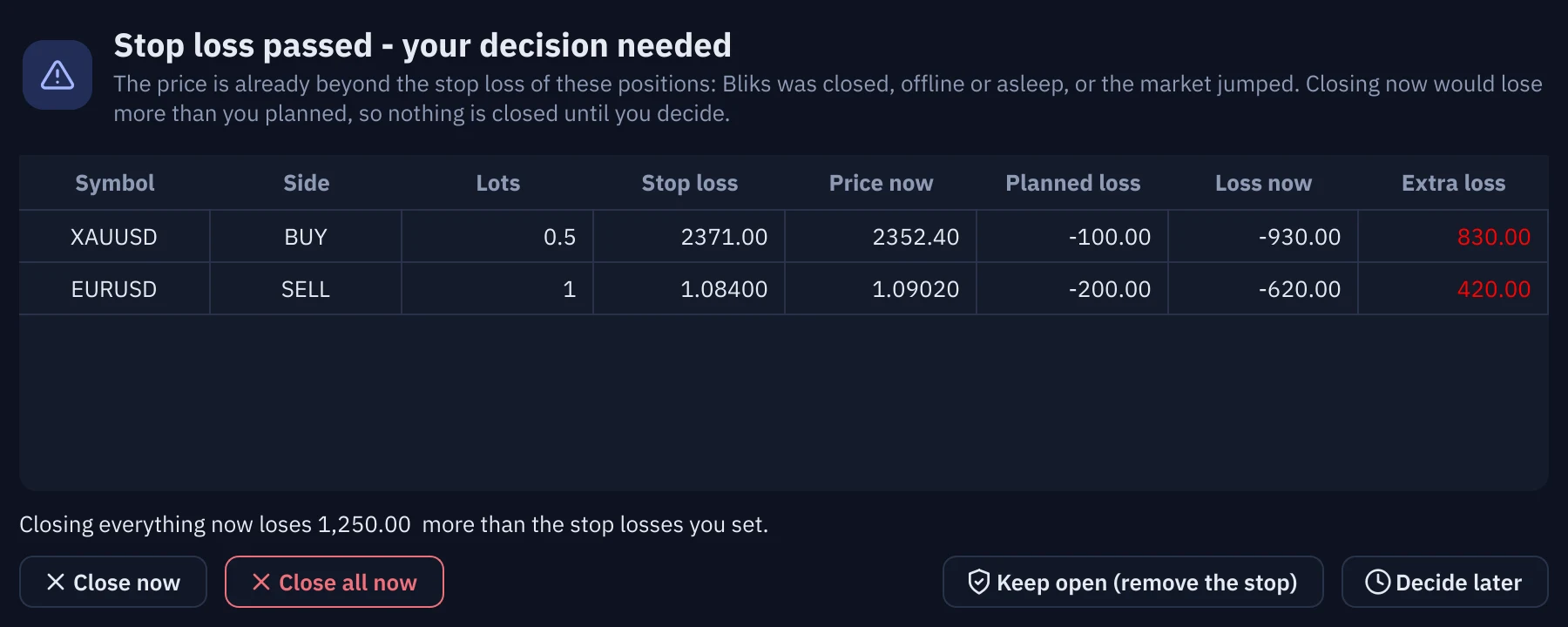
- The window lists every position concerned with its Symbol, Side, Lots, Stop loss, Price now, Planned loss (what you accepted when you set the stop), Loss now and the Extra loss (the difference), and the total extra loss.
- Close selected now and Close all now close at the market price. Keep open (remove the stop) removes the stop and leaves the trade open. Decide later hides the window; the question stays and is repeated, and nothing closes.
- The alert is a critical one: a card with a full-colour border that stays until you dismiss it, pulses after 10 seconds if nobody has acknowledged it and repeats its sound every minute (see section 14).
- While Bliks is watching the price live, a price at or just past the stop is closed as usual, without asking. The question is for jumps. It applies only to stops that Bliks holds; stops at the broker are executed by the broker.
- Settings > Risk > Ask me before closing a Bliks-held stop loss that was passed by a gap (on) switches the question on or off, and A gap is a price past the stop by more than sets the percentage. Both are available only while Bliks holds the stops.
13News and the economic calendar
See what is scheduled, get a reminder before it happens, and let Bliks place or close trades around it.
The News tab
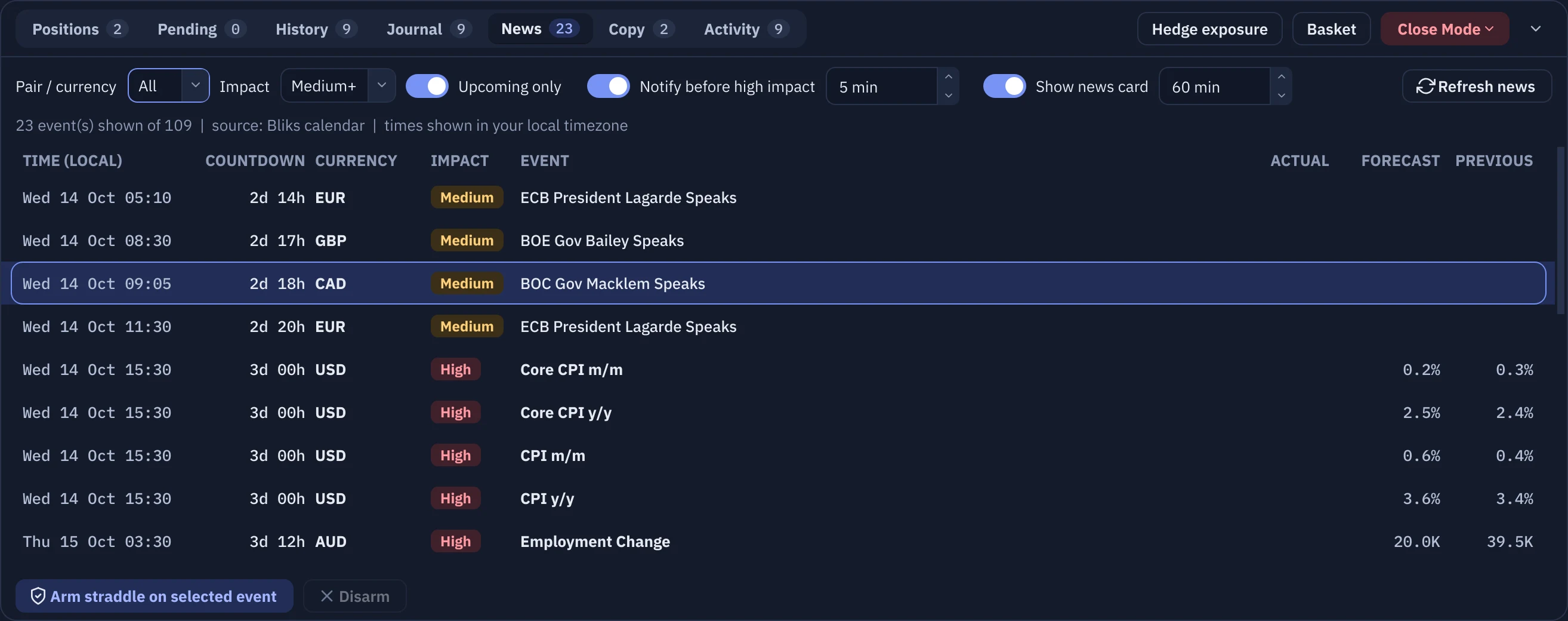
The News tab of the bottom panel lists economic releases with Time (local), Countdown, Currency, Impact, Event, Actual, Forecast and Previous. Times are in your own PC time zone (the calendar page on the website shows UTC). Use the filters Pair / currency and Impact (All, High, Medium+, Medium, Low), and Upcoming only to hide releases that have passed. Refresh news reloads it; Bliks also refreshes it by itself every 30 minutes.
Reminders before a release
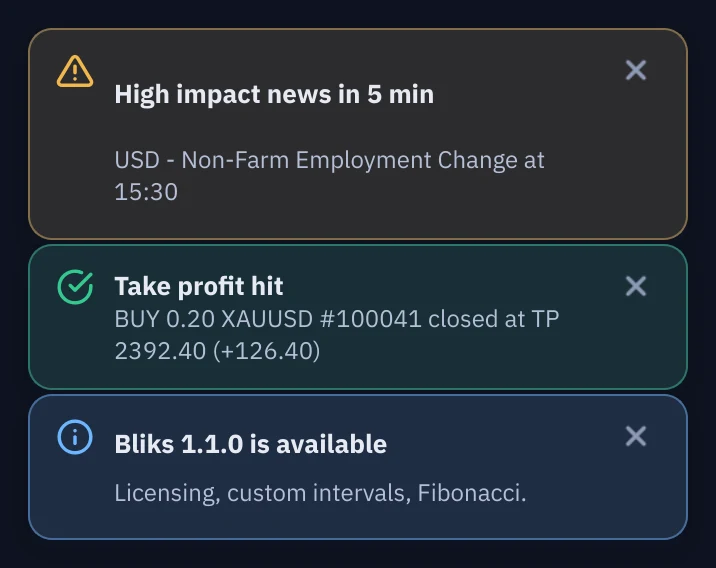
With Notify before high impact ticked (in the News tab, and in Settings > Notifications > Economic news reminders), Bliks warns you a number of minutes before each high-impact release (5 by default): a pop-up, a sound and a spoken message such as High impact news in 5 min, once per event. You can tick High impact only off to be warned about medium-impact events as well.
The Next high-impact news card
Next to the Order builder, the card counts down to the next important release and shows its time, forecast and previous value. Arm BUY & SELL on this event prepares a straddle (section 6) and Calendar opens the News tab. The Arm button is disabled once the release time has passed, and the whole card hides when nothing important is ahead.
Close positions before the news
If you prefer to be flat during releases, Settings > Automation > Time-based rules (server time) has Close positions before high-impact news: set the minutes before, and tick only symbols of the event's currency to close only the symbols concerned. Bliks then closes those positions at market by itself, once per event. It must be running at that moment. The same box has a daily close time and a Friday close before the weekend.
Next section14 · Alerts, notifications and the voice assistant14Alerts, notifications and the voice assistant
Bliks tells you what happened with a pop-up, a sound, an English voice and, if you wish, a Telegram message. Nothing important is silent.
Pop-up messages
Pop-up messages (toasts) appear at the bottom-right corner of the screen, stack upward, take the colour of their severity and fade after the time you set (6 seconds by default, Settings > Notifications > Toast duration). Click one, or its ×, to close it.
The five levels of an alert
A pop-up is a tinted card: the colour of its level at a low strength over the panel, with a thin edge of the same colour and an icon. There are five levels and each one stays on the screen for the time that fits it:
| Level | Meaning and how long it stays |
|---|---|
| Info and Success | Something happened or worked (an order filled, a take profit, a setup placed). Fades after the Toast duration (6 seconds). |
| Warning | Needs your attention (a limit is close, a stop was rejected, a news release is near). Stays twice as long, at least 12 seconds. |
| Error | Something went wrong (an order failed, stops are not watched, the connection is lost). Stays until you dismiss it. |
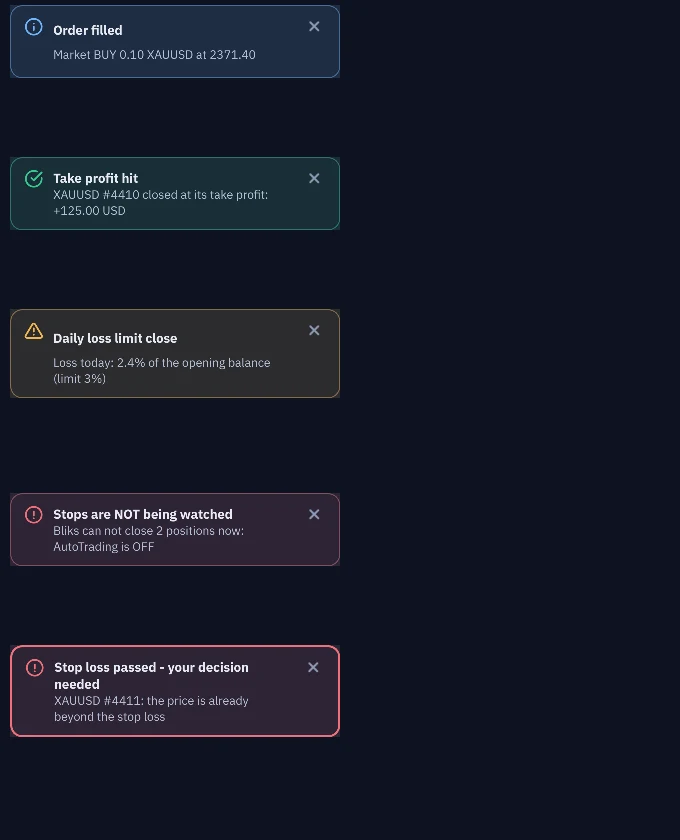
| Critical | A loss that is happening now: a stop passed by a gap, equity in the red zone, a critical margin level, a limit action that finally failed. Full-colour border, stays until you dismiss it and always escalates. |
Escalation
If nobody acknowledges an error or a critical alert, Bliks escalates it so it cannot be missed while you are looking elsewhere: after 10 seconds the card pulses with a glowing ring, and its sound (and voice) repeats every minute until you click the card or its × to dismiss it. If Windows animations are switched off, the ring stays steady instead of pulsing. Settings > Notifications > Escalate danger alerts nobody acknowledged (on) turns the escalation off. A full stack of cards always drops an ordinary card before a danger one.
The bell and the alert list
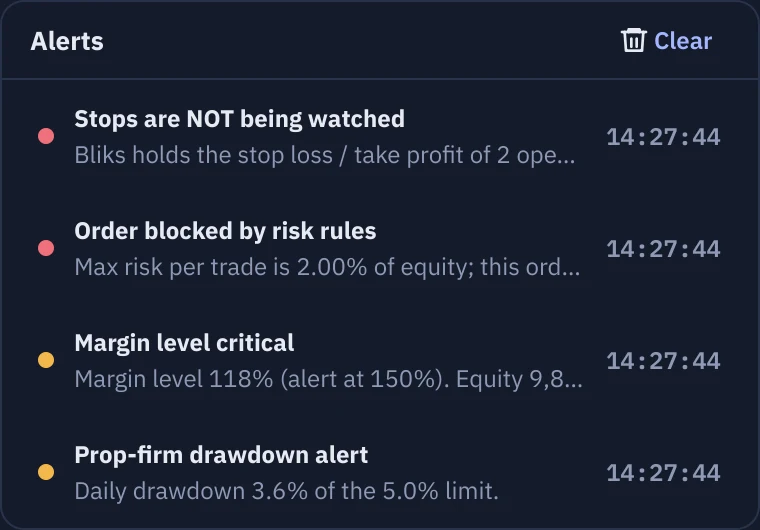
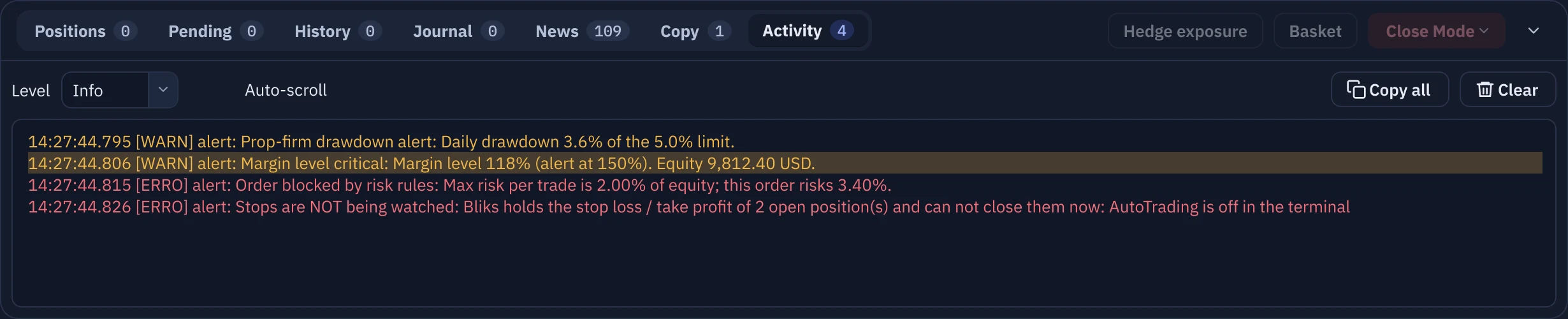
The bell in the top bar collects the latest warnings and errors (up to 50, newest first). A dot shows that something is unread. Click the bell to open the list Alerts: each row has a coloured dot (amber warning, red error), a title, one line of detail and the time. Click a row and Bliks opens the Activity tab with that line highlighted for a few seconds. Clear empties the list. When there is nothing, it says No warnings or errors.
Sounds and the voice assistant
Every kind of event has its own short sound effect followed, if the voice assistant is on, by a sentence such as Congratulations, take profit hit. You made one hundred twenty five dollars. The voice is built into Bliks, so it starts instantly and works offline. The amounts are the ones MetaTrader booked (profit plus swap plus commission), the same figures as the History tab. Alerts that happen together become one sentence.
What can be spoken: price reached; take profit hit; stop loss hit; setup placed, activated and canceled; partial take profit; trade closed; a close that failed; news reminders; market open, closed and closing soon; you are offline and MetaTrader offline (each with a back-online message); AutoTrading on and off; account at risk (a daily, weekly or monthly loss limit, critical equity, prop-firm drawdown); and the automatic hedge opened or failed.
Settings > Notifications
| Group | Options |
|---|---|
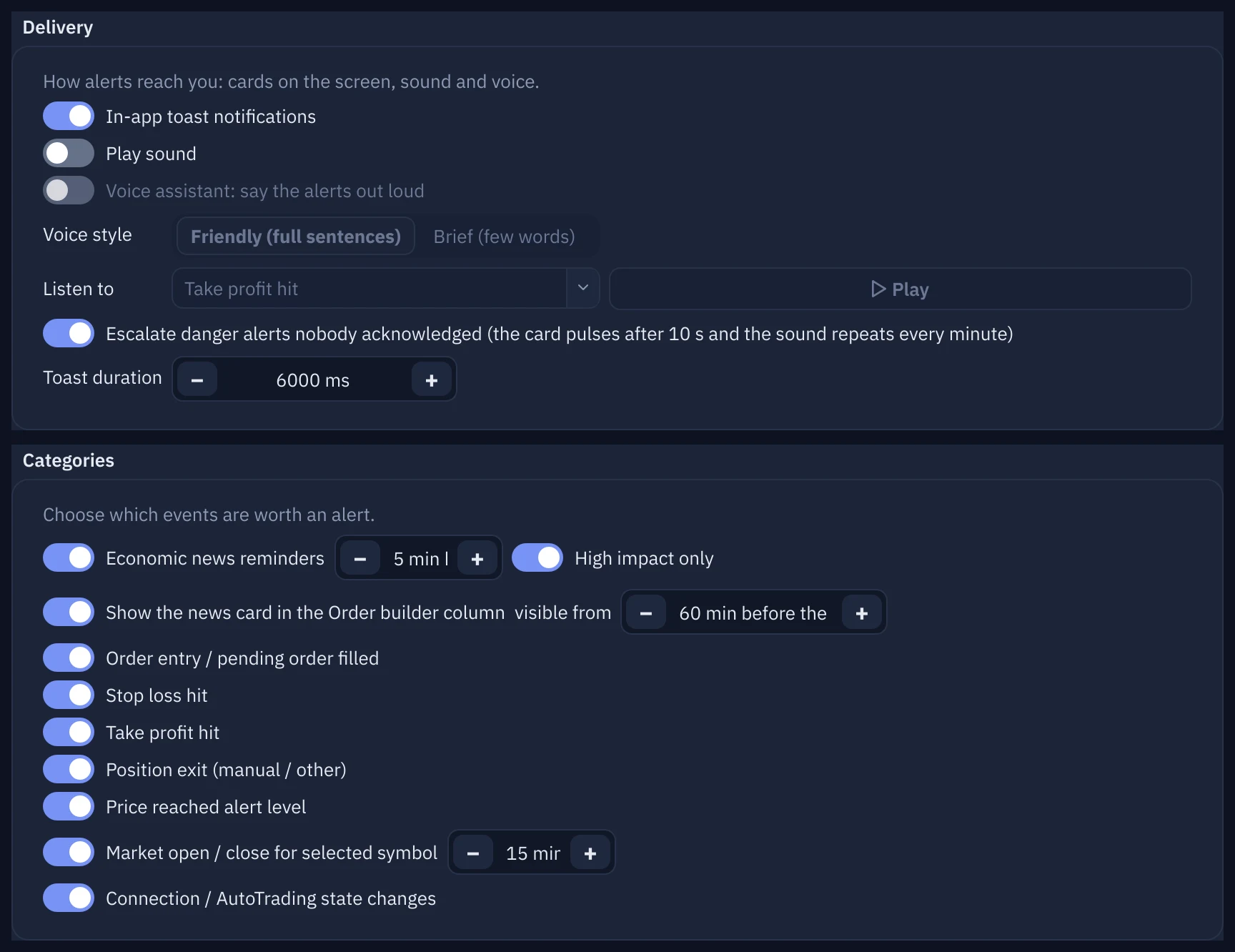
| Delivery | In-app toast notifications, Play sound, Voice assistant: say the alerts out loud, Voice style (Friendly (full sentences) or Brief (few words)), Listen to with Play to hear a sample, and Toast duration. All are on by default. |
| Categories | Which events notify you: Economic news reminders (with the minutes before and High impact only), Order entry / pending order filled, Stop loss hit, Take profit hit, Position exit, Price reached alert level, Market open / close for selected symbol (with the closing soon warning, 15 minutes by default, 0 = off) and Connection / AutoTrading state changes. |
| Sounds | A line for each event with a file box, Browse... (your own .wav file), Default (Bliks's built-in sound), Test and Silent. A file or Silent you choose wins over the voice. |
| Price alerts | The list of your price alerts, with Remove selected alert. |
| Telegram | Described below. |
Price alerts
Right-click the chart at the price you care about and choose Add price alert at .... The dialog Alert when price reaches takes the price and an optional Note; click Create alert. When the price reaches it you get a pop-up, a sound and the spoken price reached. The alert fires once. It needs a package with Price alerts. Drawings can raise alerts too (section 8).
Telegram
- In Telegram open @BotFather, create a bot with /newbot and copy the token it gives you.
- Send any message to your new bot, so that it is allowed to write to you.
- Find your chat ID, a number such as 123456789 (for example by messaging @userinfobot).
- In Bliks open Settings > Telegram, switch on Send notifications to Telegram, paste the Bot token (the Show button reveals it) and the Chat id, and click Send a test message. The result, OK or Failed, appears next to the button.
- Optional, to control Bliks from your phone: on the same page switch on Accept commands from Telegram. Bliks accepts
/status,/risk,/positions,/be,/closeprofitand/closeall;/helplists them. The two closing commands need the wordCONFIRM, for example/closeall CONFIRM. Messages from any other chat are ignored.
15Trade history and the journal
History is what your broker booked. The Journal is what Bliks learned about each trade, in R, with room for your own notes.
The History tab
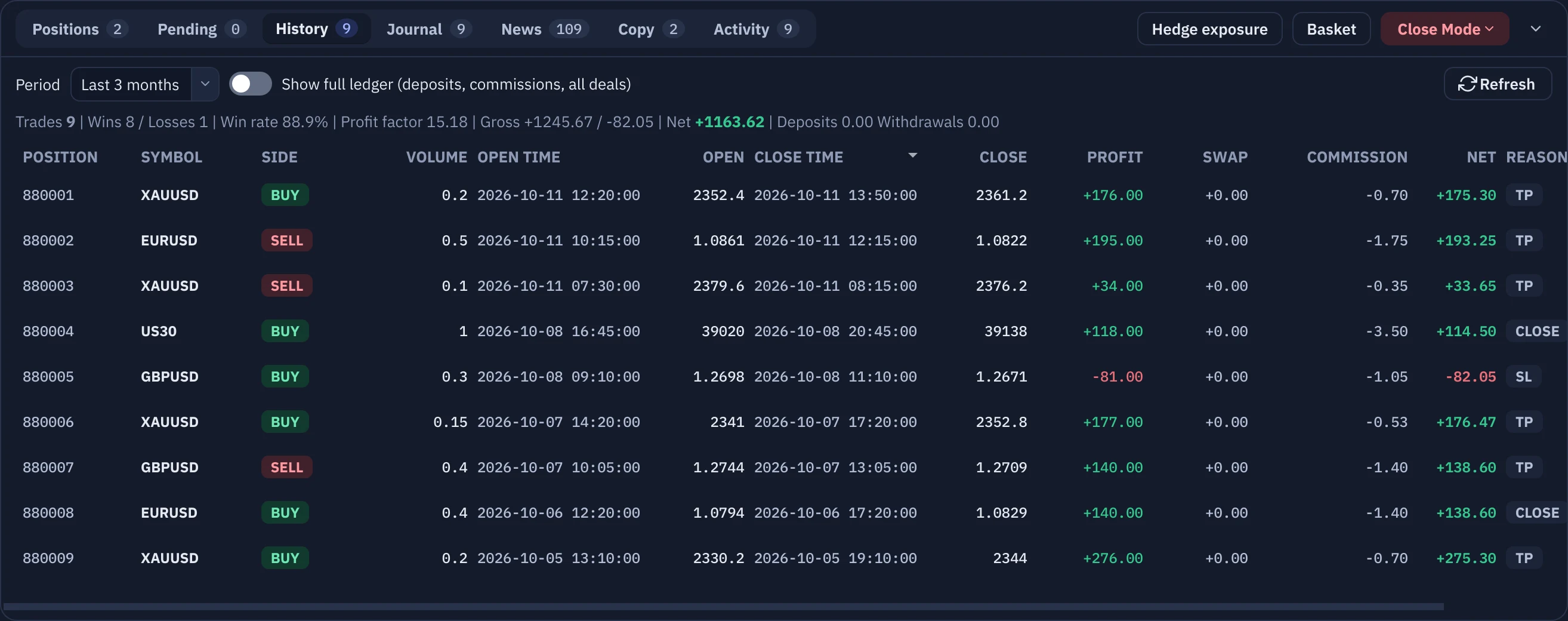
History reads the closed trades from MetaTrader. Choose the Period (Today, Yesterday, This week, Last week, This month, Last month, Last 3 months, All history or Custom with a From and a To date) and click Refresh. The summary line gives the number of trades, wins and losses, win rate, profit factor, gross and net result, deposits and withdrawals. The table shows each trade with its open and close time and price, Profit, Swap, Commission, Net and the Reason it closed. Tick Show full ledger (deposits, commissions, all deals) to see every raw deal instead. It needs a package with Trade history.
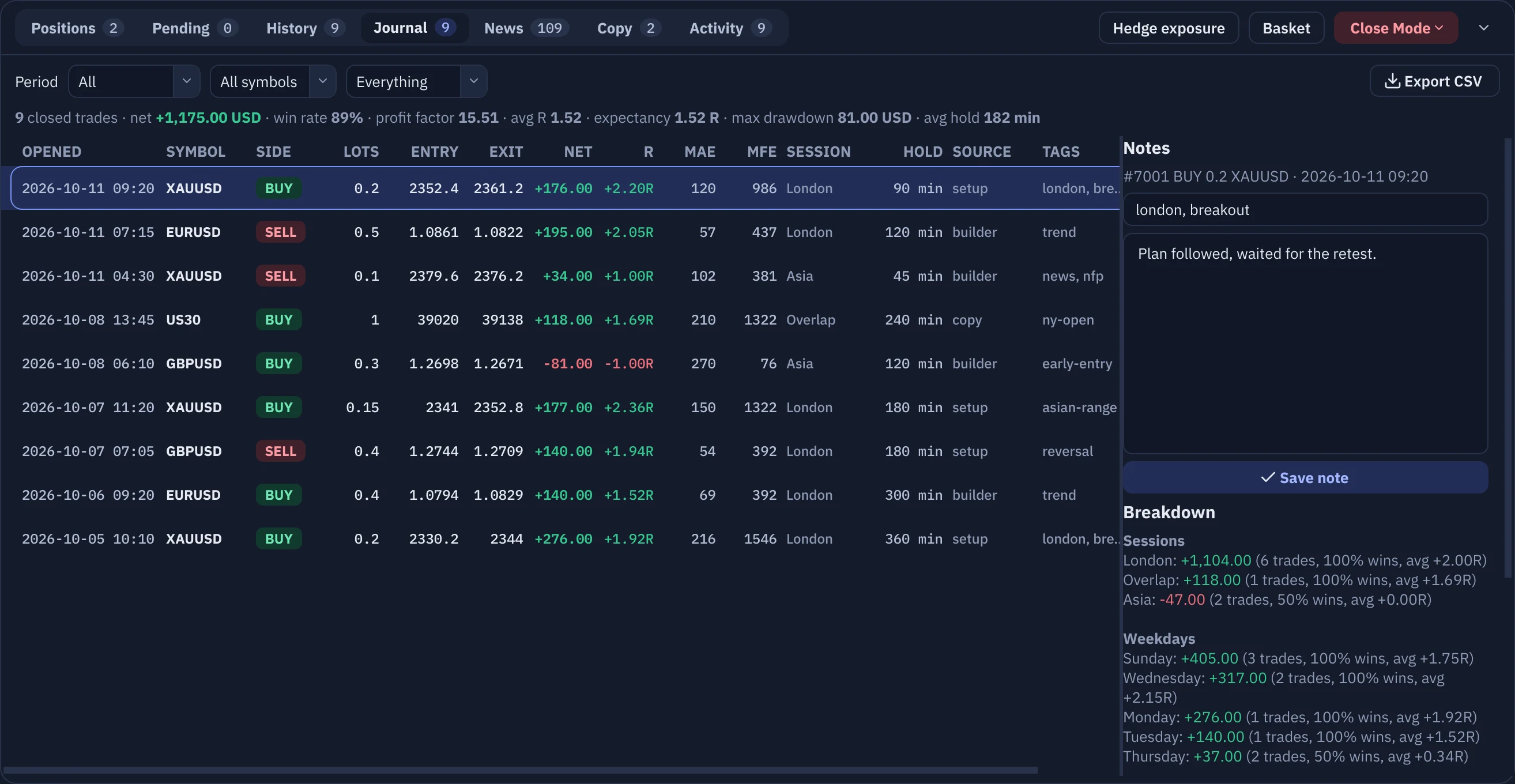
The Journal tab
The Journal needs no work from you: a trade is recorded the moment it opens, with its initial risk (from the stop loss), the session and weekday, and its Source (the Order builder, a setup, a copy, a hedge, or manual). While it runs Bliks tracks how far it went against you (MAE) and in your favour (MFE). When it closes, the exact result is taken from MetaTrader's deals. Trades that were already open when Bliks started are recorded as manual.
- R is the result divided by the initial risk: +2R means you won twice what you risked at the stop. A trade without a stop loss has no R.
- Filters: Period (Last 7 days, Last 30 days, This month, All), the symbol, and Closed trades, Open trades or Everything.
- The summary gives trades, net result, win rate, profit factor, average R, expectancy in R, maximum drawdown and average holding time. Breakdown adds the same numbers by session, weekday and symbol, and a report of the last 7 days.
- Select a trade to write its Notes and tags (separated by commas, for example breakout, news, fomo), then click Save note. From the Positions tab, Add journal note jumps straight to the trade.
- Export CSV saves the table. For trades on the chart symbol Bliks also saves a picture of the chart at entry and at exit in
%APPDATA%\Bliks\journal.
16Copy trading
Follow strategies published by other Bliks users in your own broker account, or publish your own trades. Everything passes through your risk rules.
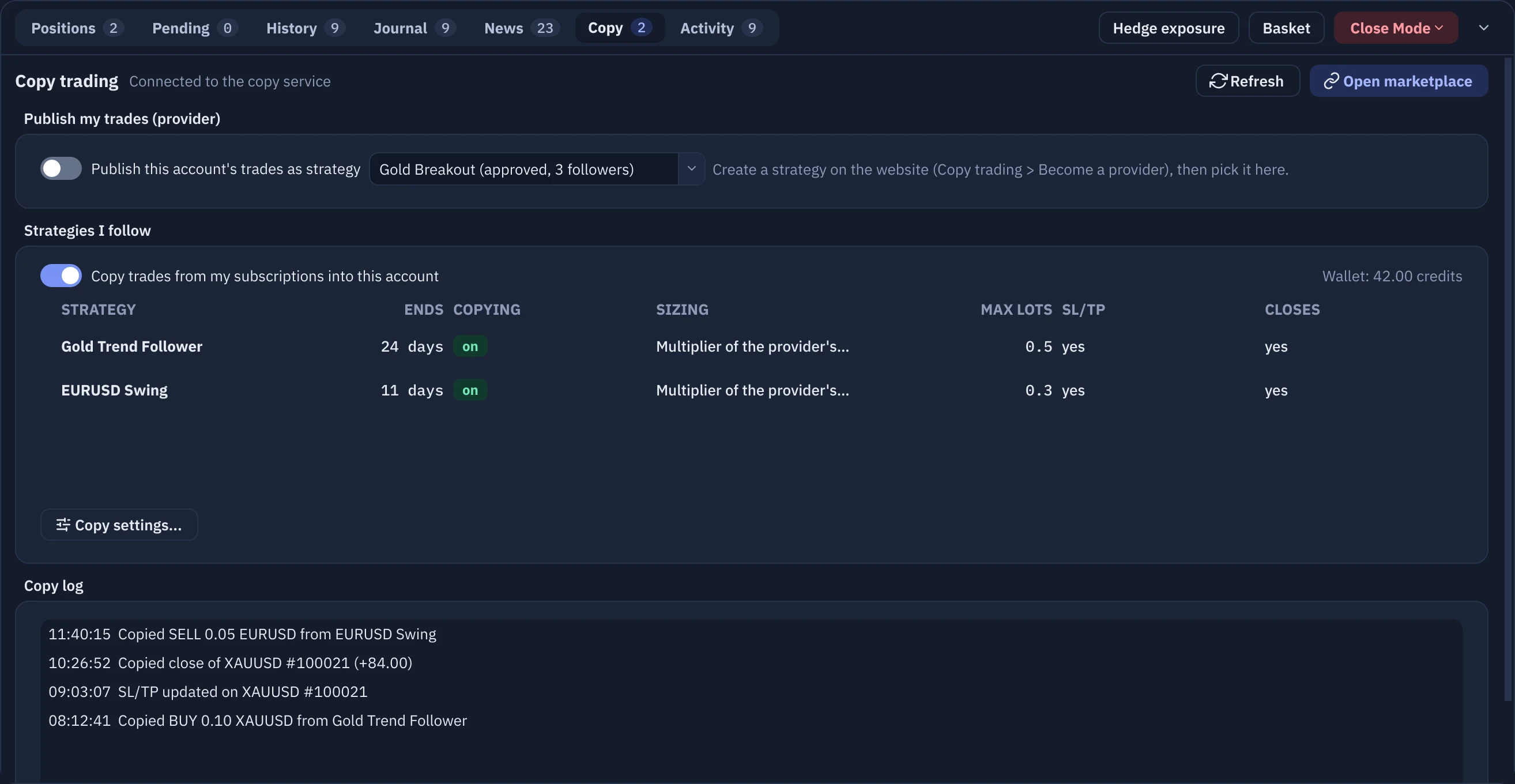
Copy trading in Bliks works through the website. A provider publishes the trades of an account as a strategy. A follower subscribes to a strategy with wallet credits on the Copy trading marketplace, and Bliks on the follower's PC places the same trades in the follower's own broker account. You keep your own broker, nobody gets access to your account, and you choose the size. It needs a package with Copy trading.
Follow a strategy
- On the website open the Copy trading page, choose a strategy and subscribe. Credits are bought in the Wallet and pay for subscriptions; the price of every strategy is on its page.
- In Bliks open the Copy tab, click Refresh, and tick Copy trades from my subscriptions into this account. Your strategies appear in Strategies I follow.
- Select a strategy and click Copy settings... (or double-click it). Choose the Sizing: Multiplier of the provider's lots, Fixed lots per trade, Risk % of my balance per trade or Scale by balance ratio, then the Value.
- Set Maximum lots per copied trade and Max slippage (a copied open is skipped if the price has already moved further than this since the provider's signal). Choose whether to copy stop loss / take profit and their changes and partial closes and closes.
- The Copy log at the bottom lists what Bliks copied, skipped and why.
Publish your own trades
On the website create a strategy (Copy trading > Become a provider). Then in the Copy tab, under Publish my trades (provider), pick the strategy and tick Publish this account's trades as strategy. From then on Bliks publishes the opening, changes and closing of this account's trades while it runs. Followers pay through the platform, which keeps a fee shown on the marketplace page.
Next section17 · Settings reference17Settings reference
Every page of Settings, what its options mean and their factory values. Open it with the Settings button in the top bar.
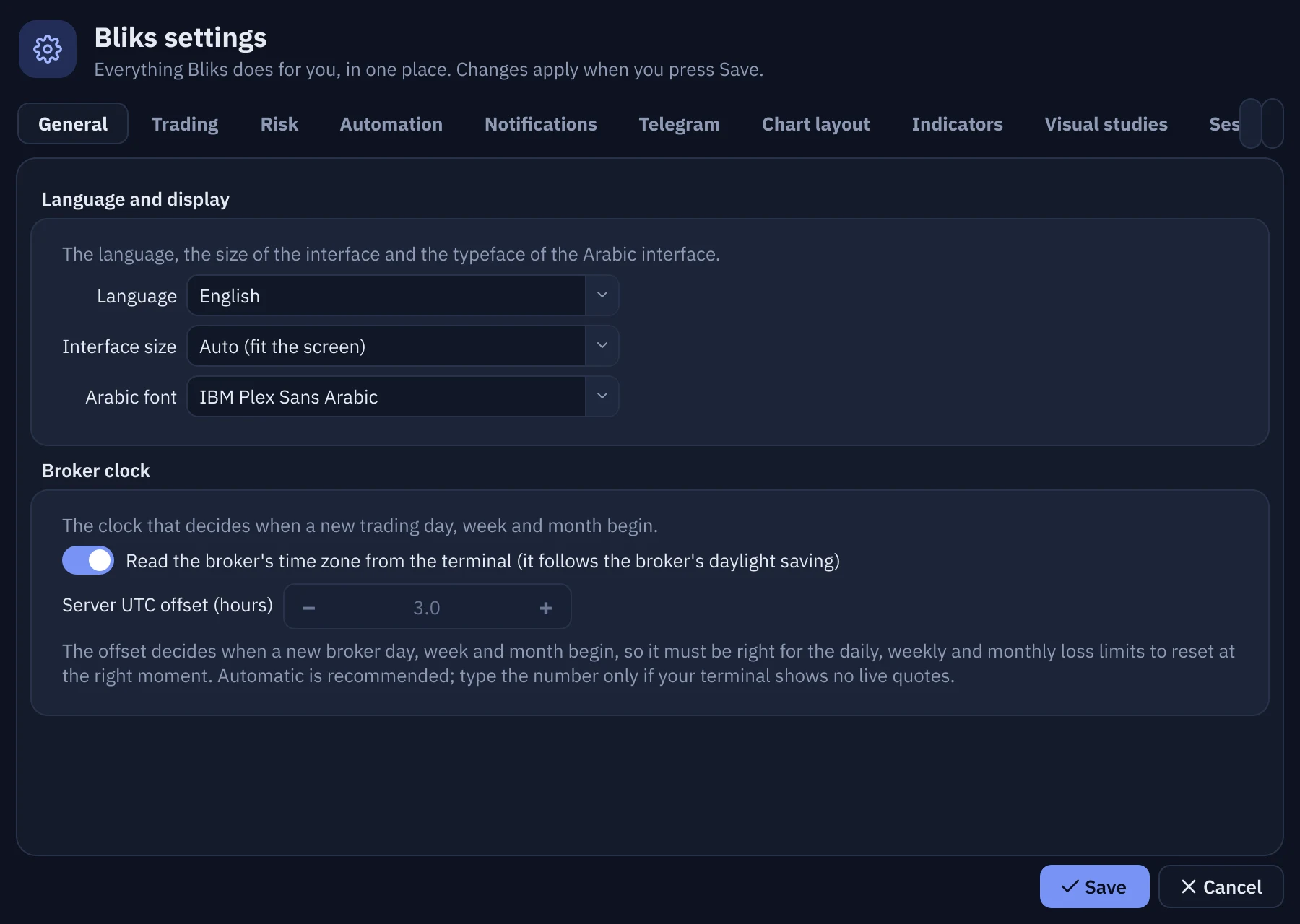
The Bliks settings window has ten pages along the top: General, Trading, Risk, Automation, Notifications, Telegram, Chart layout, Indicators, Visual studies and Sessions. Changes apply when you click Save; Cancel drops them. Options that your package does not include are locked with a key and a tooltip. A few options (language, interface size and Arabic font) need a restart, which Bliks offers to do for you.
How the controls work
- Switches. Every on / off option is a round switch. When a switch is off, the options that belong to it are greyed out and cannot be edited, but they keep their values and come back when you switch it on. For example, the colour and opacity of a study are available only while its switch is on, and the voice options only while sound and the voice assistant are on.
- Cards. Related options share one card. Each card has a title and, under it, one line that says what the card is for.
- Sliders show their value. An opacity slider has its percentage written next to it, so you never have to guess.
- Colour dots. A colour is a round dot (no colour code). Click it to open the colour picker; hover to see the code. It is the same picker as the Default drawing color button of the drawing toolbar.
- Segmented choices and steppers. A choice between two to four short answers (for example Block the order / Warn only) is shown as buttons side by side. A number has − and + at its ends.
- Tables. In the moving averages and the sessions tables, each row has its own switch: a row that is off cannot be edited.
General
| Option | What it does (factory value) |
|---|---|
| Language | English or العربية. A restart applies it (see section 19). |
| Interface size | Auto (fit the screen), 100%, 90%, 80% or 70% (Auto). A restart applies it. |
| Arabic font | The typeface of the Arabic interface: IBM Plex Sans Arabic (default), Cairo, Tajawal, Vazirmatn, Amiri, Readex Pro or Cairo Play. |
| Read the broker's time zone from the terminal | On. Bliks follows the broker's clock, including its daylight saving. |
| Server UTC offset (hours) | Used only when the option above is off (3). It decides when a new broker day, week and month begin, so the daily, weekly and monthly loss limits reset at the right moment. |
Trading
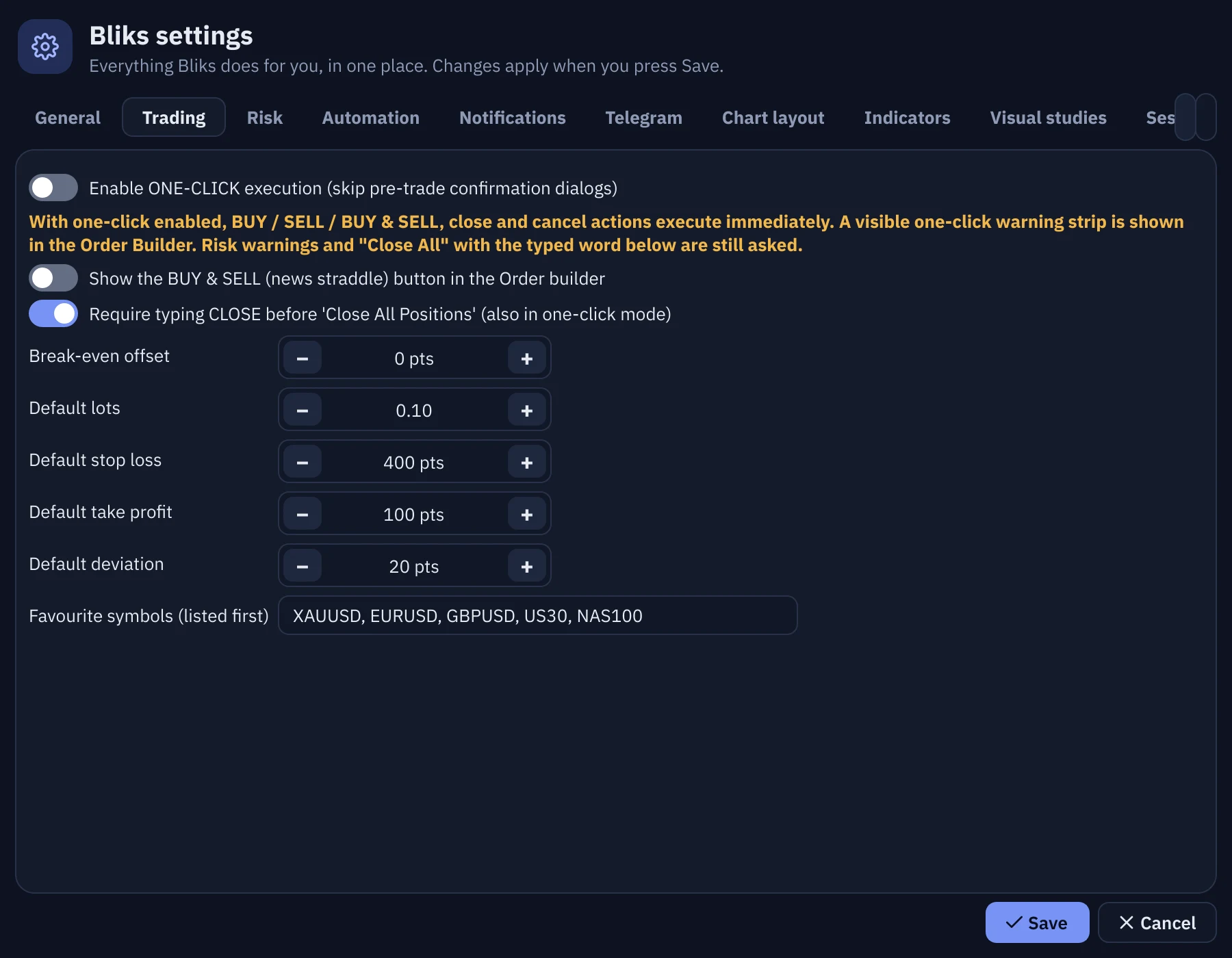
| Option | What it does (factory value) |
|---|---|
| Enable ONE-CLICK execution | Skips the review sheets (off). A visible warning strip then stays in the Order builder. |
| Show the BUY & SELL (news straddle) button | Shows the straddle button in the Order builder (off). |
| Require typing CLOSE before 'Close All Positions' | A typed word before closing everything, also in one-click mode (on). |
| Break-even offset | Points beyond the entry where the stop goes when you use BE or Secure (0). |
| Default lots, Default stop loss, Default take profit, Default deviation | The starting values of the Order builder and of the preview lines (0.10 lots, 400, 100 and 20 points). |
| Favourite symbols (listed first) | The symbols shown first in the symbol picker (XAUUSD, EURUSD, GBPUSD, US30, NAS100). |
Risk
Guardrails, loss limits and what happens when one is reached, spread guard, prop-firm mode, the override word, automatic hedge, Bliks-held stops with the gap guard, and the equity and leverage alerts. Fully described in section 12.
Automation
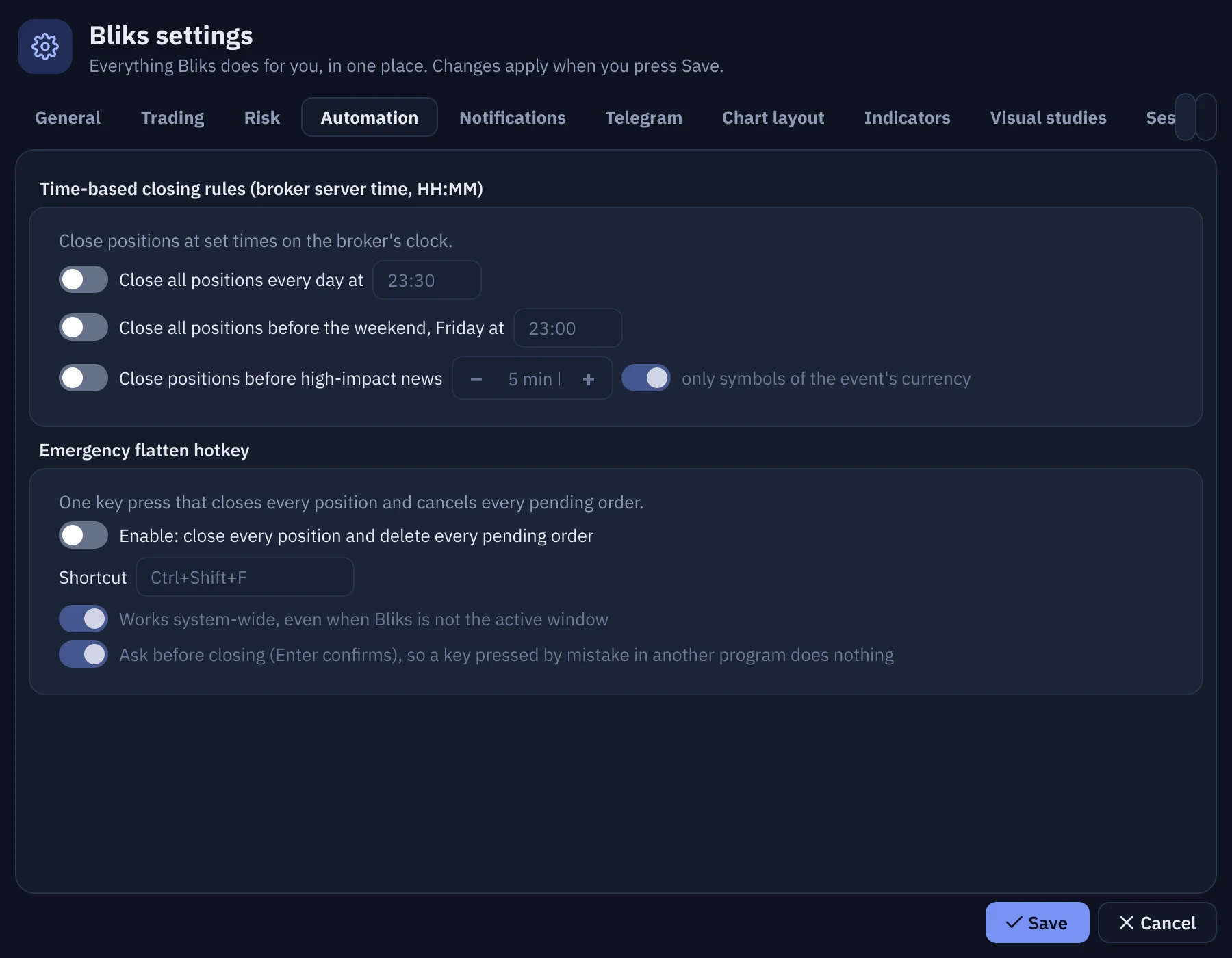
| Option | What it does (factory value) |
|---|---|
| Time-based closing rules (broker server time) | Close all positions every day at a time (23:30, weekdays only), Close all positions before the weekend, Friday at a time (23:00) and Close positions before high-impact news (5 minutes before, only symbols of the event's currency). All three are off. Each time field is available only while its switch is on. |
| Emergency flatten hotkey | Enable: close every position and delete every pending order (off), Shortcut (Ctrl+Shift+F), Works system-wide, even when Bliks is not the active window (on) and Ask before closing (on, Enter confirms). See section 18. |
Notifications
Delivery, categories, per-event sounds and price alerts. Delivery has the in-app cards, sound, the voice assistant (Friendly full sentences or Brief, with a Listen to sample), Escalate danger alerts nobody acknowledged (on) and the Toast duration (6000 ms). Fully described in section 14.
Telegram
Send notifications to Telegram with your own bot: paste the bot token (the Show button reveals it) and your chat id, then press Send a test message. Below: Accept commands from Telegram (/status /risk /positions /be /closeprofit /closeall, off), Trade setups (which setup messages are sent), Other notifications (news, orders, price alerts, risk and connection, market open / close, in the same style), Time format and live Message previews. Telegram needs a package that includes it.
Chart layout
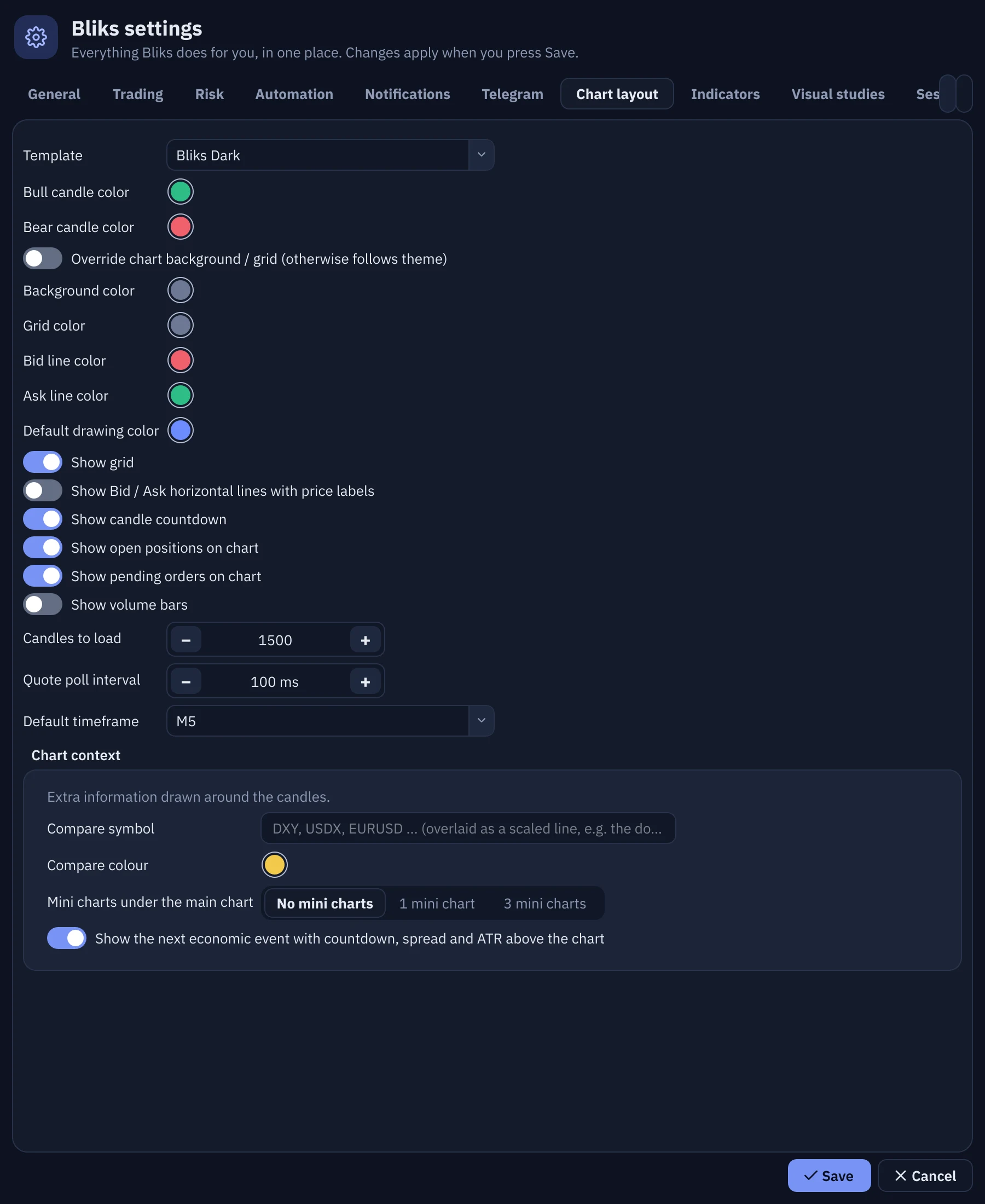
| Option | What it does (factory value) |
|---|---|
| Template | Bliks Dark and Bliks Light follow the theme automatically; Classic, Monochrome and Custom stay as chosen (Bliks Dark). |
| Bull candle color, Bear candle color | Soft teal and coral (a deeper pair in the light theme). |
| Override chart background / grid, Background color, Grid color | Otherwise the chart follows the theme (off). The two colour dots are available only while the switch is on. |
| Bid line color, Ask line color, Default drawing color | Colours of the optional Bid and Ask lines and of new drawings. Until you pick a colour, every tool starts with a colour of its own for the current theme. |
| Show grid, Show candle countdown, Show open positions on chart, Show pending orders on chart | On. |
| Show Bid / Ask horizontal lines with price labels, Show volume bars | Off. |
| Candles to load | How much history is loaded per chart, 200 to 20,000 (1500). Large timeframes are capped, because the broker must download that history first. |
| Quote poll interval | How often prices are asked from the terminal, 50 to 2000 ms (100). |
| Default timeframe | The timeframe of a new chart (M5). |
| Chart context | Compare symbol and Compare colour (an overlay such as the dollar index on gold), Mini charts under the main chart (No mini charts, 1 mini chart or 3 mini charts) and Show the next economic event with countdown, spread and ATR above the chart. |
Indicators
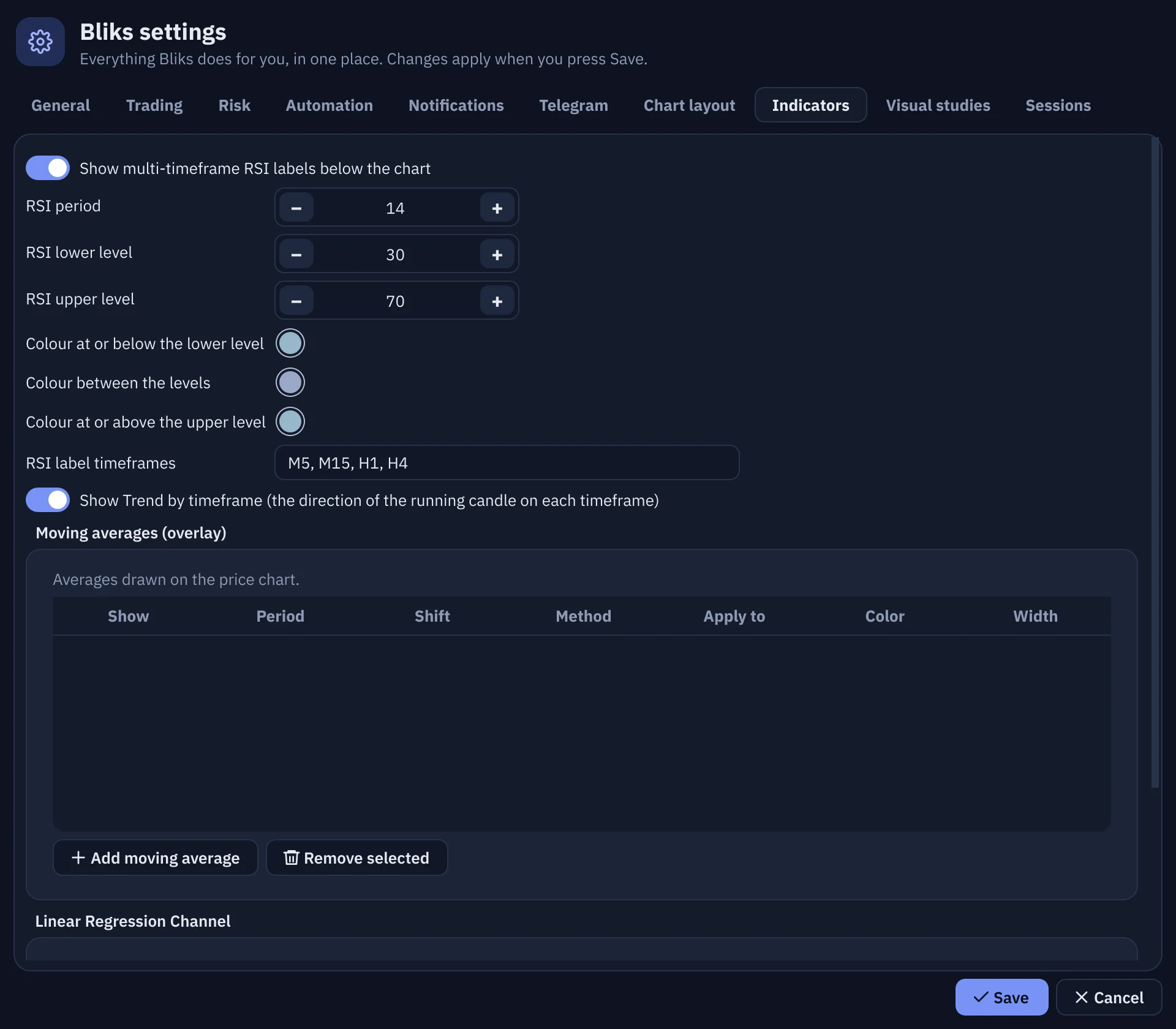
| Option | What it does (factory value) |
|---|---|
| Show multi-timeframe RSI labels below the chart | The RSI gauges under the chart (on). While it is off, the options below it are greyed out. |
| RSI period, RSI lower level, RSI upper level | 14, 30 and 70. |
| Colour at or below the lower level, Colour between the levels, Colour at or above the upper level | The value, its state word, the marker and the tint of each region of the bar take the colour of the region the value is in. Defaults: a pale blue-grey (#97B8CA) at both ends and a soft grey-blue in between; deeper variants in the light theme. |
| RSI label timeframes | M5, M15, H1, H4. The chart's own timeframe is added when it is above M15. |
| Show Trend by timeframe | The direction of the running candle on each timeframe (on). It has its own switch: it stays on the strip when the RSI gauges are hidden, and the gauges stay when it is hidden. |
| Moving averages (overlay) | A table with Show, Period, Shift, Method, Apply to, Color and Width; each row has its own switch. Add moving average and Remove selected edit the list. |
| Linear Regression Channel | Show channel (off), Length (100), Source, Upper deviation and Lower deviation (2.0), Show Pearson's R, extend lines left or right, colours and Fill %. Everything in the card follows the main switch. |
Moving averages and the channel need a package with Pro indicators.
Visual studies
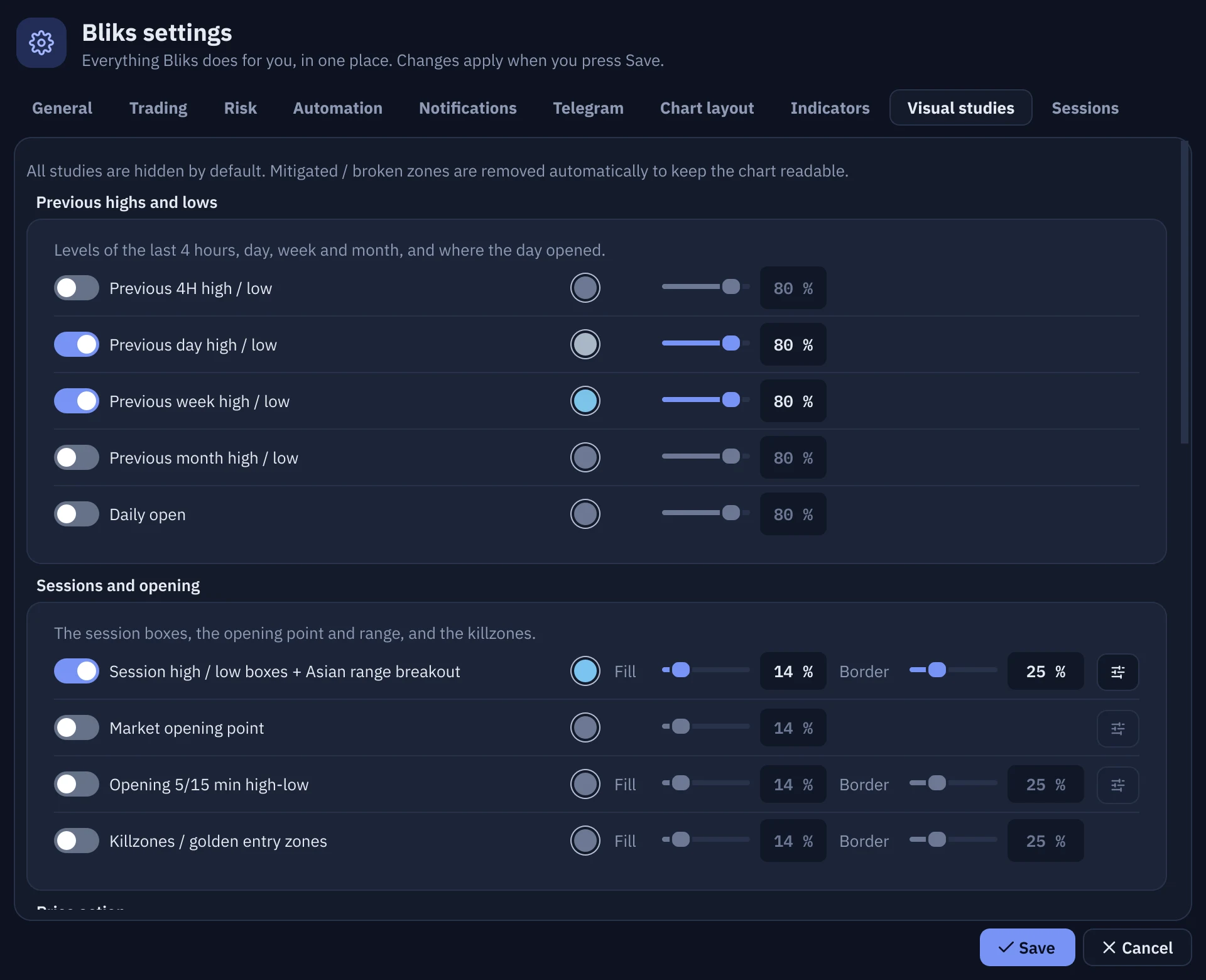
The studies are grouped in six cards: Previous highs and lows (4H, day, week, month and the daily open), Sessions and opening (session boxes, market opening point, opening range, killzones), Price action (displacement, rejection, market structure shift, point of interest, inducement), Imbalance and blocks (fair value gaps, inverse fair value gaps, order blocks), Supply and demand and Liquidity and Fibonacci. Each study is one line: its switch (all off), a colour dot, its opacity slider(s) and, when it has parameters, an Options button (the sliders icon) that opens them under the line (the timeframe a zone is computed on, the swing length, the minimum size of a gap, and so on). The line's colour, sliders and options are available only while its switch is on.
- Fill is how strong the colour inside a zone is (14% for zones). Border is how strong the edge of the zone is (25% by default), so a zone reads as a soft block with a thin, quiet edge. Both are separate sliders on every zone study; a line study (previous highs and lows, the daily open) has one opacity slider.
- The first-run colours are chosen per theme so every study is clearly visible on the chart in both the dark and the light theme. A colour you never changed follows the theme; a colour you chose stays.
- The box Supply / Demand parameters feeds the Supply zones and Demand zones lines. Visual studies need a package that includes them.
Sessions
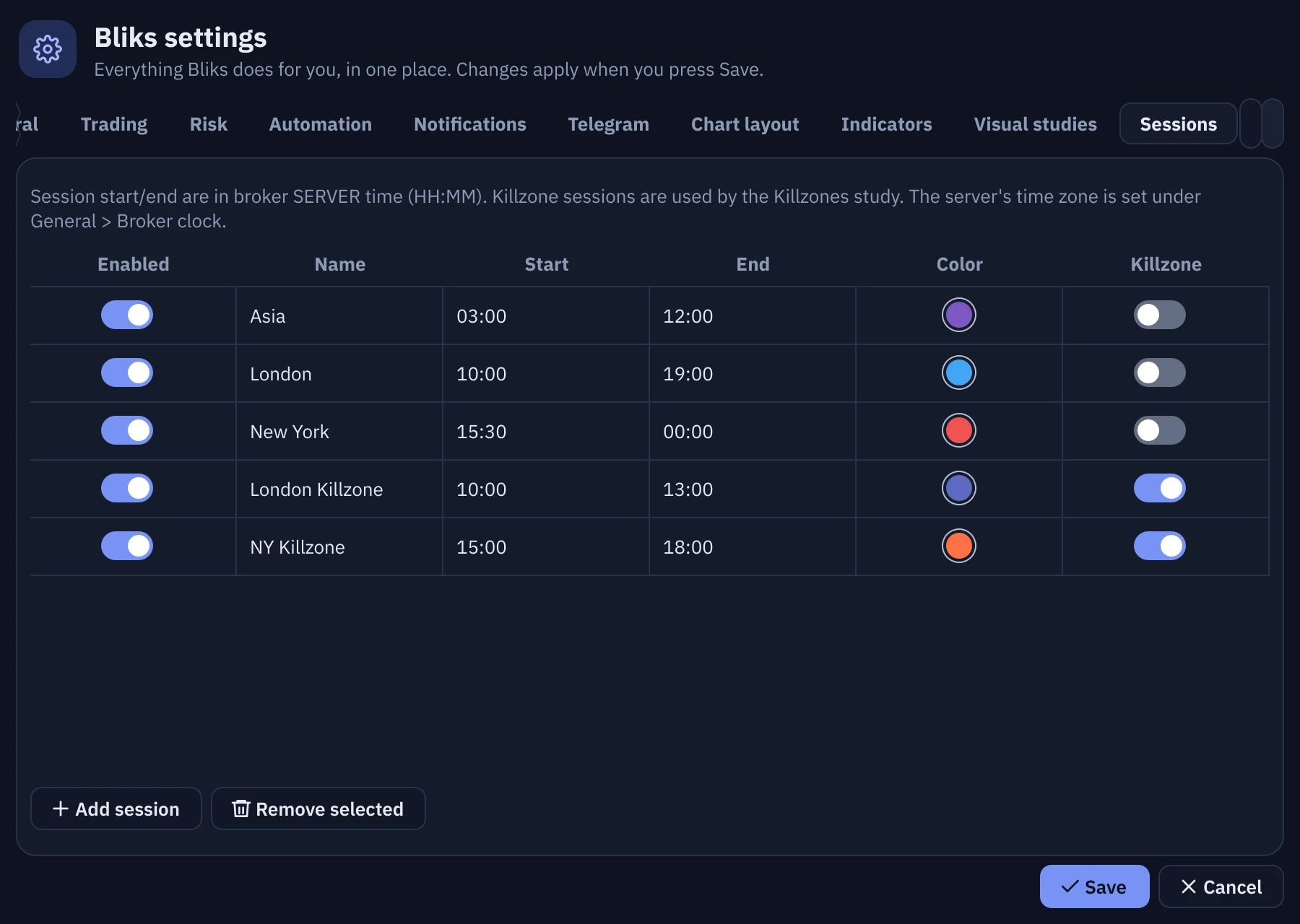
The times in the table are in the broker's server time (HH:MM); the clock itself is set in General > Broker clock. The table has Enabled, Name, Start, End, Color and Killzone; the factory sessions are Asia 03:00 to 12:00, London 10:00 to 19:00, New York 15:30 to 00:00 and the London and New York killzones. Add session and Remove selected edit the list. A session that is switched off keeps its values but cannot be edited. Sessions are used by the session boxes and by the Killzones study; the time rules of the Automation page use the same server clock.
Next section18 · Keyboard shortcuts and hotkeys18Keyboard shortcuts and hotkeys
Bliks is built for the mouse, with a few keys that matter. One of them closes everything at once.
| Keys | Where | What they do |
|---|---|---|
Ctrl+Shift+F | Anywhere in Windows (a system-wide hotkey), or inside Bliks | Emergency flatten: closes every open position and deletes every pending order at once, with no confirmation. You can change the keys or switch it off in Settings > Automation. |
Esc | The chart | Goes back to the Select / pan tool. In the Watchlist's add box it closes the box. |
Delete | The chart; the Watchlist | Removes the selected drawing; removes the selected symbol from the Watchlist. |
Up and Down | The number fields of the Order builder; the symbol search list | Step the value up or down (lots by the lot step); move through the list. |
Enter | The sign-in password box; dialogs; the Watchlist add box | Confirms: signs in, presses the default button, adds the symbol. |
Ctrl or Shift + click | The Positions and Pending tables | Selects several rows. |
| Mouse | What it does |
|---|---|
| Wheel on the chart | Zoom around the pointer; over the price scale it zooms the prices. |
| Drag on the chart | Move the chart. Drag a trade, stop loss or take profit line to change it; drag a drawing to move it. |
| Drag the price scale or the time axis | Stretch the prices or the time. |
| Double-click the price scale | Back to automatic price scaling. |
| Right-click the chart | Add a price alert, add a horizontal line, reset the view, auto-scale. |
| Right-click a drawing or a table row | The menu of that drawing, trade or order. |
| Double-click a position | Brings its symbol to the chart. |
19Themes, language, fonts and interface size
Dark or light, English or Arabic (right to left), a font you like, and an interface that fits your screen.
Light and dark themes
The round button with a sun or a moon in the top bar (Toggle light / dark theme) switches the whole program between the dark and the light theme at once, and Bliks remembers your choice. The chart follows the theme unless you override the colours in Settings > Chart layout.
Palettes and typefaces
Both themes are built for long hours in front of the screen. The dark theme (Midnight Navy) uses a deep blue-grey instead of black, off-white text instead of pure white and softened accents; the light theme (Cloud) uses a cool off-white instead of pure white. Text, buttons and the colours of every study, indicator and drawing tool are checked for contrast, so they stay readable in both. Buy is a calm green and sell a soft coral, with white text on the filled buttons.
- Typefaces. The interface uses IBM Plex Sans and the figures use IBM Plex Mono, so digits line up in columns. The Arabic interface uses IBM Plex Sans Arabic by default. All three are bundled with Bliks.
- Sizes. Text is never smaller than 12 pixels; the base size is 13 px, and the price scale and tags use the same sizes.
- Alerts. Messages are tinted cards by severity, and the dangerous ones escalate (see section 14).
Language and the Arabic interface
- Open Settings > General. Choose Language: English or العربية.
- Click Save. Bliks says that it must restart to apply the new language, font or interface size and asks Restart now? Click Yes and it relaunches itself; click No and the change applies the next time you start it.
- In Arabic the text reads right to left, but the workspace keeps its places: the chart stays on the left, the Order builder on the right, the price scale on the right of the chart, and SELL on the left of BUY. This is intentional, so that muscle memory and the position of the buttons never change with the language.
- Prices, lots, dates and other numbers keep their left-to-right order inside Arabic sentences.
- The trade labels stay next to the price scale in both languages.
- Some messages are written by the trading guards or come from the broker and are still shown in English, for example parts of risk warnings and the broker's replies to an order. The voice assistant speaks English.
- Arabic font: IBM Plex Sans Arabic (the default), Cairo, Tajawal, Vazirmatn, Amiri, Readex Pro or Cairo Play. They are bundled with Bliks, so you do not need to install anything.
Interface size
Settings > General > Interface size offers Auto (fit the screen), 100%, 90%, 80% and 70%. With Auto, Bliks measures the screen before it starts and shrinks the whole interface a little only when the full layout would not fit (for example a 1080p screen with Windows scaling at 150%). Text, charts, buttons and dialogs shrink together, so nothing is cut off. Choose a fixed size if you prefer. A restart applies it. The window never opens larger than your screen.
Next section20 · Updates, licence, packages and moving to another PC20Updates, licence, packages and moving to another PC
Your Bliks account holds the licence. Bliks checks it by itself, offers verified updates and can be moved to another PC in a few minutes.
Packages and the free trial
A new account starts with a free trial that includes every feature. After it, choose a package on the Pricing page. Features your package does not include show a small key on the button, tab or settings section, with a tooltip that names the package that adds it. The licence chip in the top bar shows your package and the days left, for example PRO · 12d. Your Dashboard shows the licence key, the expiry date, your orders and how many PCs use the licence out of how many the package allows (Machines 1 / 2).
The licence dialog
Click the licence chip to open Bliks licence: your package and the days left, your e-mail, the server, the time of the last check, and a ✓ or ✗ for every feature. Its buttons: Manage online (opens your Dashboard), Refresh licence, Sign out and Close. If you are not signed in, the chip reads SIGN IN and a click opens the sign-in window. NO LICENCE means no active package; KEY MISMATCH means this version of Bliks cannot verify the server's signature, so download the latest version from the website.
Updates
Bliks looks for a new version a few seconds after it starts and every six hours. When there is one, Update available appears in the top bar and a message tells you. Click it: the window shows the release notes and three buttons, Download & install, Open download page and Later. Download & install fetches the installer from bliks.app over HTTPS, checks its SHA-256 checksum against the one published by the server and only then starts it; Bliks closes for the installation. A mandatory update is flagged as a warning. Your settings, drawings and journal are kept. The Change log lists what each version changed.
Move Bliks to another PC
- Your package allows a number of PCs at the same time. If the new PC would exceed it, first free a place: on the old PC click the licence chip and Sign out; or, on the website, open the Dashboard, find the PC under Bliks on your machines and click Sign out next to it.
- On the new PC install Bliks and sign in with the same Bliks account (section 2 and section 3).
- To bring your setup, close Bliks on both PCs and copy these files from the old
%APPDATA%\Bliksfolder to the new one:settings.json(settings),drawings.json(drawings) andjournal.jsonl(the journal). Bliks may ask you to sign in again on the new PC. - Start Bliks on the new PC, choose the terminal and check the Risk limits card before you trade.
What leaves your PC
The licence check sends your e-mail, a hashed machine ID and the app version. The economic calendar is downloaded from Bliks. Copy-trading signals travel only if you take part in it. Balances, positions, history and charts stay on your PC. See What Bliks never does and the Privacy policy.
Next section21 · Troubleshooting and FAQ21Troubleshooting and FAQ
The most common problems, what they mean and what to do. If yours is not here, the logs at the end tell us what happened.
Bliks cannot connect, or my terminal is not listed
- Start MetaTrader 5 and log in to your broker account first. The terminal must show live prices.
- In the terminal picker click Browse... and choose
terminal64.exefrom the MetaTrader 5 folder. If you have several terminals, pick the one that is logged in. - Make sure Bliks and MetaTrader 5 are started the same way (both normally, not one of them as administrator).
- Bliks needs the 64-bit MetaTrader 5 from your broker. Then click Connect again.
AutoTrading says OFF, or the SELL and BUY buttons are grey
Bliks can place orders only while the AutoTrading chip says ON. In MetaTrader 5 click the Algo Trading button in the toolbar until it turns green; if it switches itself off, check Tools > Options > Expert Advisors and allow algorithmic trading. The footer then shows Enable AutoTrading (Algo Trading) in MetaTrader 5 until you do. If it says Algo trading is not allowed for this account, the broker or the login does not allow it (for example you logged in with the read-only investor password). A grey button also appears when the terminal is not connected, when the trade server is offline, or when your package has no trading (a key is shown).
The order was rejected
| Message or situation | What it means and what to do |
|---|---|
| Market closed | The market of that symbol is closed (weekend, holiday, daily break). Wait for it to open; Bliks announces Market open. |
| Requote, price changed, off quotes | The price moved between your click and the fill. In fast markets raise Deviation (pts), or use a pending order. A larger deviation fills more often, a smaller one protects you from bad fills. |
| Invalid stops or Pre-trade check failed | A stop loss, take profit or pending price is too close to the market, or on the wrong side. Each broker has a minimum distance (the stops level, shown under the Order builder's More options). Move the level farther away. |
| Invalid volume | The lots are below the minimum, above the maximum or not a multiple of the lot step. The line under More options shows the three numbers of the symbol. |
| Not enough money | The free margin cannot cover the order. Lower the lots, or close something. The leverage of your account decides how much margin a lot needs. |
| Blocked by your risk rules | One of your own limits stops the order. Change the order, or the limits in Settings > Risk (section 12). |
Terminal offline, You are offline
Terminal offline (red) means MetaTrader 5 lost its connection to the broker's trade server. Disconnected means Bliks lost the terminal. Bliks tries to reconnect by itself every few seconds and announces when you are back online. Check the terminal's connection indicator at the bottom right of MetaTrader 5, your internet and your broker's server name. If you keep stops in Bliks (section 12), nothing watches them while it is offline.
Windows asks me to confirm the publisher
This is the Unknown publisher confirmation that Windows shows the first time you run the installer. Follow section 2: choose More info, then Run anyway. If you want to check your download, compare its SHA-256 with the one on the Download page.
Messages about the licence
- A key on a button or tab: your package does not include that feature; hover to see which package adds it.
- SIGN IN: you are signed out. Click the chip and sign in.
- NO LICENCE: no active package. Open the licence dialog and Refresh licence, or choose a package on the Pricing page.
- KEY MISMATCH: install the latest version from the Download page.
- Licence check overdue - connect to the internet: the 72 hours without a check have passed. Connect and click Refresh licence.
- Your package allows 1 machine(s): the licence is used on another PC. Sign that PC out (section 20).
No sound, no voice, or the calendar is empty
- Sound: check Settings > Notifications > Play sound, Voice assistant, the per-event Silent boxes, and the Windows volume. Test and Play let you hear a sound at once.
- Calendar: click Refresh news in the News tab. The line under the filters names the source. Check your internet; the tab needs a package with News alerts.
- Pop-ups: Settings > Notifications > In-app toast notifications must be switched on.
Where are the logs, and what do I send to support?
Everything Bliks does is written to the Activity tab (filter it with Level, copy it with Copy all) and to the file %APPDATA%\Bliks\logs\hydra.log, which rolls over at 2 MB and keeps five older files. When you write to support, please give the version number from the footer of the window, the time of the problem, a short description, and the lines of the log around that time.
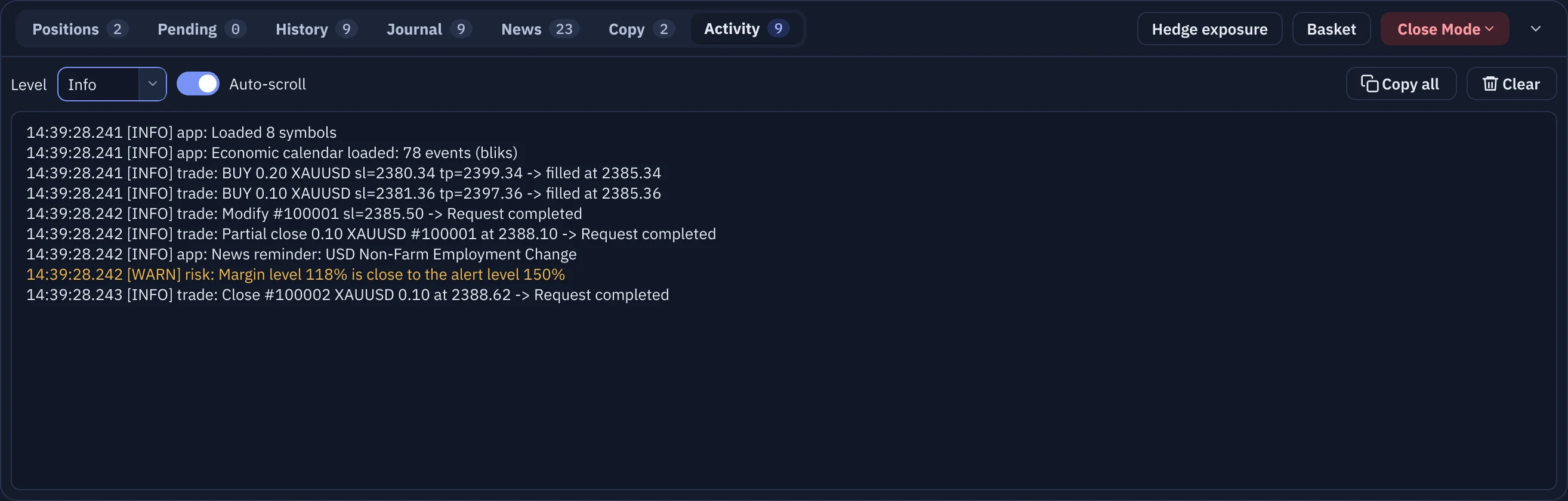
Quick questions
| Question | Answer |
|---|---|
| Does Bliks trade by itself? | No. It only does what you ask, arm or switch on. See section 1. |
| Do my stop loss and take profit work when Bliks is closed? | Yes, by default: they are held by the broker. Only if you switch the privacy option off are they held by Bliks, and then Bliks must be running (section 12). |
| Does Bliks work on a netting account? | Basic trading does. Hedging features (Hedge exposure, the automatic hedge and Bliks-held stops) are for hedging accounts. |
| Can I use two brokers? | One terminal at a time. Use Switch terminal in the top bar to change; your settings stay the same. |
| Does it run on Mac or Linux? | No. Bliks is a Windows 10/11 program that uses the Windows version of MetaTrader 5. |
| Why do I see English words in the Arabic interface? | Some messages come from the broker or from the trading guards and are not translated yet, and the voice assistant is English. Everything you click is available in Arabic. |
| How do I reset everything? | Close Bliks and rename the folder %APPDATA%\Bliks. Bliks starts with factory settings and you can copy files back from the renamed folder. |
That is the whole guide.
Still stuck, or something is missing? Write to us and include the version number from the footer of Bliks.
Trading leveraged products carries a high level of risk. Bliks is a trade-management tool, not investment advice.