Built for news traders on gold and majors
Execution at market speed, risk discipline that cannot be skipped, management that follows structure, a voice assistant that reports every result, a journal that proves the edge, and a copy-trading marketplace. Every feature is included in the free trial.
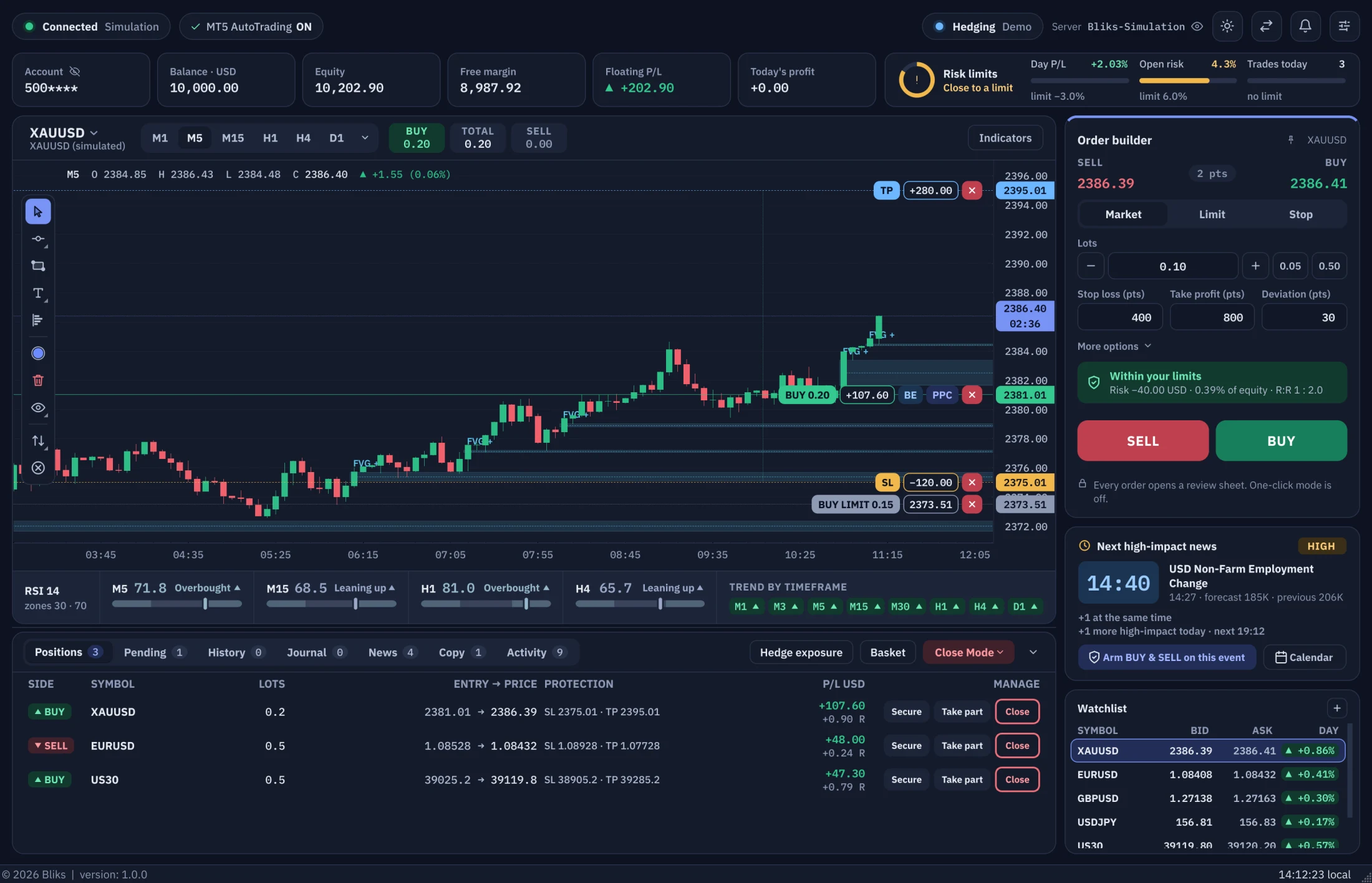
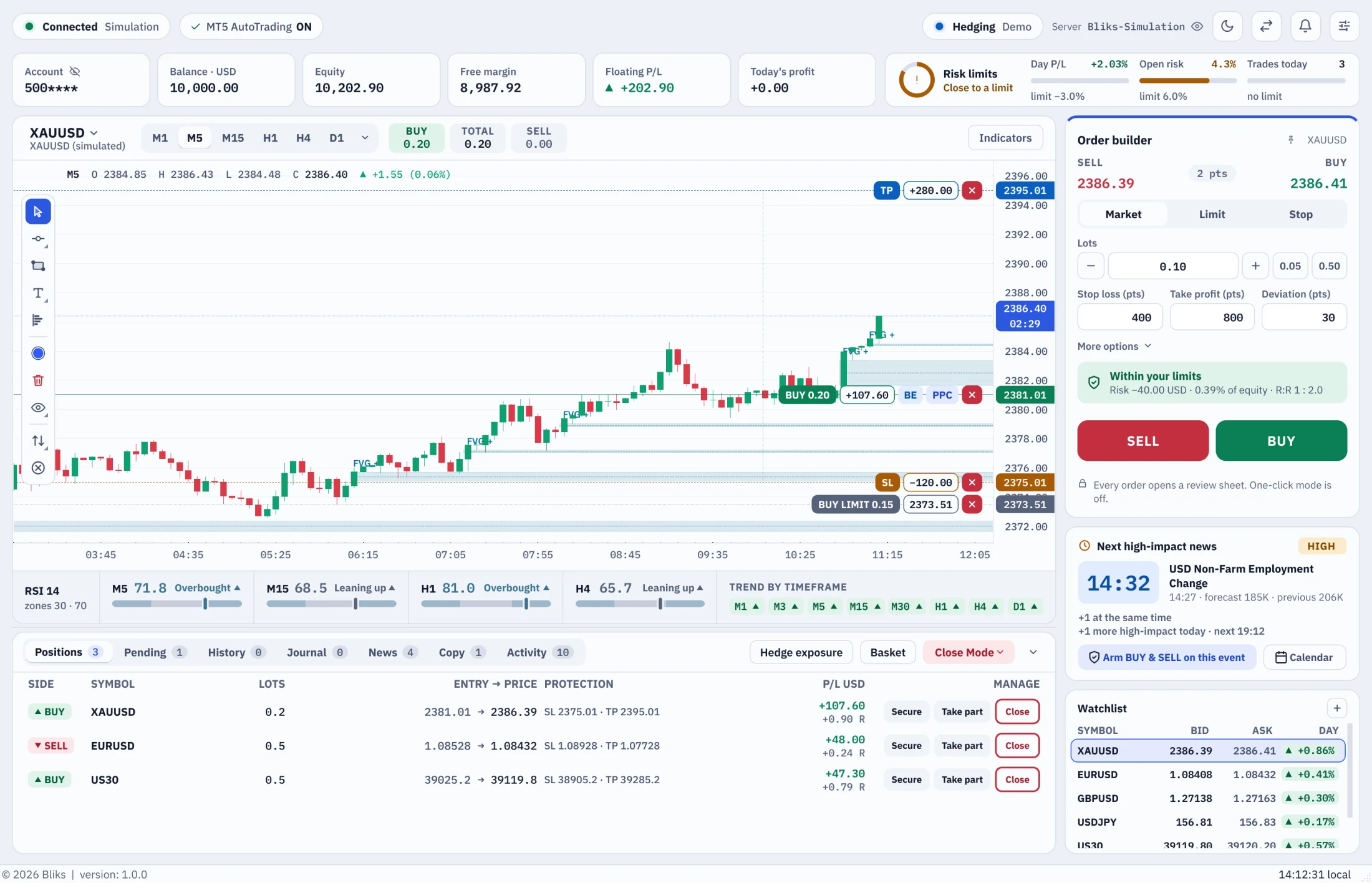
The chart on the left, the Order Builder always on the right, the news and risk cards beside it and one tab strip below.
A workspace built around the trade
Order Builder always on screen
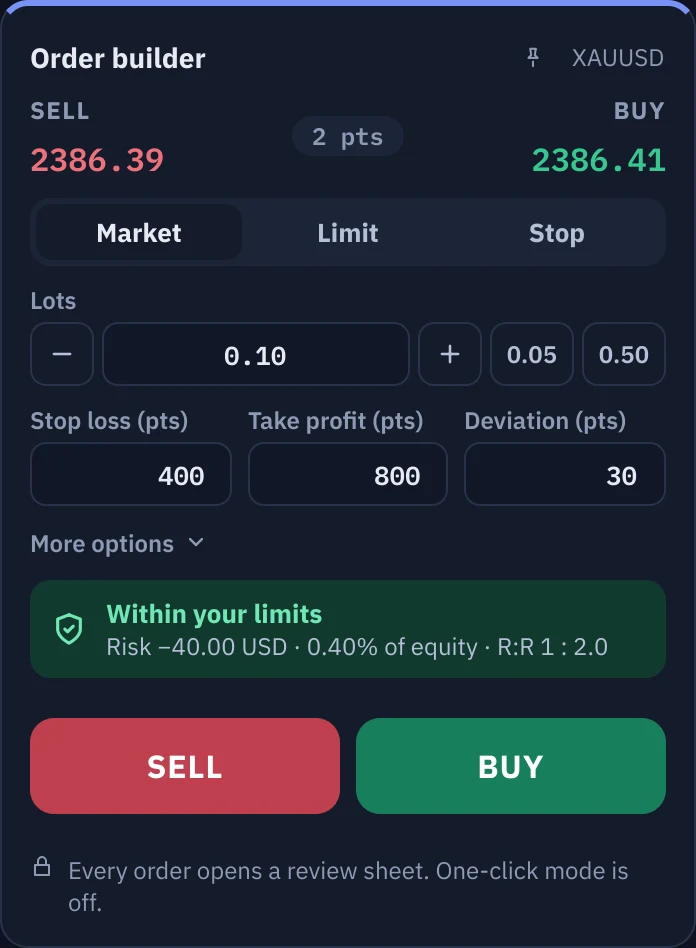
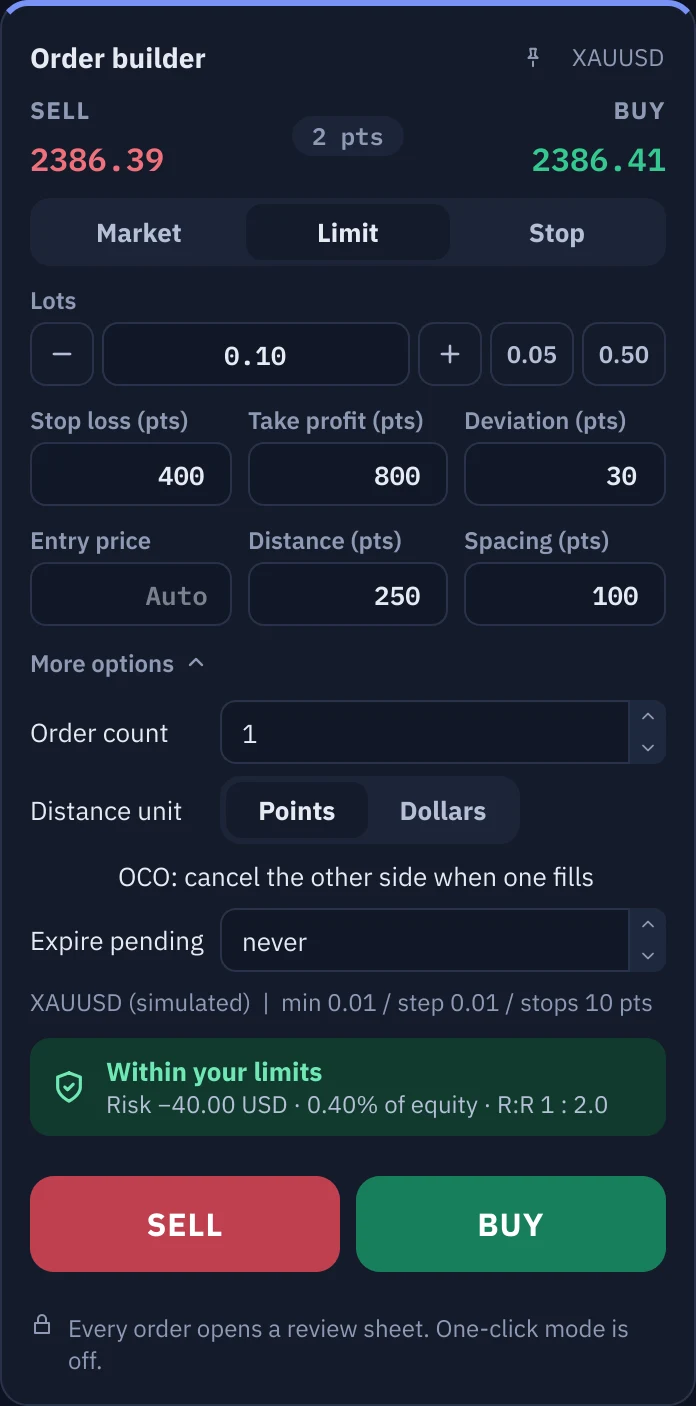
SELL, BUY and the full-width BUY & SELL button sit on the right of the chart and are never hidden behind a side bar. A one-line hint under the fields says whether the order is within your limits before you press anything.
Chart first
The chart takes the left of the window, with the price scale on its right in English and in Arabic. One tab strip under it holds Positions, Pending Orders, Trade History, Journal, News, Copy and the Activity Log.
News card with Arm BUY & SELL
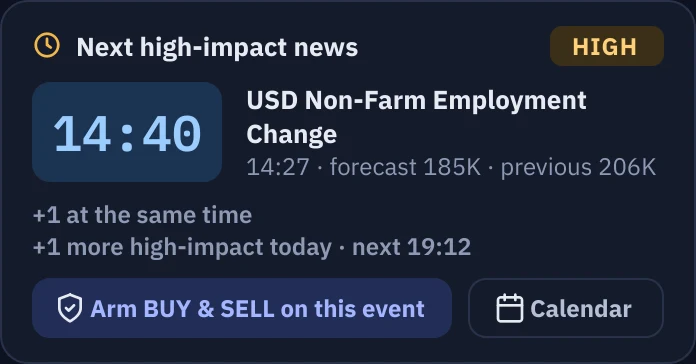
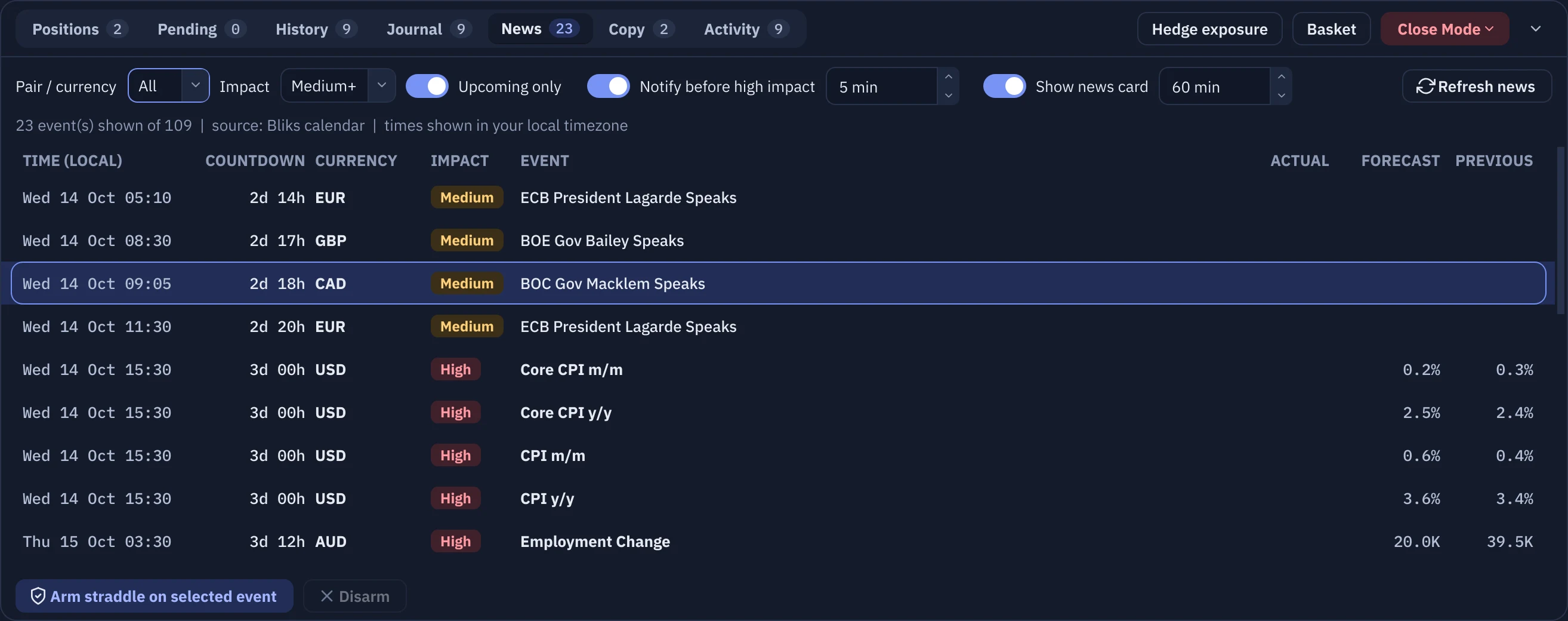
The next high-impact news with a live countdown, and an Arm BUY & SELL on this event button right on the main window. The card steps aside when no high-impact event is coming.
Alerts that stay out of the way
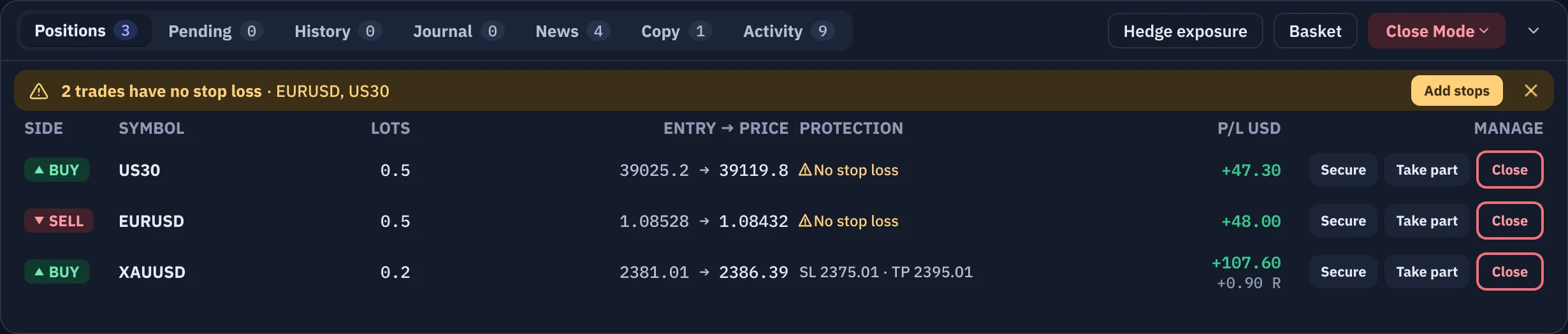
Alerts get their own row above the tabs, each with an x button, so Close all, Hedge exposure and the other action buttons are never pushed out of view. A dismissed alert stays in the Activity Log, and risk-lock alerts cannot be dismissed.
Dark and light themes
Two palettes tuned for long sessions: Midnight Navy and Cloud, with soft teal and coral candles and solid BUY and SELL buttons. IBM Plex Sans and IBM Plex Mono are bundled with the app, so every PC shows the same crisp type, and no text is ever smaller than 12 px.
Arabic done properly
The whole interface is available in Arabic, with IBM Plex Sans Arabic and a choice of other bundled Arabic fonts. The chart stays on the left and the Order Builder on the right, and numbers inside Arabic sentences keep their order.
Fits short screens
On short windows the right column switches to a compact layout, so SELL, BUY and BUY & SELL stay visible on 720p and 768p screens.

Execution
Batch orders
Market, Limit and Stop batches, BUY & SELL straddles around the live price, spacing in points, one-click mode with a visible warning.
Review before it goes out
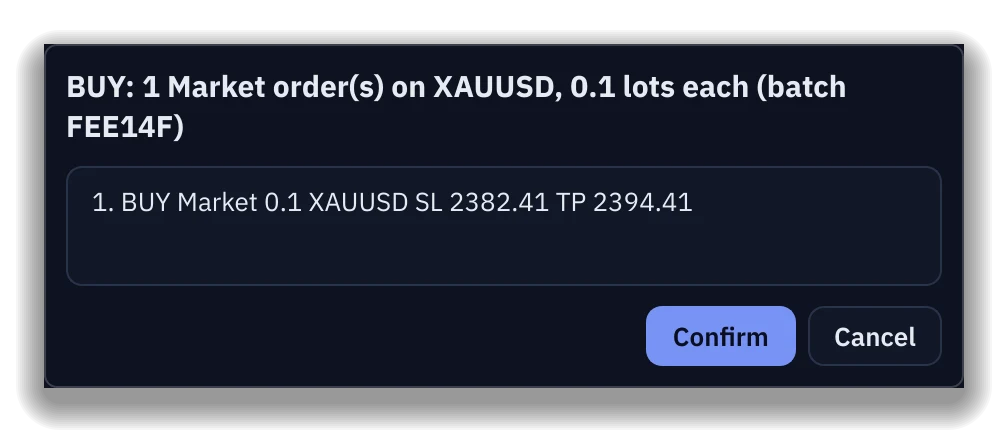
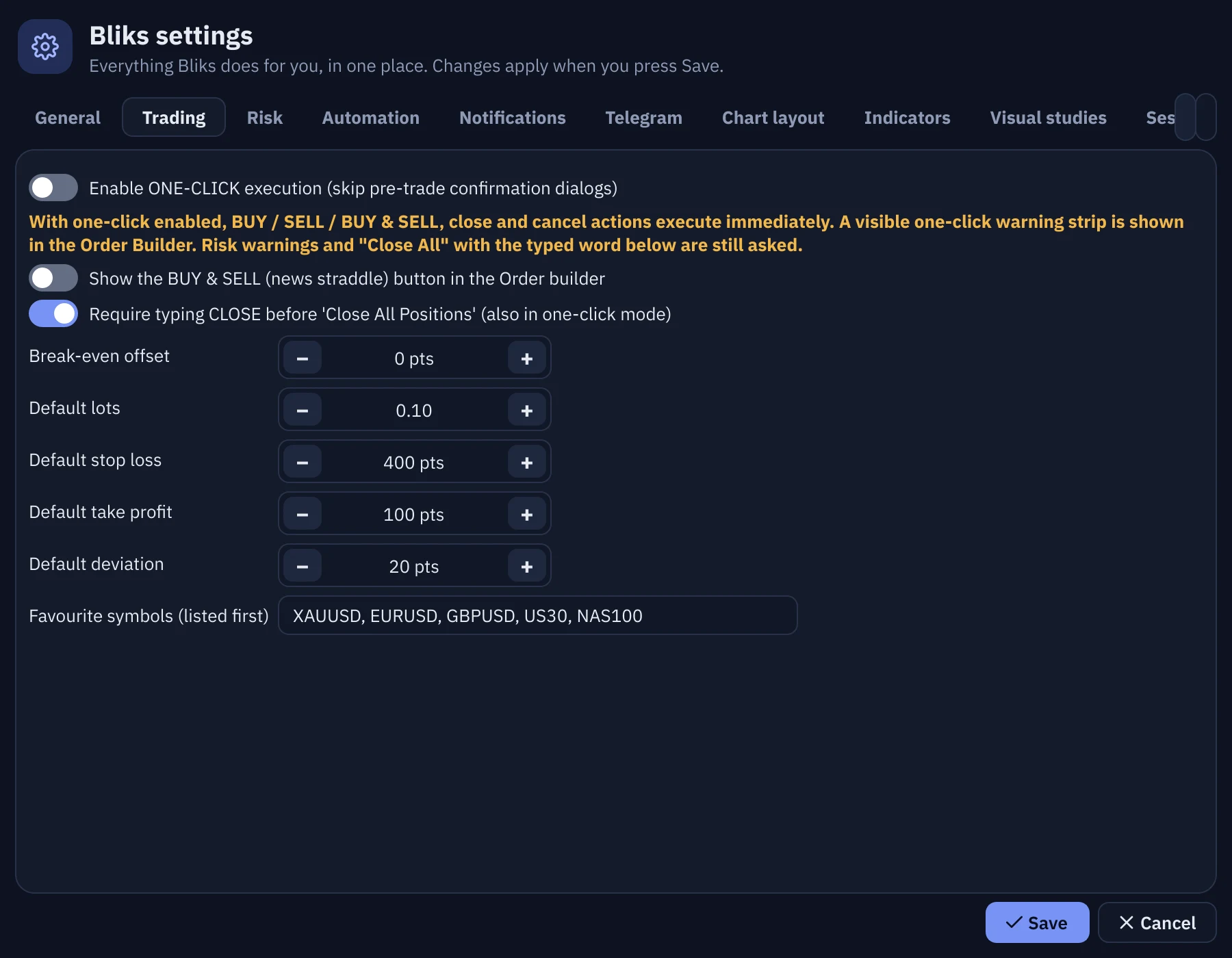
Every order opens a review sheet that shows exactly what will be sent before anything goes out. One-click mode is off by default, and when you switch it on a warning strip stays visible under the Order Builder.
Calendar-armed straddles
Pick an event in the calendar: Bliks places the BUY & SELL stop batch seconds before the release, OCO cancels the other side when one fills, untriggered orders expire.
OCO and expiry
Any BUY & SELL batch can be one-cancels-the-other, and pending orders can expire after a chosen time.
Visual position setup
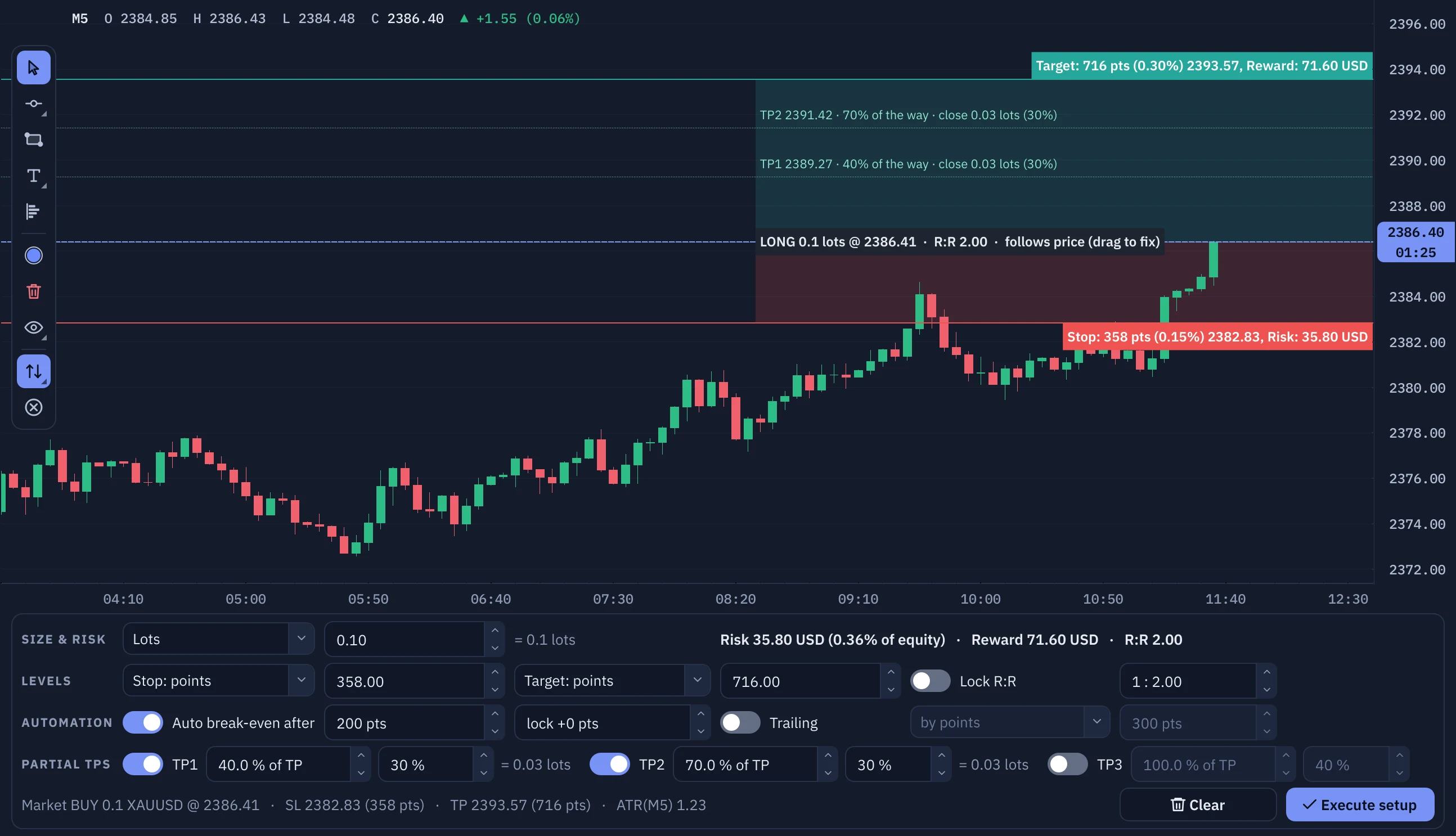
Long or short setup drawn on the chart: entry, stop and target with risk and reward zones, sizing by lots or risk, R:R lock, three draggable partial targets. Bliks tells you when it is placed, activated or canceled.
Emergency flatten
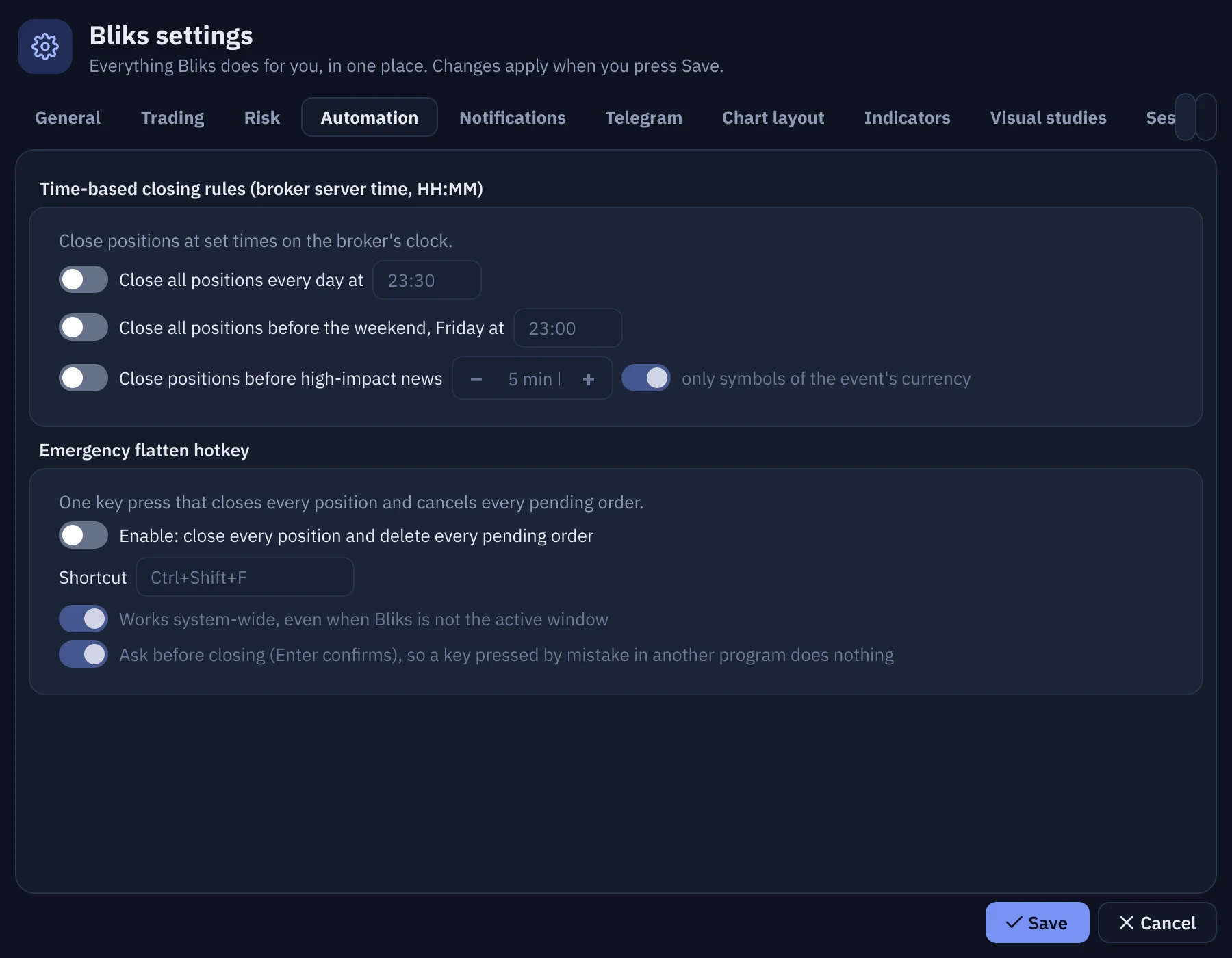
One system-wide hotkey closes everything and deletes every pending order, even when Bliks is not the active window.
Trade management
Trade lines on the chart
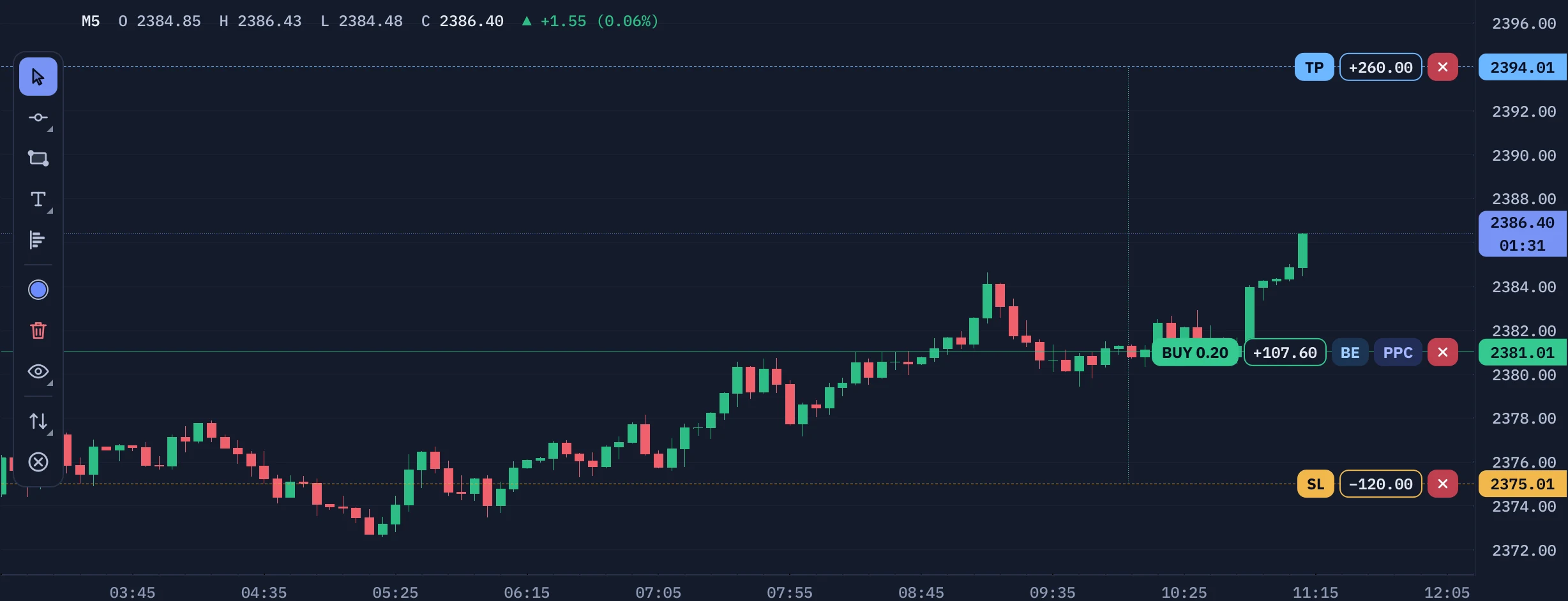
Every open trade carries its entry, take profit and stop loss on the chart. Drag a level to change it, and use the pills on the line: BE moves the stop to break-even, PPC closes part of the trade, and the close pill closes it.
PPC: partial profit close
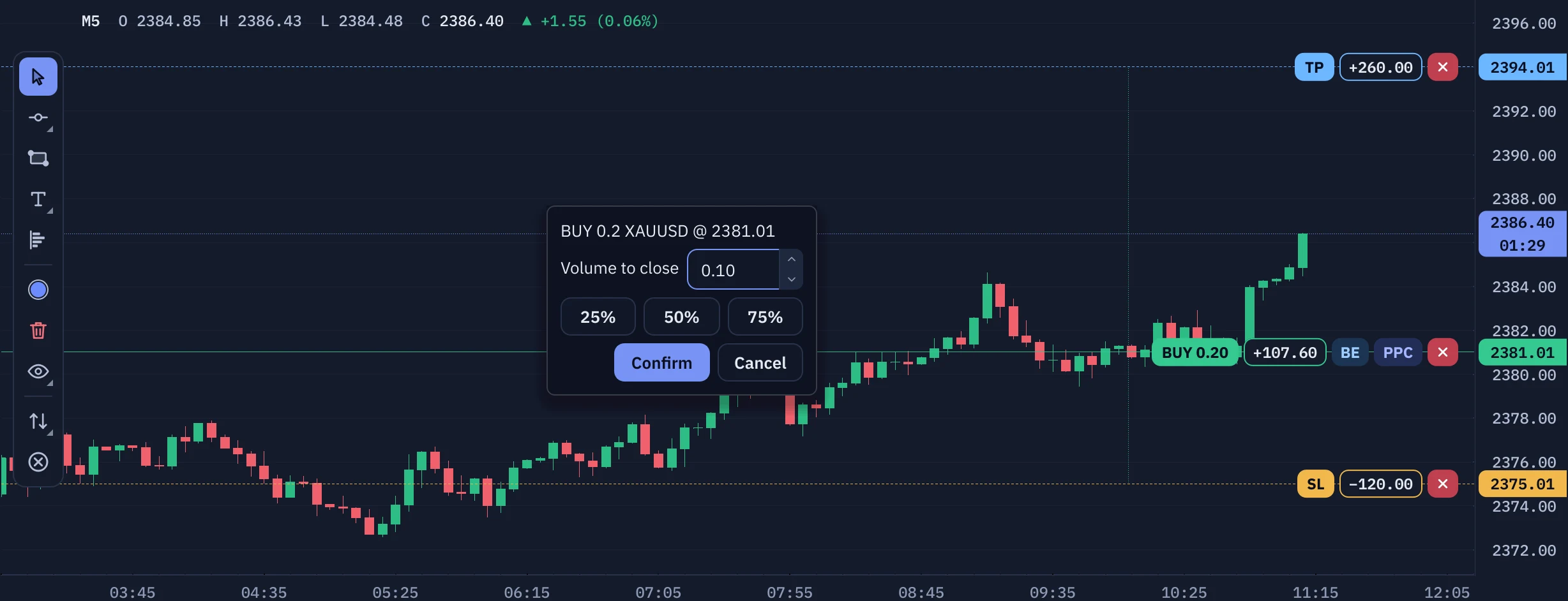
While a trade is in profit and has enough volume to split, PPC lets you close part of it: type the lots, or tap 25%, 50% or 75%. The rest stays open. Before it sends anything, Bliks warns about a hedge it would leave unbalanced, a margin level below 150%, and a thin cushion if your broker cuts leverage to 1:100.
Manage buttons on every row
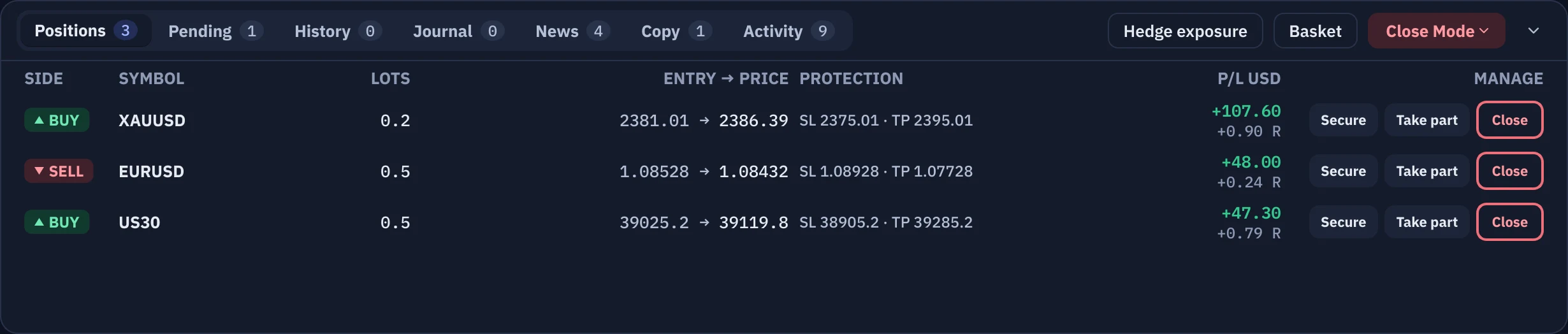
Each row in Positions has Secure (stop to break-even), Take part (partial close) and Close. Right-click a row for Close selected, partial close, move SL to break-even and a journal note.
Close Mode menu
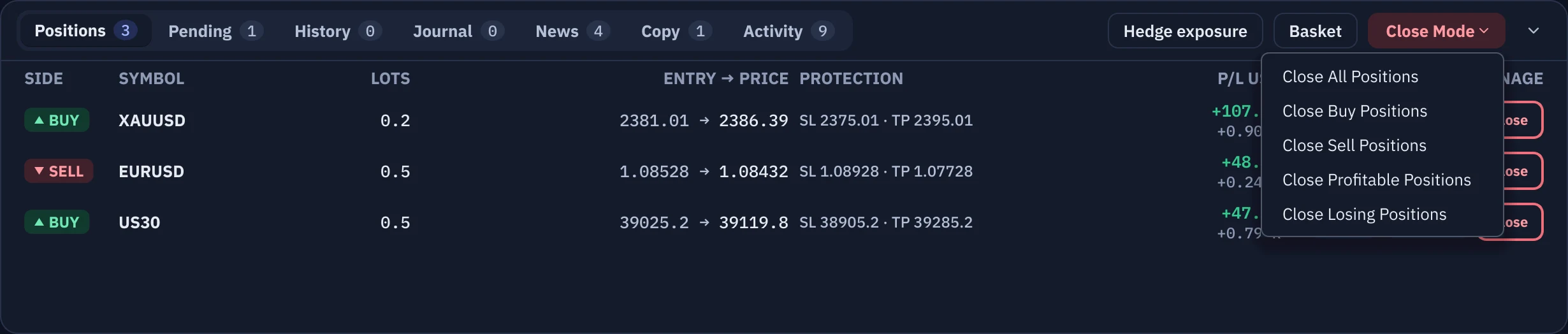
One menu for Close All, Buy, Sell, Profitable and Losing Positions. An entry appears only when there is something for it to close.
Cancel buttons on pending orders
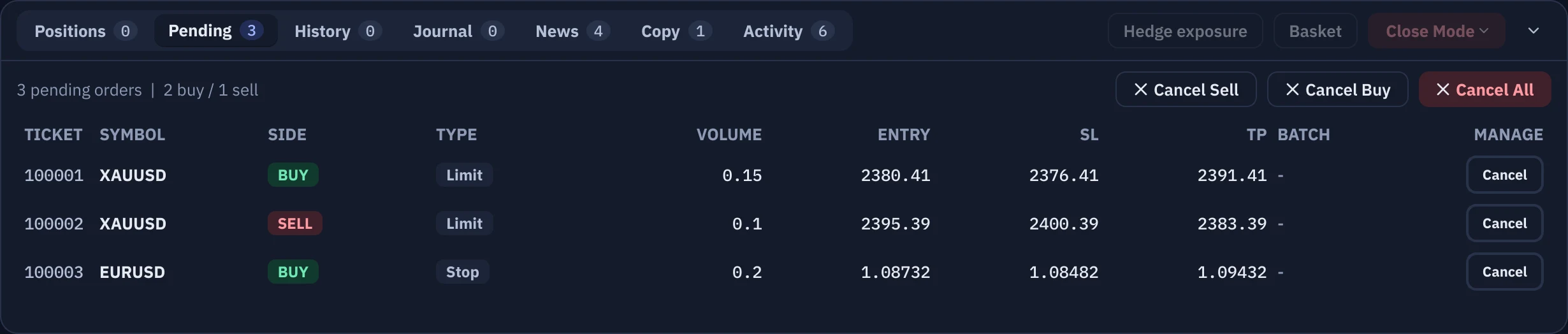
A Cancel button on every pending order, plus Cancel Sell, Cancel Buy and Cancel All above the list.
Break-even and trailing
Automatic break-even after a chosen profit, trailing by points, behind the last swing low/high or behind the previous candle.
Partial targets
Up to three partial closes as a percentage of the way to the target, with shares that always add up to 100%.
Time rules
Close everything at a chosen server time, before the weekend, or minutes before high-impact news for the symbols concerned.
Baskets
Close all positions of a symbol at a total profit target or loss limit.
Hedge exposure
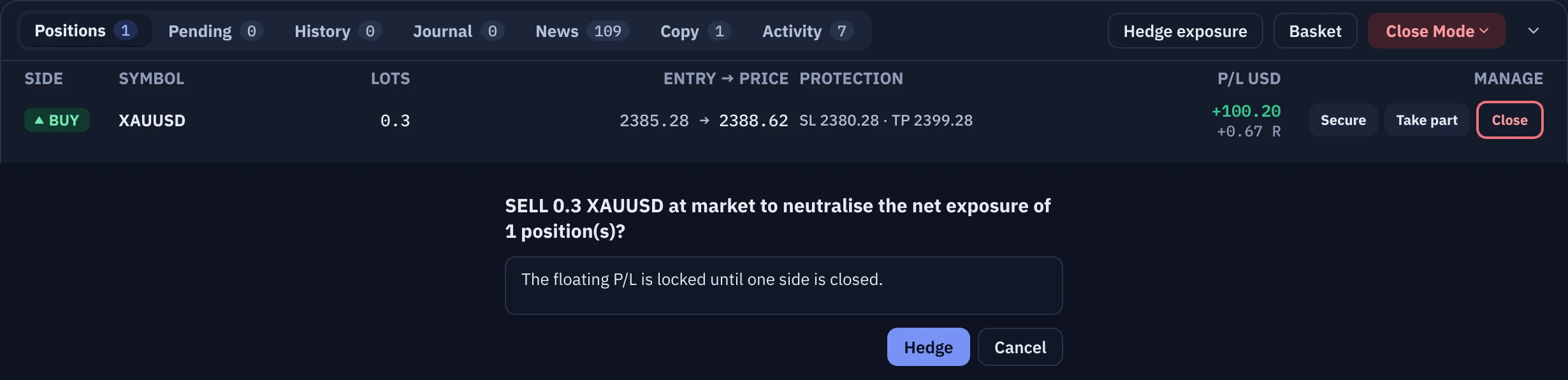
One button opens the opposite market order for the net volume of a symbol, after you confirm. It is disabled while there is no net exposure.
Risk guardrails
Risk limits card
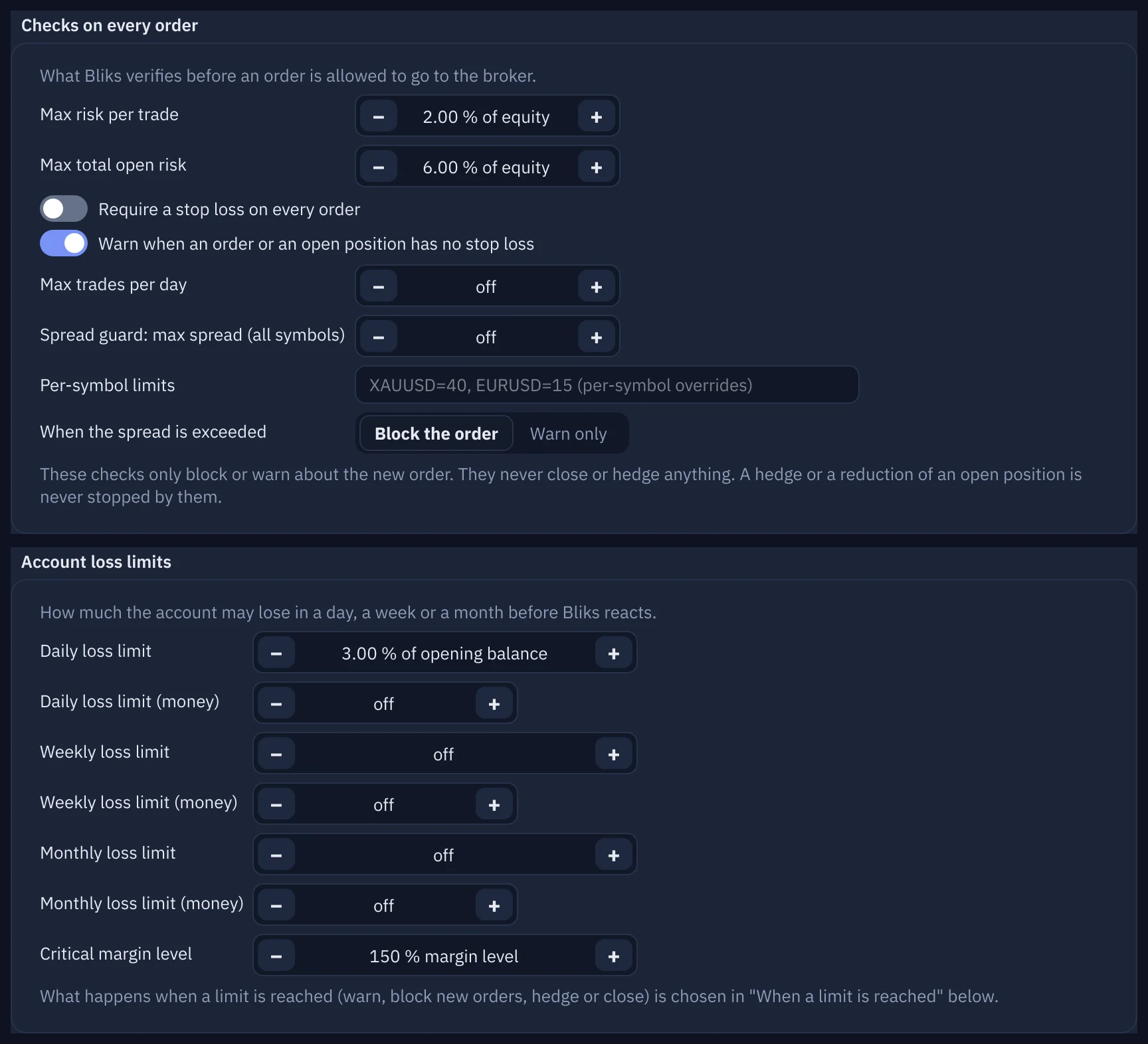
Day P/L, open risk, trades today and margin level sit next to your account figures, in a ring that turns amber and red as you approach a limit. With the guardrails off the card turns grey and says it is not active, never a green check.
Per-trade and open-risk caps
Every order path (builder, setups, copied trades) is checked against your maximum risk per trade and total open risk, as a share of equity.
Daily loss lock
When the daily loss limit or the maximum number of trades is hit, new orders are blocked for the rest of the broker day; an override needs a typed word, and you can switch the override off for a hard stop.
Prop-firm mode
Daily and total drawdown tracked the way prop firms measure them, with alerts at 50% and 80% of the limits and a distance-to-breach read-out.
Spread guard
Block or warn when the spread exceeds your per-symbol limit, which on gold at news time is the difference between a fill and a disaster.
Weekly and monthly loss limits
Set a weekly and a monthly loss limit in percent or money, counted from the broker's own midnight. Bliks warns you by voice and on screen when one is reached, and you choose what else happens.
Critical-equity alert
An alert, with a spoken warning, when the margin level falls to the threshold you choose (150% by default), with an action of your choice.
Account-aware setup checks
A stop that would lose your equity is blocked before the order goes out; risk above 5% of equity asks for confirmation.
Stop-loss change warnings
Adding, moving or removing a stop loss is checked against your per-trade limit, open-risk limit, the room left before the daily loss limit, prop-firm drawdown and the auto-hedge trigger. If one is broken you must accept a warning, even in one-click mode.
Close guard
Closing one leg of a hedge, or closing while margin is thin, asks first and offers Close anyway. Bliks warns, you decide.
Automatic hedge (optional)
Off by default. When the floating loss of your unprotected positions reaches the percentage you set, Bliks opens the opposite market order for the same volume on each losing symbol. The loss is locked, not closed. Bliks checks your free margin first and announces the result. A hedge stops a loss from growing, it does not remove it, and some brokers charge margin on both sides.
What happens when a limit is reached
Each loss limit, the prop-firm limits and the critical margin level has an action you choose: warn, block new orders, open a hedge, close the losing positions or close everything, with a fallback if it fails. It runs once per period and never while the market is closed.




SL/TP privacy (optional)
Keep your SL and TP away from the broker
In Settings > Risk > Bliks-held stop loss / take profit, switch off Allow Broker / Liquidity Provider to know your SL/TP positions. Orders then go to MetaTrader without SL or TP. Bliks keeps the levels (saved to disk), shows them everywhere as usual and closes the position at market when the price crosses a level.
Works only while Bliks and the terminal are running
Bliks checks the price about three times a second, but only while it is running on a PC that is awake, with the internet and MetaTrader 5 connected, AutoTrading on and the trade server online. If any of these fails, nothing protects the trade. A close can also be rejected or delayed, and requotes, gaps and slippage can fill you away from your level.
Warnings at every step
Switching it off asks you to confirm and lists these risks. While Bliks holds stops, the app bar shows Stops held by Bliks, and it turns red and reads Stops NOT watched, with an on-screen error and a sound, whenever Bliks cannot act. Closing Bliks asks whether to send the stops to the broker first.
On by default, and the safer choice
With the switch on, SL and TP go to MetaTrader and the broker's server executes them even if Bliks is closed. Hedging accounts only: a netting account keeps broker-side stops. Switching it on again hands every held stop back to the broker.
Gap guard
If Bliks was closed, offline or asleep and the price jumped far past a stop it holds, Bliks does not close at once. It shows what you planned to lose against what closing now would lose and lets you close, keep the trade open or decide later.
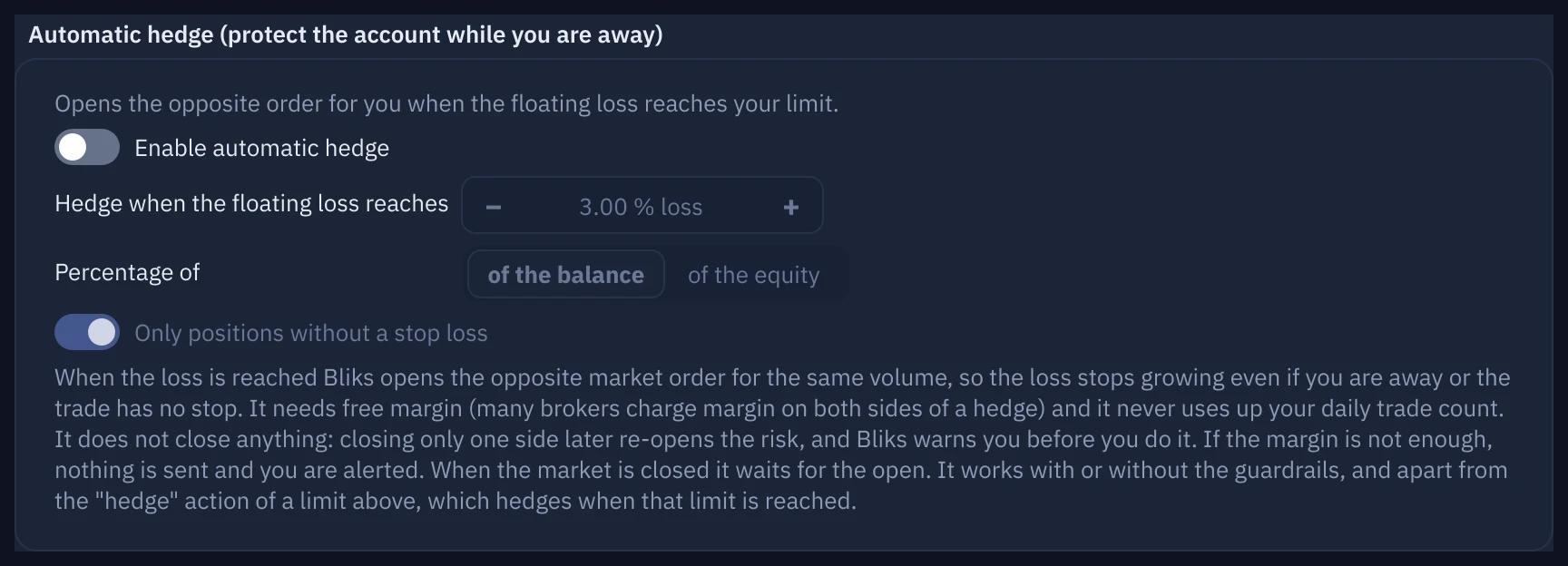
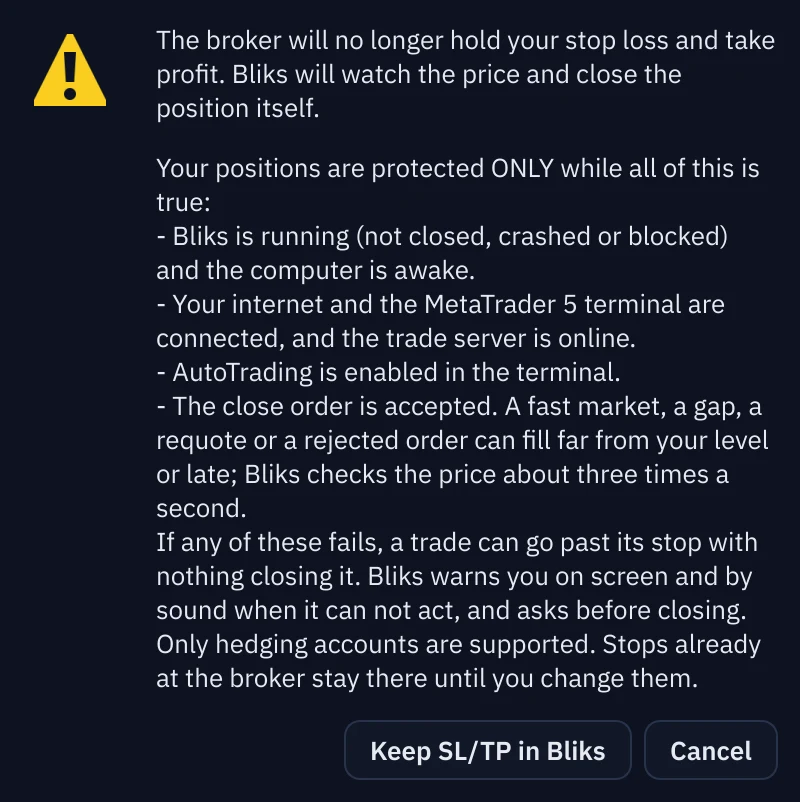
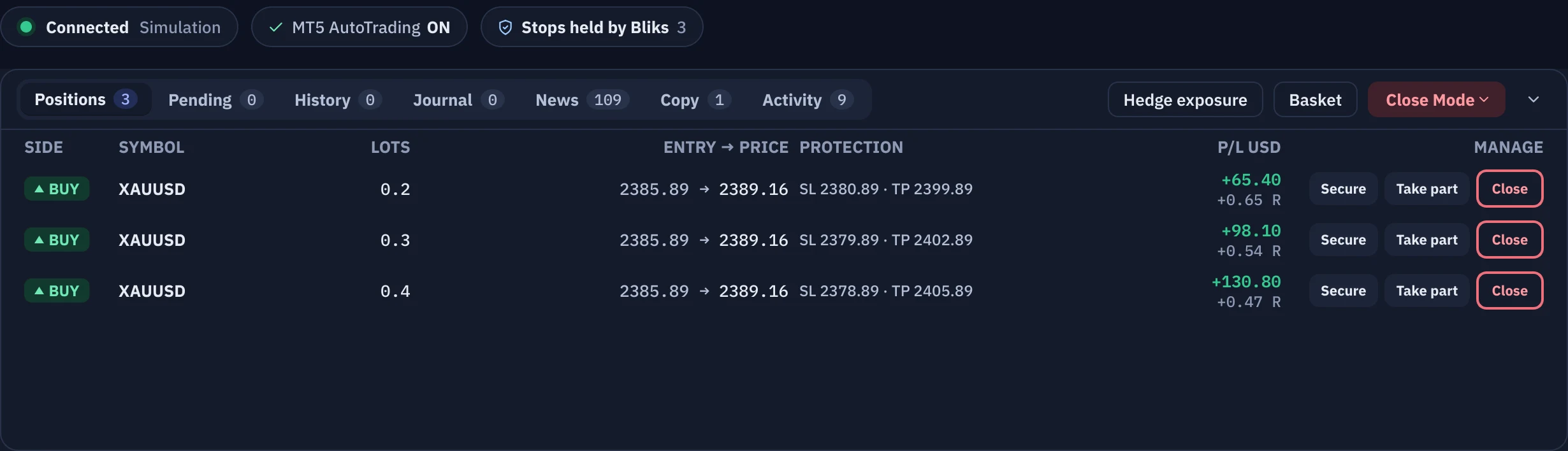
Chart and context
Chart toolbar
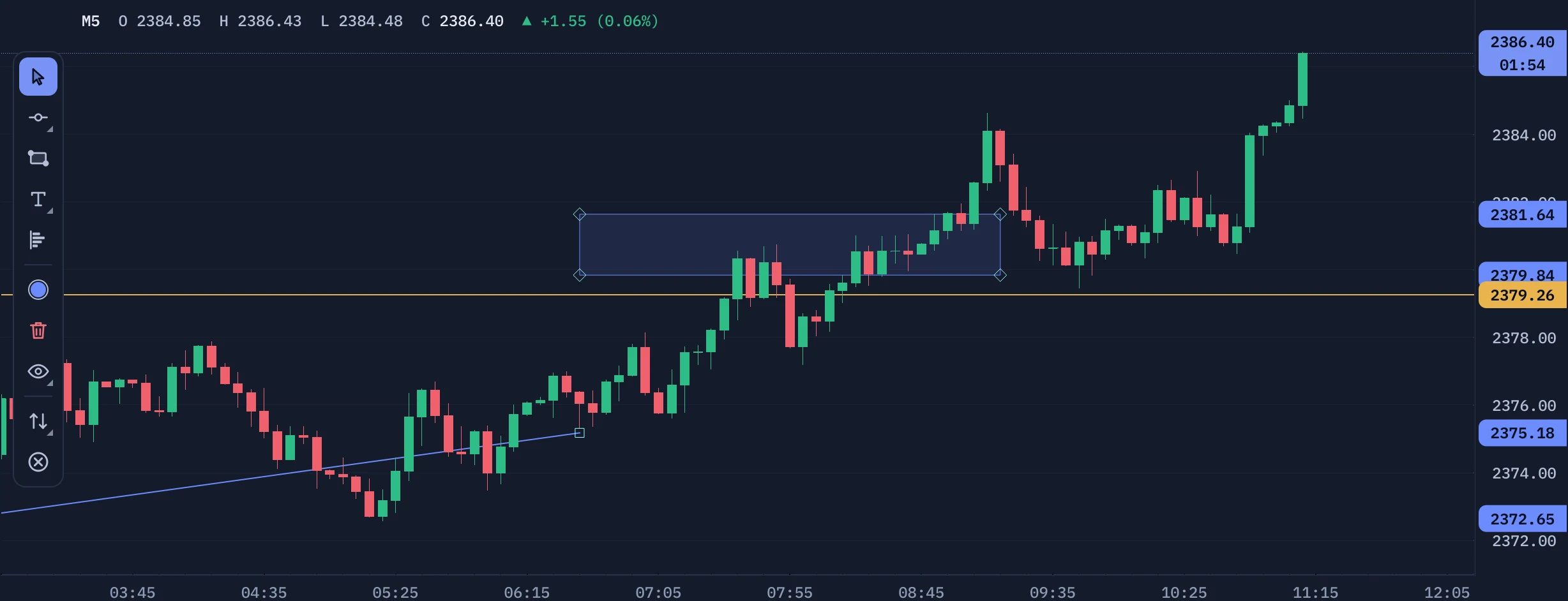
The symbol with its description, a timeframe control (M1 to D1, a menu for the rest and a custom interval) and BUY, TOTAL and SELL lot pills that show your open volume on the symbol.
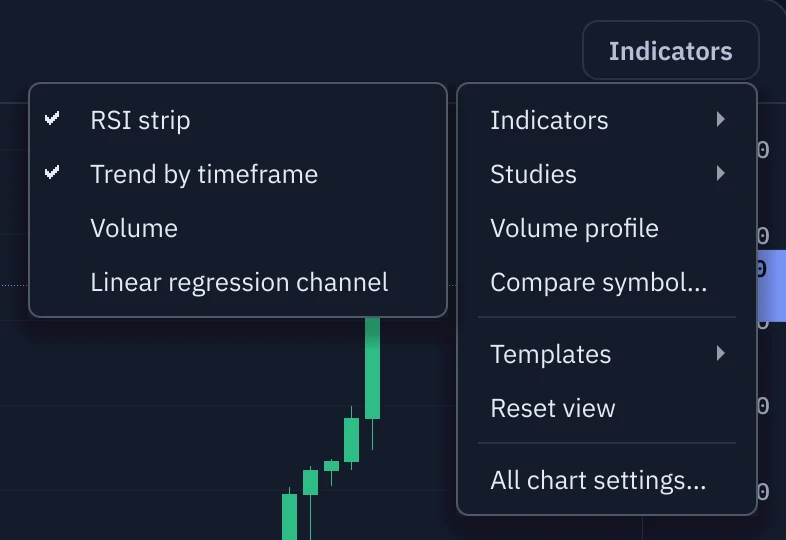
Indicators menu
Studies, volume profile, compare overlay, chart templates and Reset View in one menu.
Floating drawing palette
Select, horizontal line, trend line, rectangle, path, text, emoji and volume profile in a palette over the chart, with Long and Short setup and Close Mode inside it.
RSI for four timeframes
RSI for M5, M15, H1 and H4 on new installs under the chart, with three colours of your choice (at or below the lower level, between, at or above the upper level) and a Trend by timeframe row with its own switch. The state is written in words as well as colour.
Clean zoomed-out charts
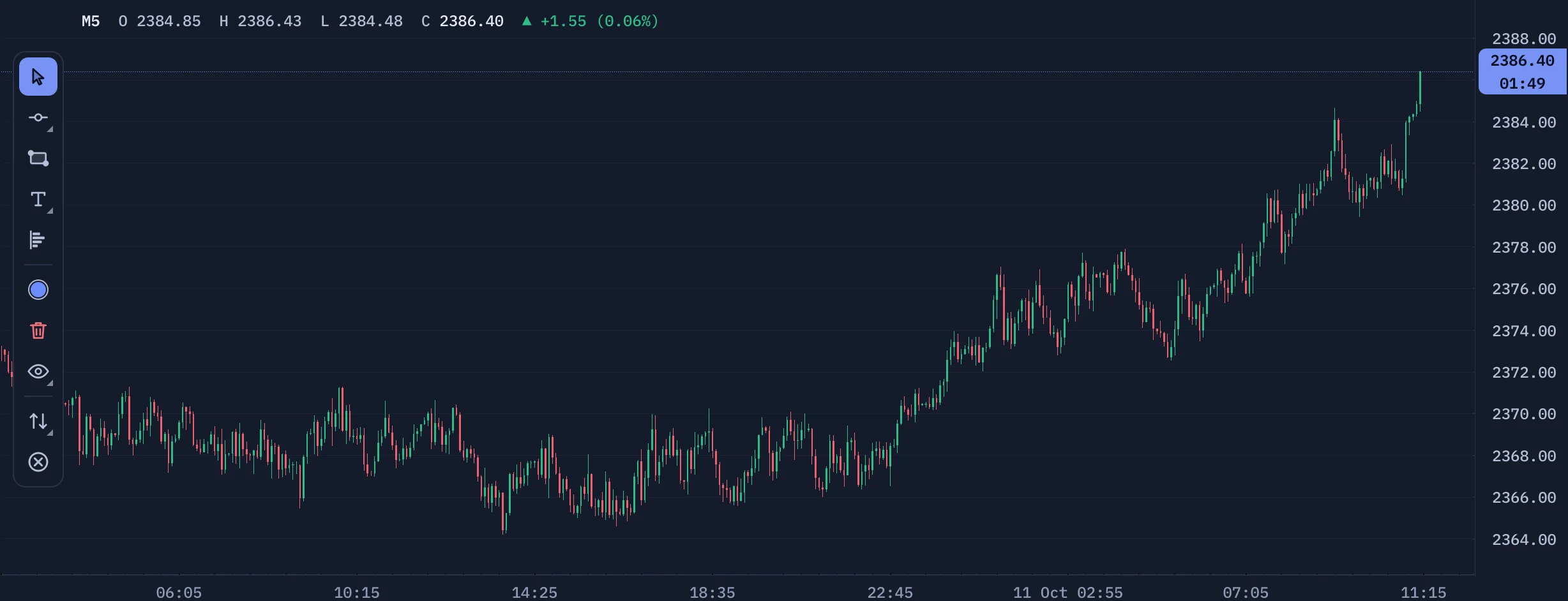
Zoom far out and candles turn into thin high-low lines with a gap between them, so hundreds of candles stay readable instead of fusing into a solid block.
MT5-identical indicators
Moving averages with MetaTrader's methods, Linear Regression Channel, multi-timeframe RSI, direction ladder.
Smart-money studies
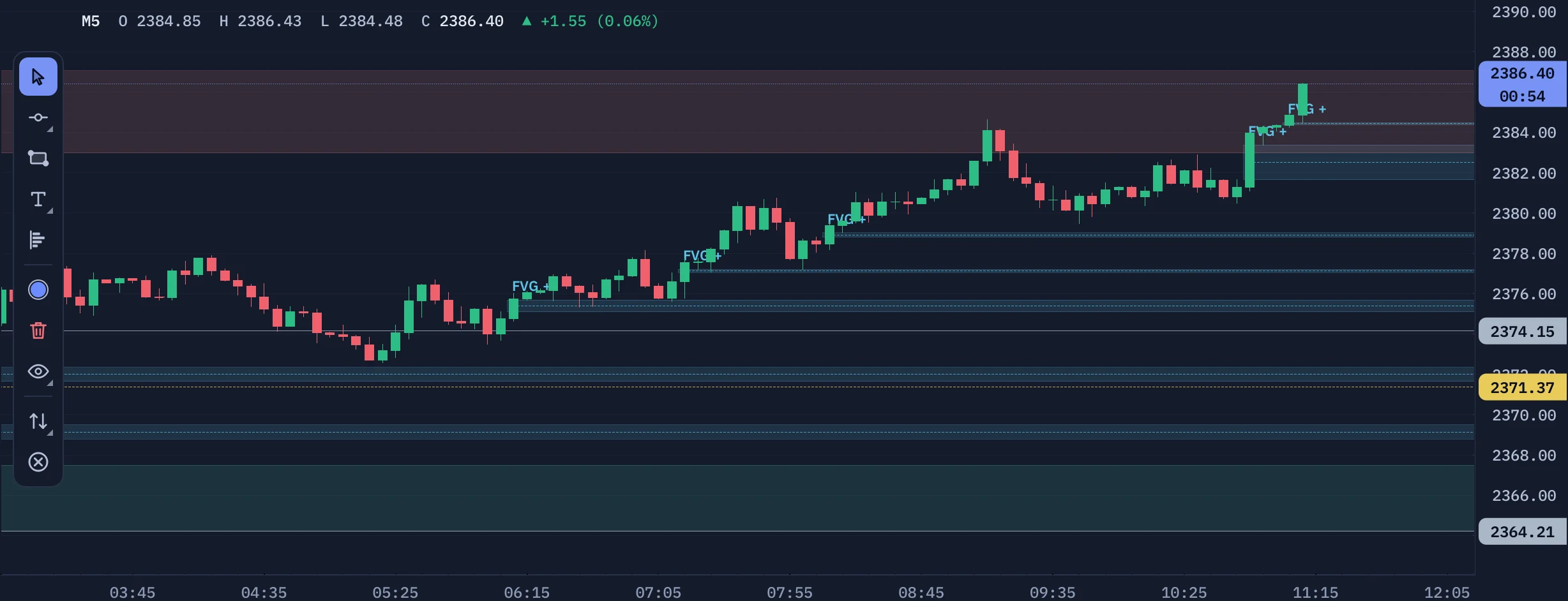
Fair value gaps and inverse FVGs with midpoints, supply and demand zones scored by strength on a higher timeframe, order blocks, structure shifts, liquidity, killzones, opening ranges, auto Fibonacci golden zone. Related studies share a card in Settings, and every zone has a fill and a border opacity of its own (25% border by default).
Session boxes and key levels
Session high/low boxes, Asian range breakout levels, previous 4H, day, week and month high/low with their own colours and price tags, daily open.
Compare overlay and mini charts
Overlay the dollar index on gold, watch up to three more symbols under the main chart, save chart templates.
Fixed range volume profile
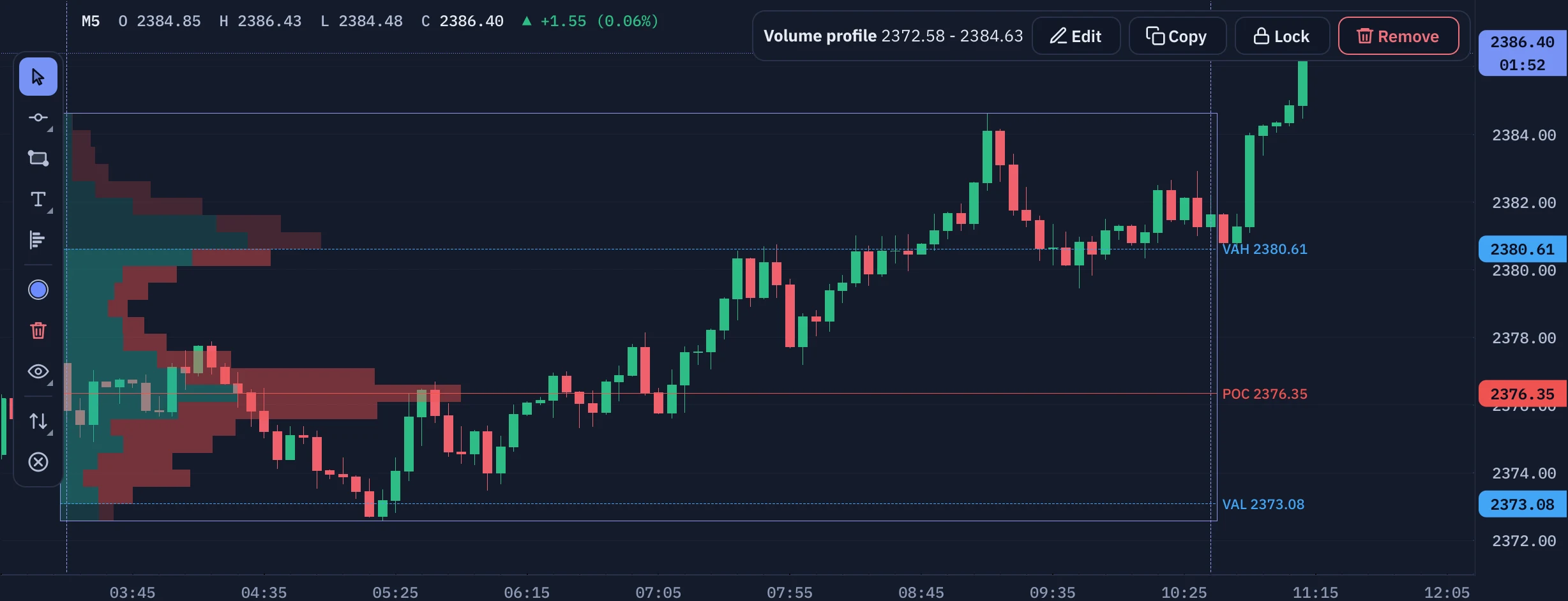
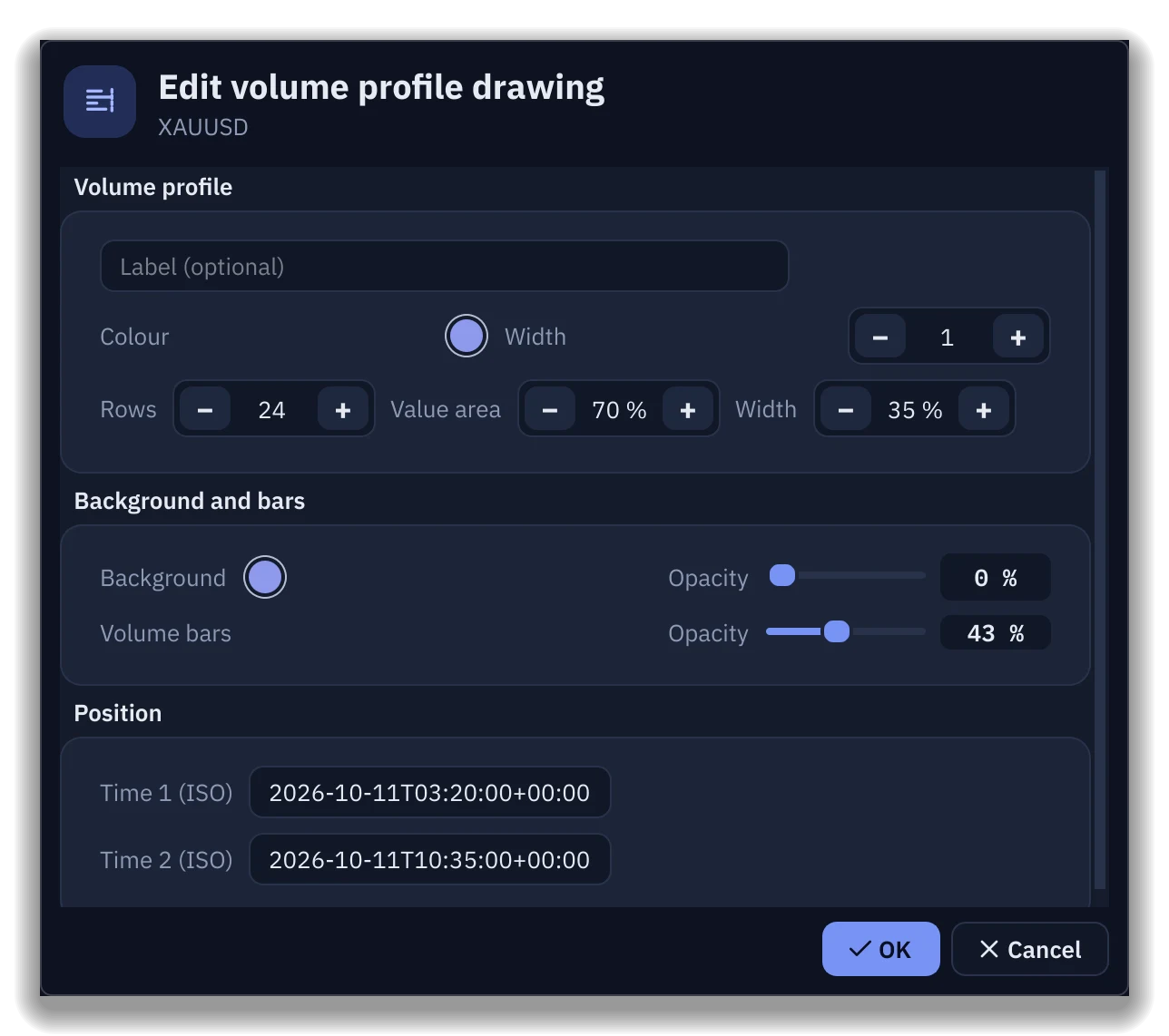
Drag a range on the chart for a TradingView-style volume profile with POC, value area high and low and an up/down volume split. Click it to Edit, Lock or Remove: rows, value area, width, background colour and opacity, and bars opacity.
Alerts on drawings
A trendline touch, a line cross or a zone entry fires a toast, a sound and a Telegram message.
Next event on the chart
The next high-impact release with countdown, current spread, ATR and the broker's stops level.
Text, emoji and path tools
Type text right on the chart in any installed font, with colour, opacity, background, border and drop shadow. Pick emoji from your favourites or any country flag. Draw paths. Pin any text or emoji to the chart window so it stays where it is when you zoom or scroll.
Edit with a live preview
Every change in a drawing's Edit dialog shows on the chart at once. OK keeps it; Cancel puts the drawing back exactly as it was.


Voice assistant and alerts
Spoken results
Take profit, stop loss, partial targets, closed trades and price-line alerts are spoken in plain sentences the moment they happen, in friendly or brief wording.
Amounts MetaTrader booked
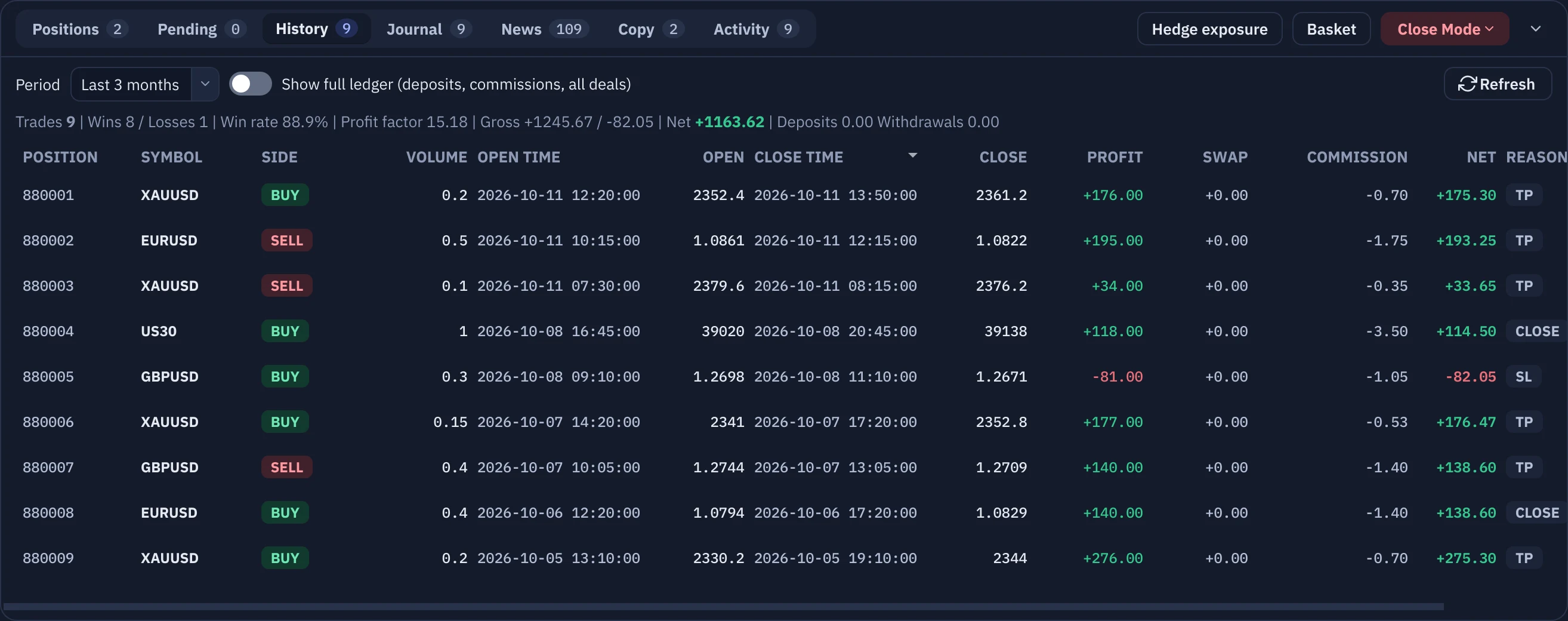
The profit or loss you hear is read from MetaTrader's own deals, including swap and commission, so it matches the Trade history tab to the cent.
17 spoken alert types
Price reached, take profit, stop loss, setup placed, activated and canceled, partial targets, closed trades, news reminders, market open, close and closing soon, connection, MetaTrader and AutoTrading status, account at risk and loss limits.
Alerts bell
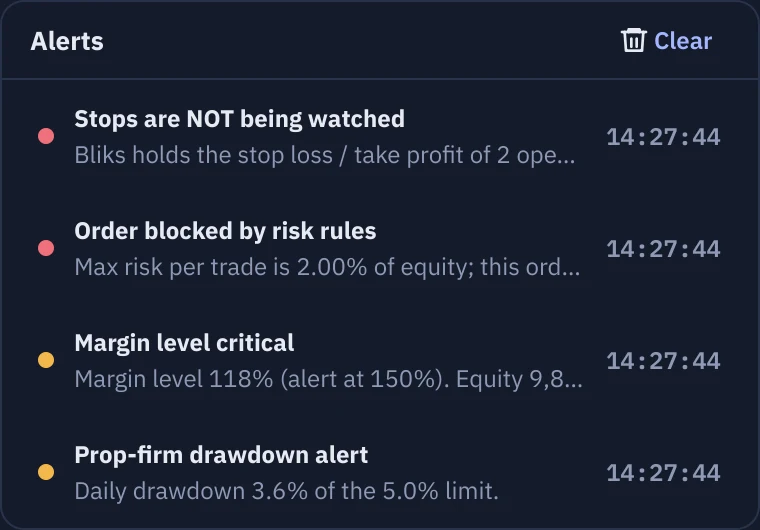
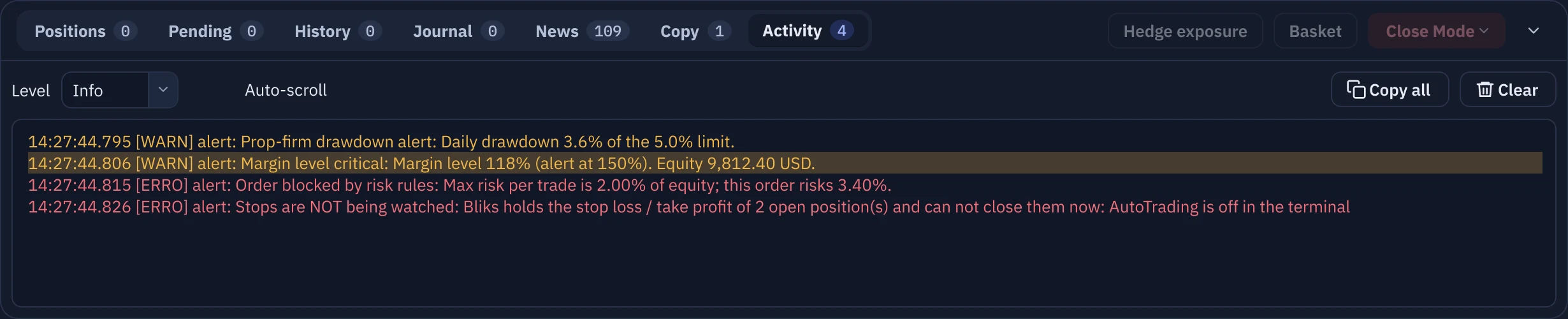
The bell opens a list of the latest warnings and errors with an unread dot. Click one to jump to it in the Activity tab, where the line is highlighted. Dangerous alerts stay on screen as tinted cards and escalate until you acknowledge them.
Instant and offline
The voice is built into Bliks: nothing is generated or downloaded while you trade, so it starts instantly and stays light on modest PCs.
Sounds per event
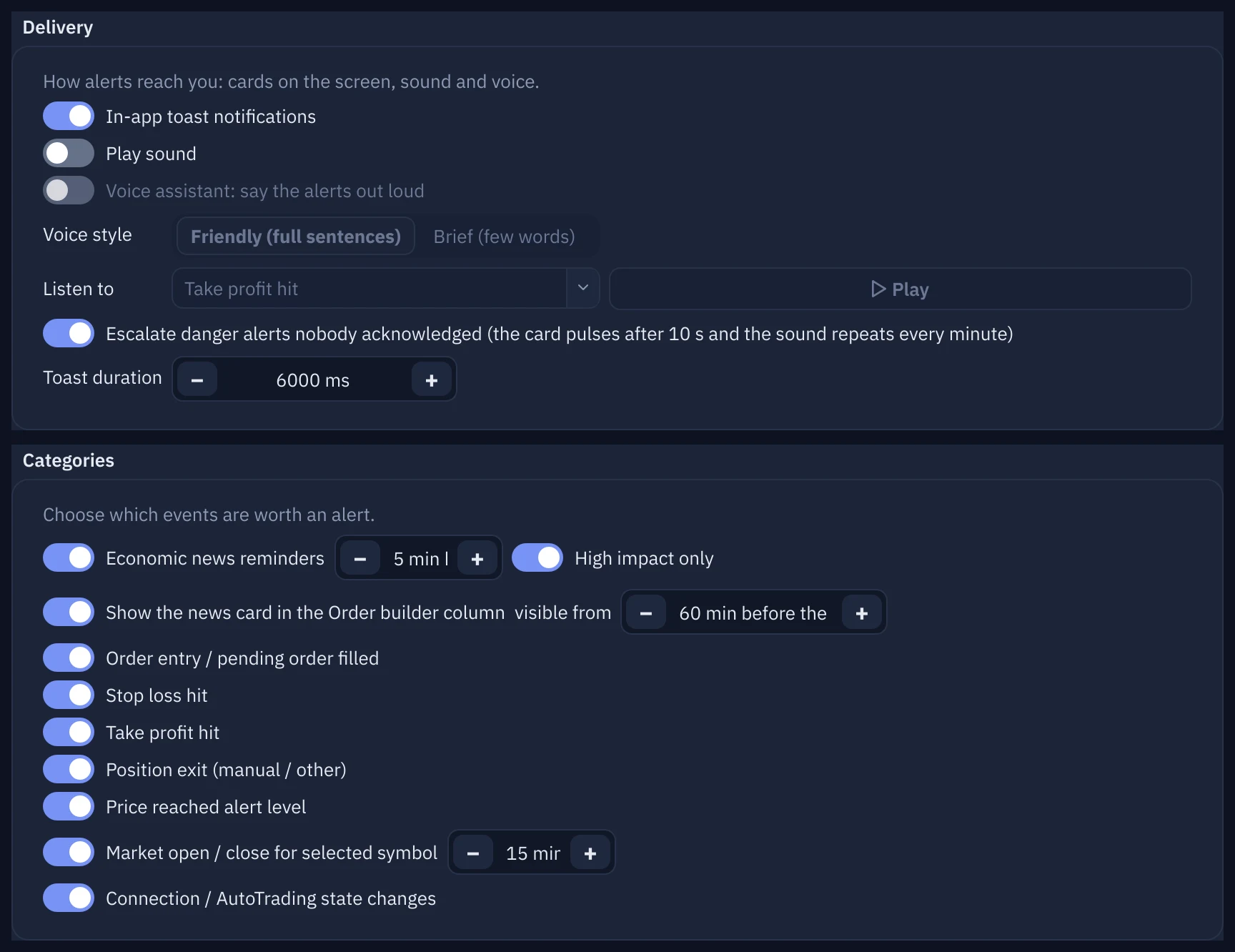
Every event also has its own sound effect, and a toast with the same message. Choose what speaks, what plays and what stays silent.
Five levels, tinted cards, escalation
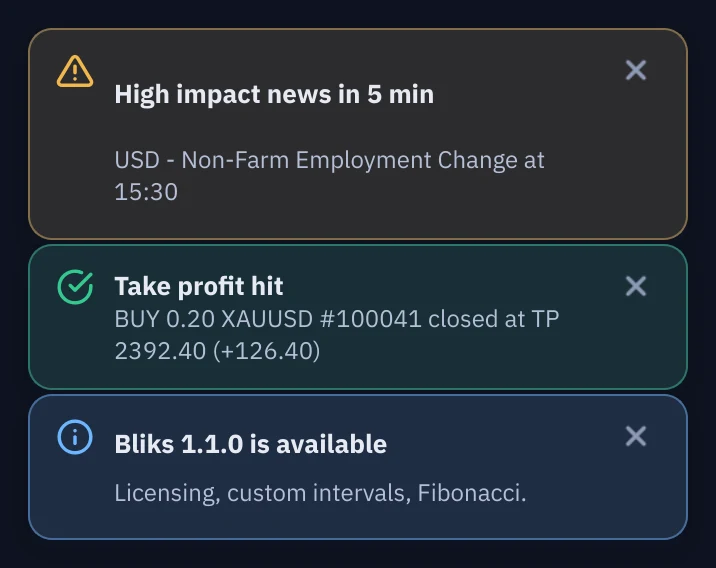
Info, success, warning, error and critical alerts are tinted cards. Errors and critical alerts stay until dismissed; if nobody acknowledges one it pulses after 10 seconds and repeats its sound every minute.
Journal and analytics
Automatic journal
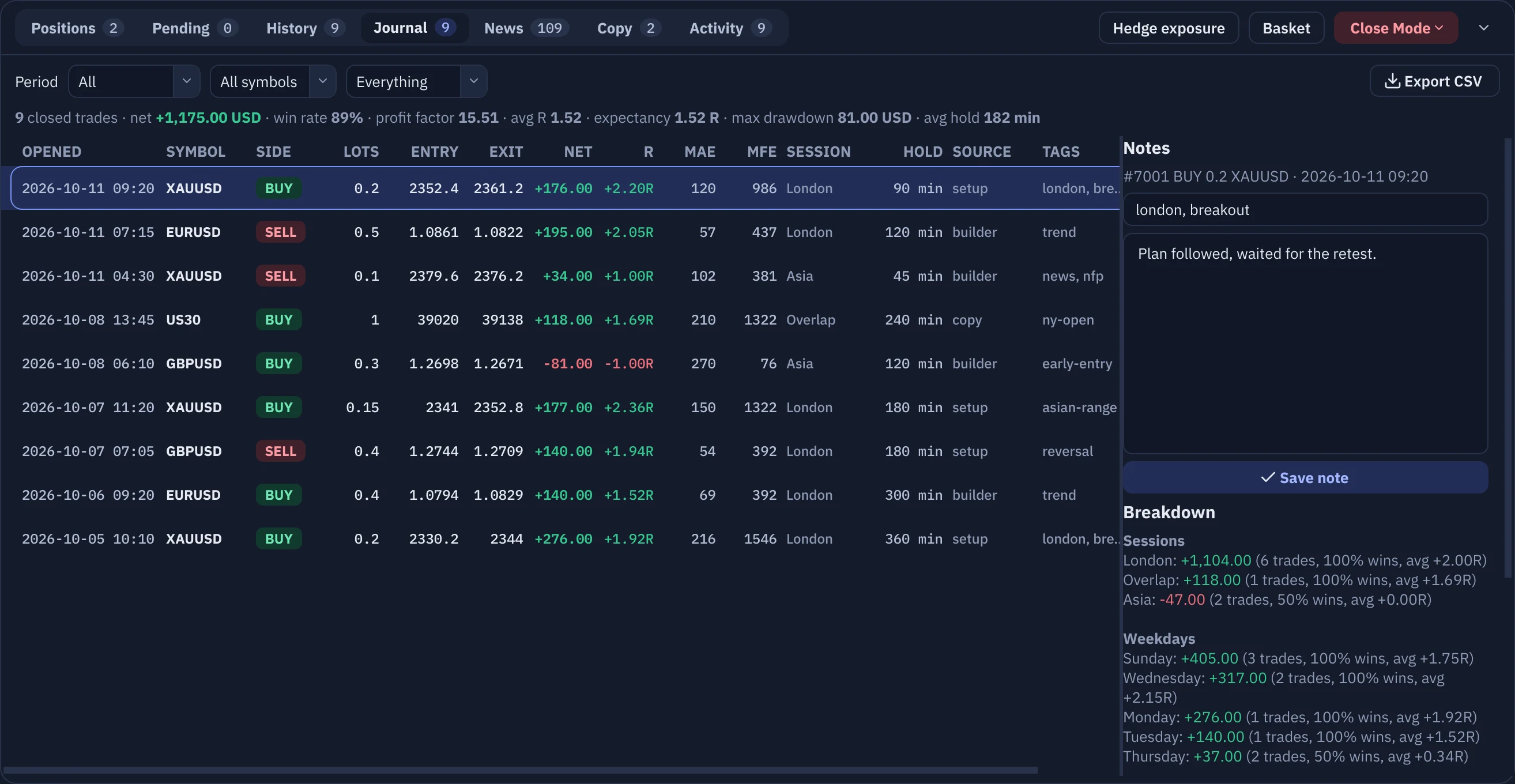
Every trade is recorded when it opens: initial risk, session, weekday, source, MAE/MFE while it runs, exact result from the broker's deals.
R multiples everywhere
Positions show their current R; the journal shows R per trade, expectancy and average R.
Weekly report
Win rate, profit factor, expectancy, drawdown, best and worst symbols and sessions, average hold time.
Notes, tags and screenshots
Tag trades, write what happened, and keep the chart at entry and exit.
Reach and copy trading
Telegram both ways
Notifications out; /status, /risk, /positions, /be and confirmed close commands in.
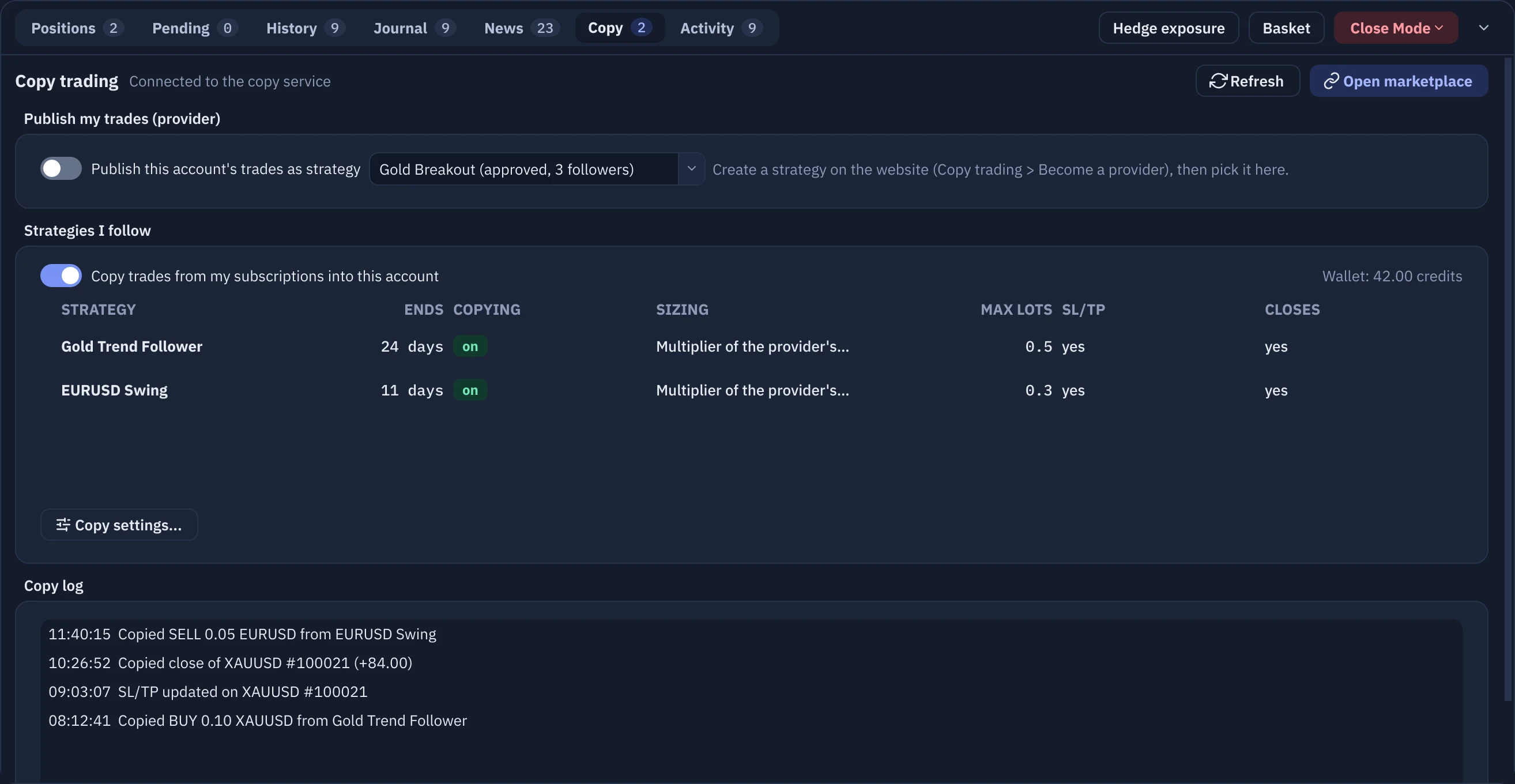
Copy trading marketplace
Follow strategies published by other Bliks users, in your own broker account, with your own sizing and guardrails; publish your own and earn.
Economic calendar relay
The calendar is relayed through Bliks so the app never hits provider limits.
Watch list
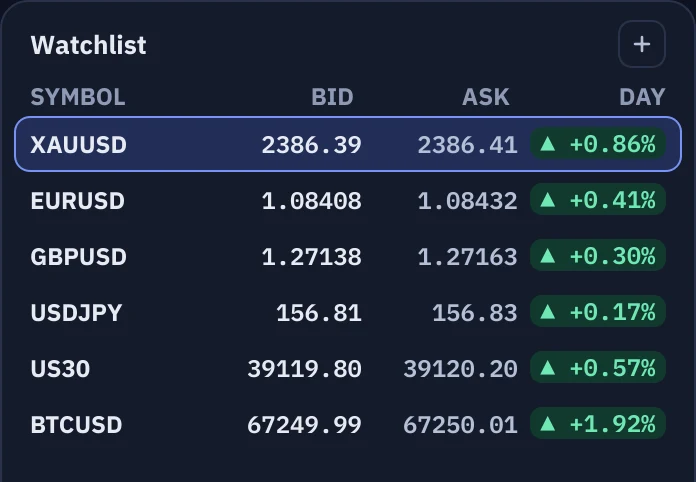
An MT5-style list with bid, ask and day-change pills; one click loads the symbol on the chart and in the Order Builder.
Make it yours
Language, theme and type
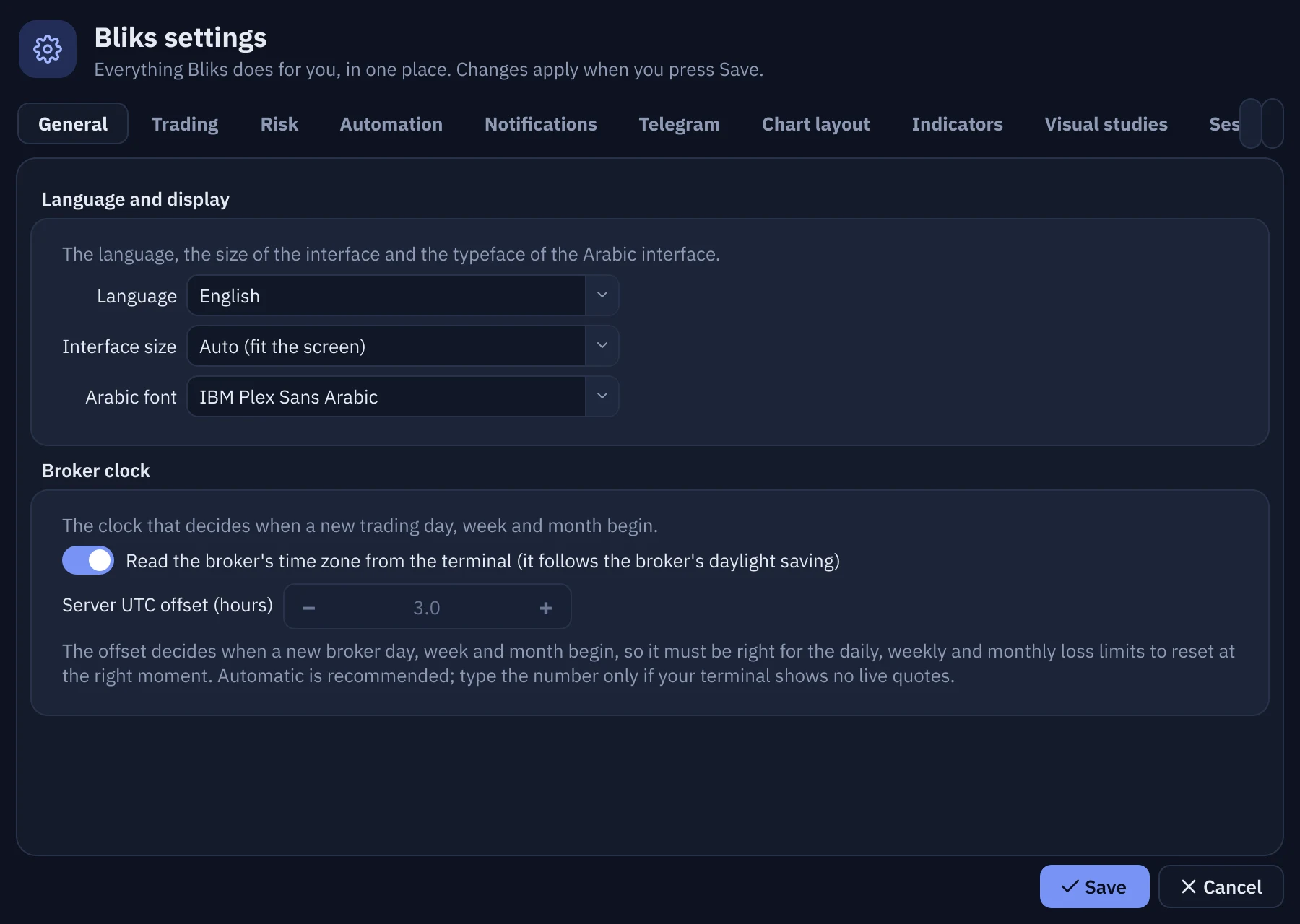
Switch between English and Arabic, dark and light, choose the Arabic font and the interface size, and set the broker clock that decides when a day, week and month begin.
Trading defaults
Set your defaults for new orders and the one-click switch. Every on / off option is a switch that turns its own options off, sliders show their value and colours are simple dots.
Automation page
Time rules and the emergency hotkey are on the Automation page; Telegram has a page of its own with live message previews.
Modern controls
Switches, sliders that show their value, colour dots, steppers and segmented choices, in cards with a line that explains each card. A switch that is off greys out only its own options.
New to Bliks?
The guide takes you from the first launch to every setting, step by step, with a picture for each step.